How to Connect Google Sheets to Your AI Agent
Learn how to connect Google Sheets to your AI Agent so it can automatically extract and record data, like invoice details, directly into your spreadsheet.
Your AI Agent can automatically save data - for example, extract invoice details using OCR and record them directly into a Google Spreadsheet.
This integration lets you automate data collection, keep everything organized, and eliminate manual entry - perfect for handling invoices, customer records, or reports.
Google Sheets with AgentX
With Google Sheets connected, your Agent becomes a smart automation assistant that updates your tables in real time, ready for analysis or sharing.
🧩 Step-by-step setup
Create a new Agent or edit one of your existing ones.
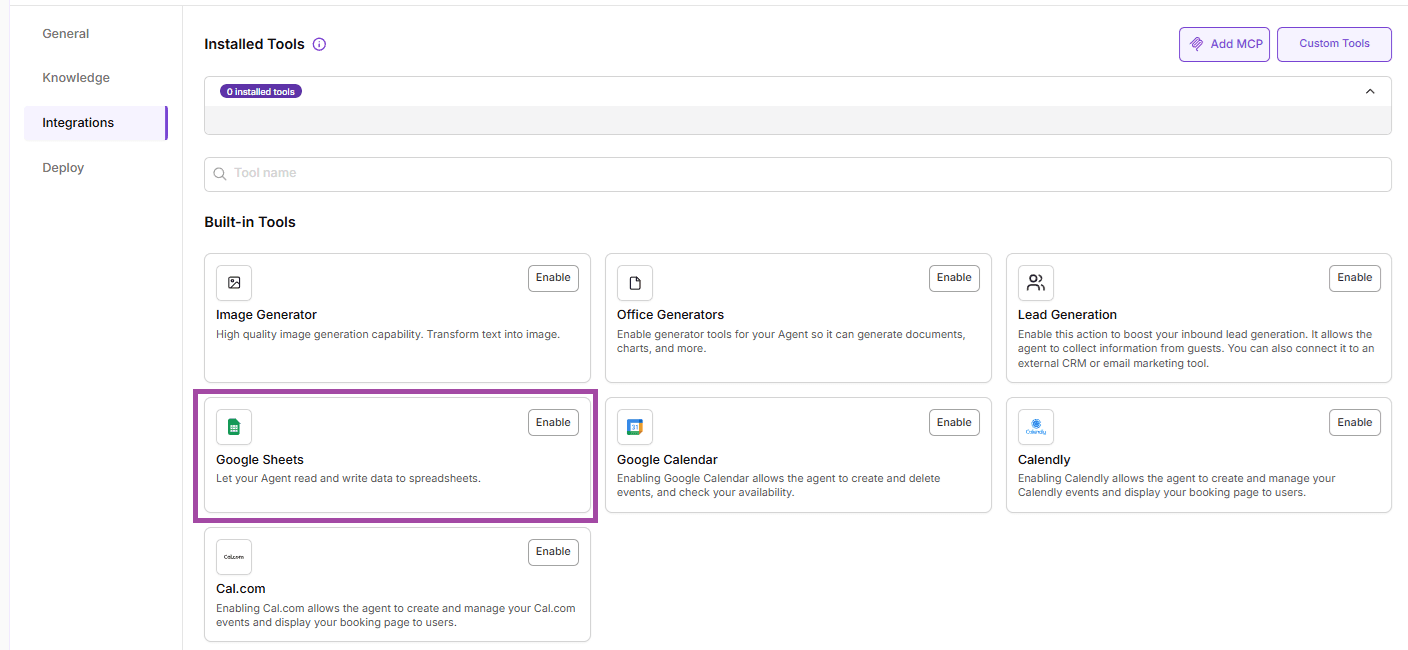
Go to Integrations
Open the Built-in Tools tab in your Agent’s settings.Select “Google Spreadsheet”
Find Google Spreadsheet in the list and click Enable.
Add your Google account
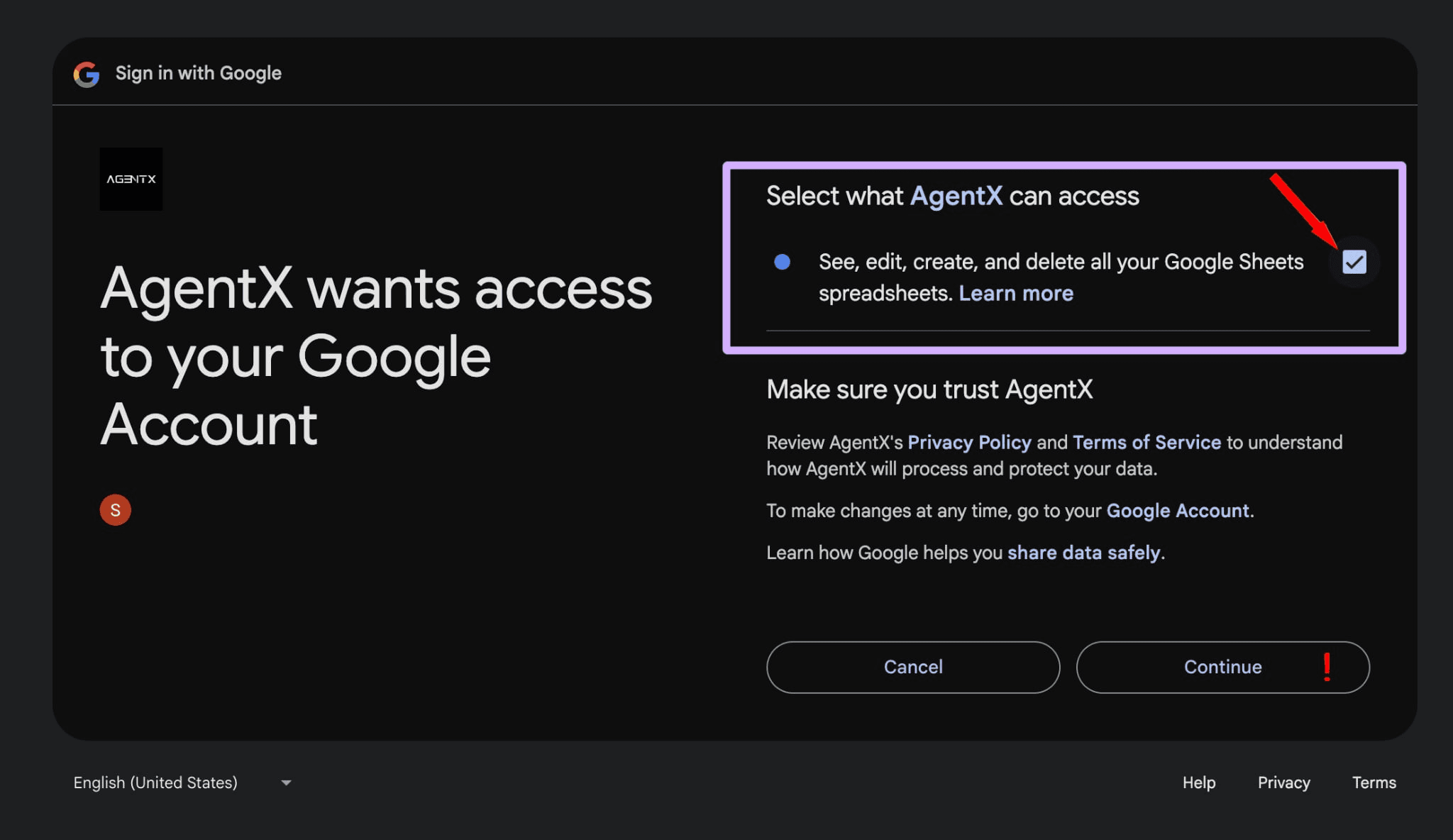
Click Add New Account and connect your Google account.⚠️ Important:
When connecting, make sure to allow AgentX full access to your Google Sheets - permission to view, edit, and delete spreadsheets is required.
Without this, your Agent won’t be able to save data.
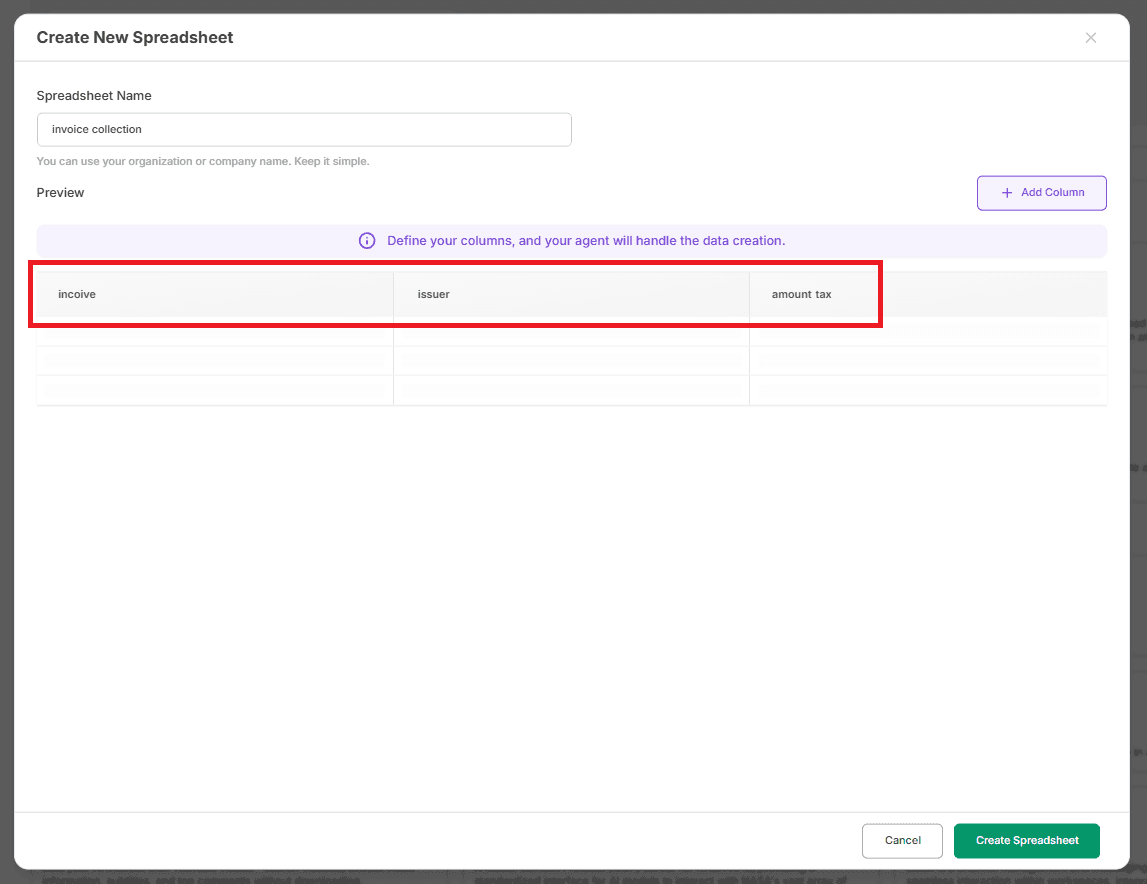
Add a new sheet
After connecting your account, click Add New Sheet
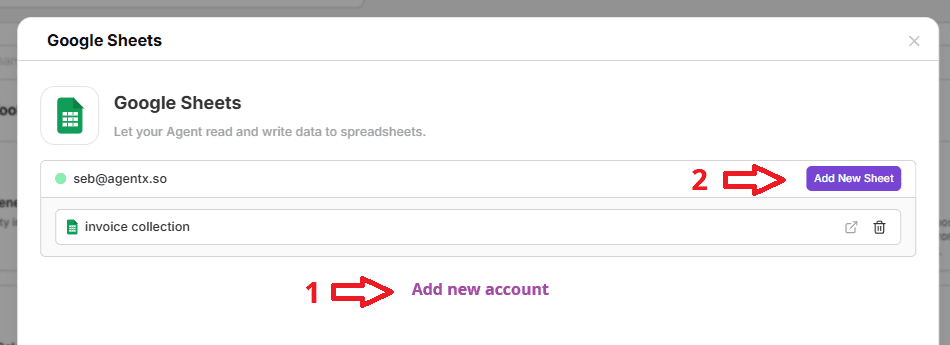
and set up your columns, e.g.:
Save the setup
Click Save - that’s it!
Your AI Agent can now extract invoice data and automatically record it in your Google Spreadsheet.
🧩Alternative option
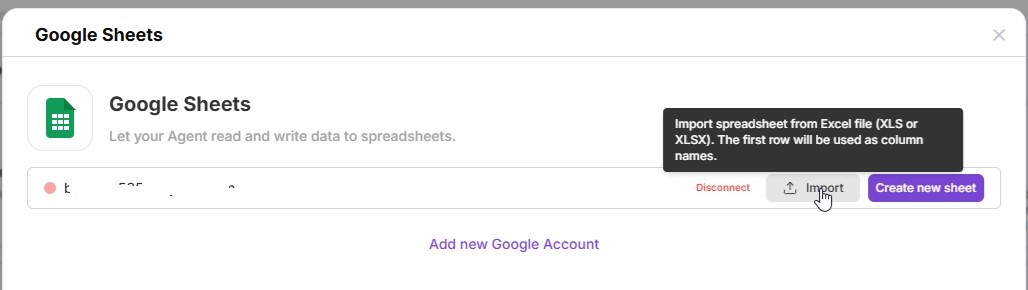
You can upload ready to use file