
How to Deploy an AI Agent to WordPress
This tutorial provides a simple, step-by-step guide to integrating an AgentX AI chatbot into your WordPress website, helping you boost engagement and automate customer interactions. Ask ChatGPT
Wordpress Setup | AgentX
Want to boost your WordPress website with a smart AI chatbot? Integrating an AI agent can supercharge your user engagement, automate support, and create a modern, interactive experience. Here’s how you can quickly deploy an AI chatbot from AgentX on your WordPress site - even if you’re a beginner!
Step 1: Create Your AI Agent with AgentX 🤖
Before you add a chatbot to WordPress, you need to build your AI agent:
Visit AgentX’s Beginner’s Guide.
Follow the steps to set up your AI agent, customize responses, and configure basic settings.
Already have an agent? Skip to Step 2!
Step 2: Configure Deployment & Copy the Embed Code 📝
On AgentX, go to the Deploy section:
Enable Website Embedding: Toggle “Enable” for Website Embedding.
Customize the Chat Widget:
Style: Choose between Floating or Inline chat.
Floating Position: Left, center, or right on your page.
Floating Icon Size: Adjust to fit your site design.
Style Set: Pick Rounded, Square, or Classic look.
Color Theme: Match your website’s color palette.
Rebranding (Pro feature): Upgrade to Pro for white-label & custom branding options. See pricing
Authorized Domains: For extra security, add your website (e.g., https://yourdomain.com) to restrict the agent to specific domains (optional, but recommended).
Chat File Upload: By default, uploaded files are analyzed by the agent. Enable “File Upload as Attachment” if you want users to send files (like print-ready images or documents) as direct attachments, not processed by the AI.
Most important:
Find the unique JavaScript embed code under “Embed,” and click Copy.
Note: If you use Next.js and have issues, select “Next.js Embedding.”
Step 3: Clean Up Existing Chatbots (if any) 🧹
Before installing your new agent:
Remove any pre-installed chatbots from your WordPress site to avoid conflicts or multiple bots showing up at once.
Step 4: Install a Code Snippet Plugin 🔌
To add your AI agent code, you’ll need a plugin:
Install a plugin like WPCode (Insert Headers and Footers): Download from WordPress.org
Activate the plugin on your site.
Step 5: Paste the Embed Code into WordPress 🌐
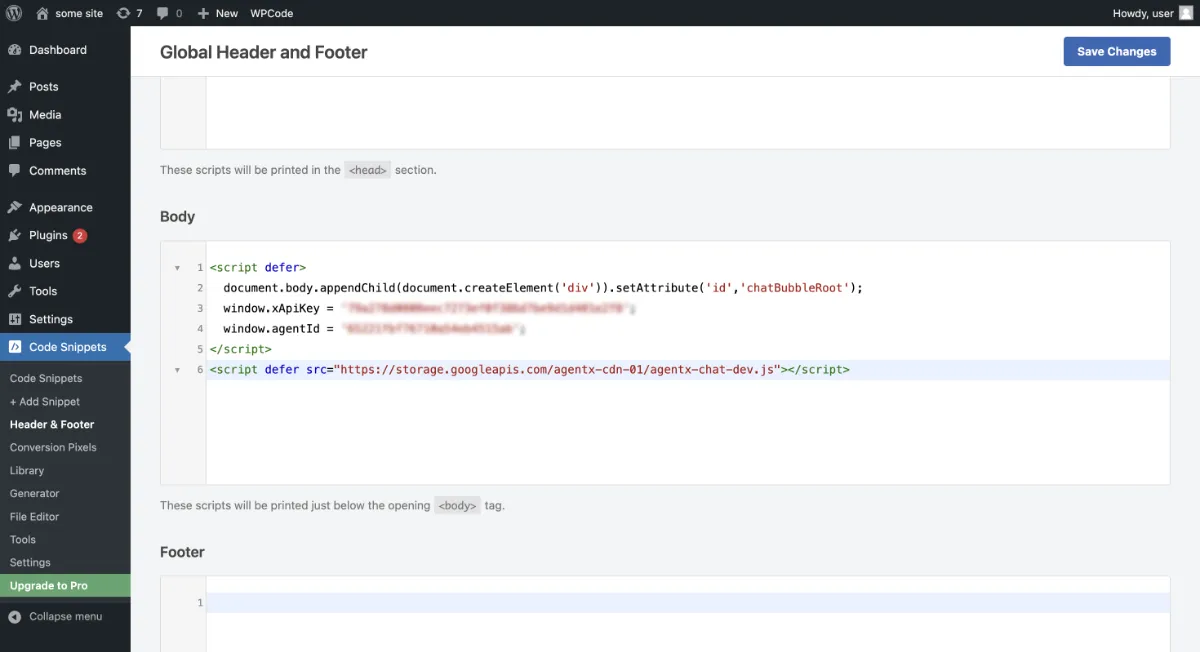
Open WPCode or your chosen snippet plugin.
Go to the “Body” or “Footer” section (depending on plugin options).
Paste your AgentX JavaScript embed code.
Save or update settings.
Step 6: See Your AI Chatbot in Action! 🤖
Visit your WordPress site.
Your AgentX AI chatbot should appear, fully integrated and ready to engage your visitors!
Why Add an AI Chatbot to WordPress?
By integrating an AgentX AI chatbot with your WordPress website, you’ll instantly boost:
❤️ User engagement and retention
🕒 24/7 automated support
🎯 Personalized customer experiences
🔍 Valuable user insights
Getting started is quick and easy.
Ready to transform your website? Create your AgentX account now and start building a smarter, more dynamic WordPress site today!
More
Check out more tutorials to find how to deploy to website builders, such as:
