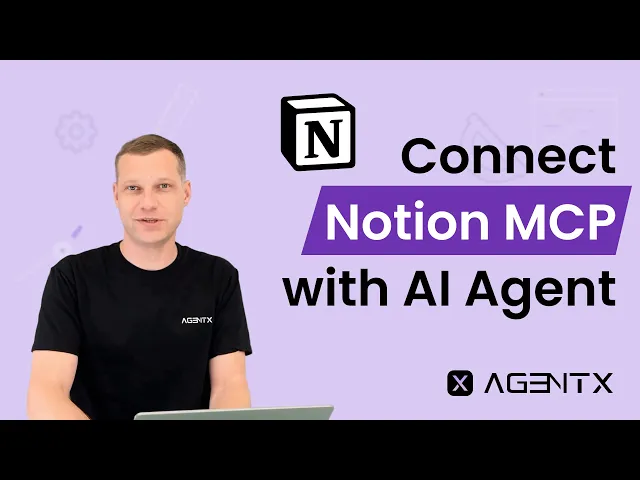

How to install a Notion MCP to your AI Agent
A better Notion MCP server - Enhance Notion experience with AI Agent integration on AgentX.
Integrating your favorite tools with AI Agents can supercharge your workflow. With AgentX, you can connect various Model Context Protocol (MCPs) like Notion, enabling your AI Agents to access, organize, and act on information stored in Notion workspaces. This guide walks you step-by-step through adding a Notion MCP to your AI Agent on AgentX.
How to install Notion MCP Server?
Prerequisites
Before you get started, make sure you have the following:
An AgentX account. (Create an account if you do not have one yet - it's free!)
A Notion account (with workspace permissions for the data you want your agent to access)
(Optional) Admin rights of Notion account if you are planning to use Team workspace.
Step 1: Select an agent that you want to integrate with Notion
Log in to your AgentX dashboard.
Select an existing agent or create a new agent (Learn how to create an agent).
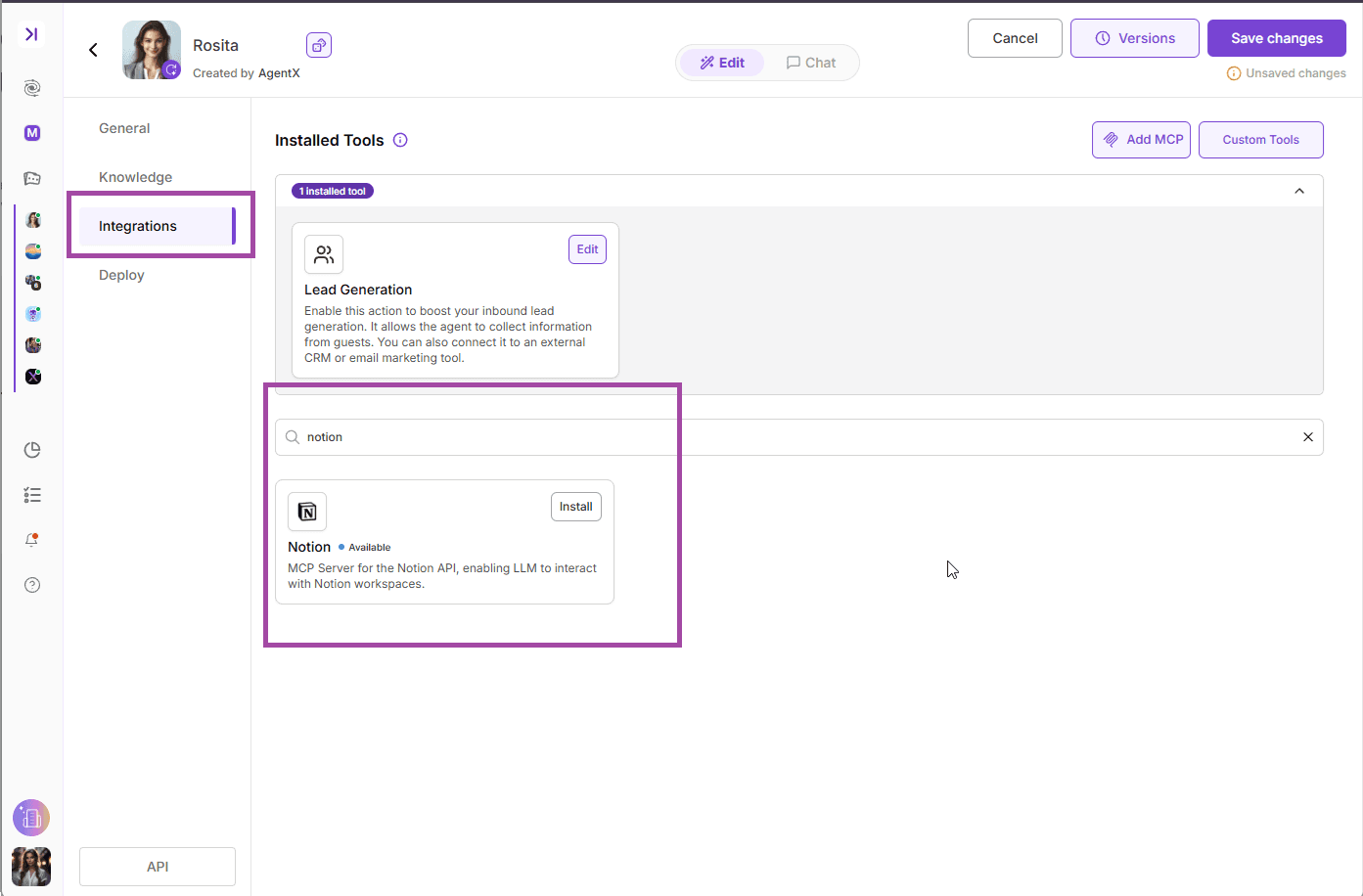
In the Edit page, navigate to the INTEGRATIONS tab.
Find Notion and click "INSTALL" to install. (See image 1)
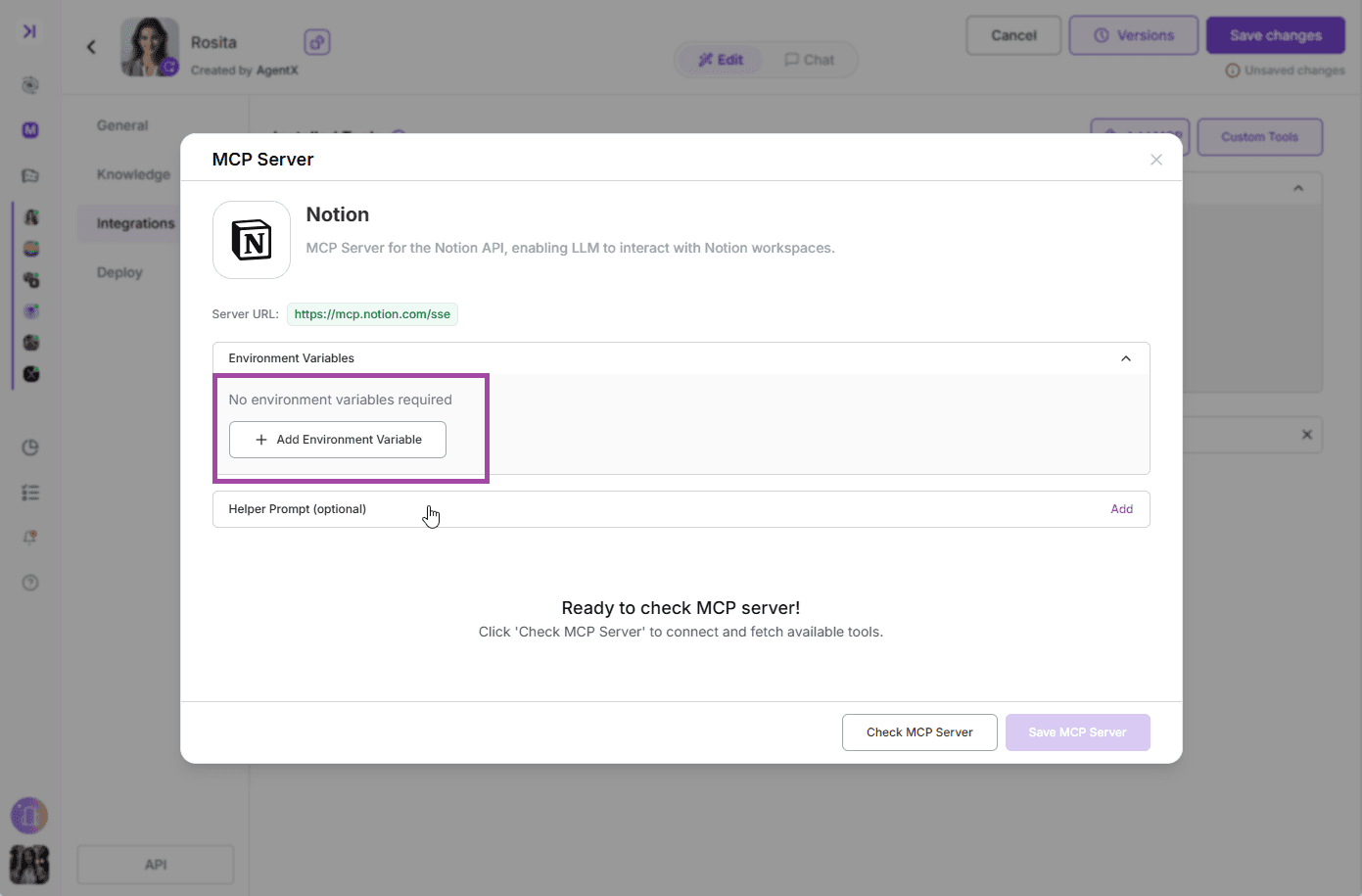
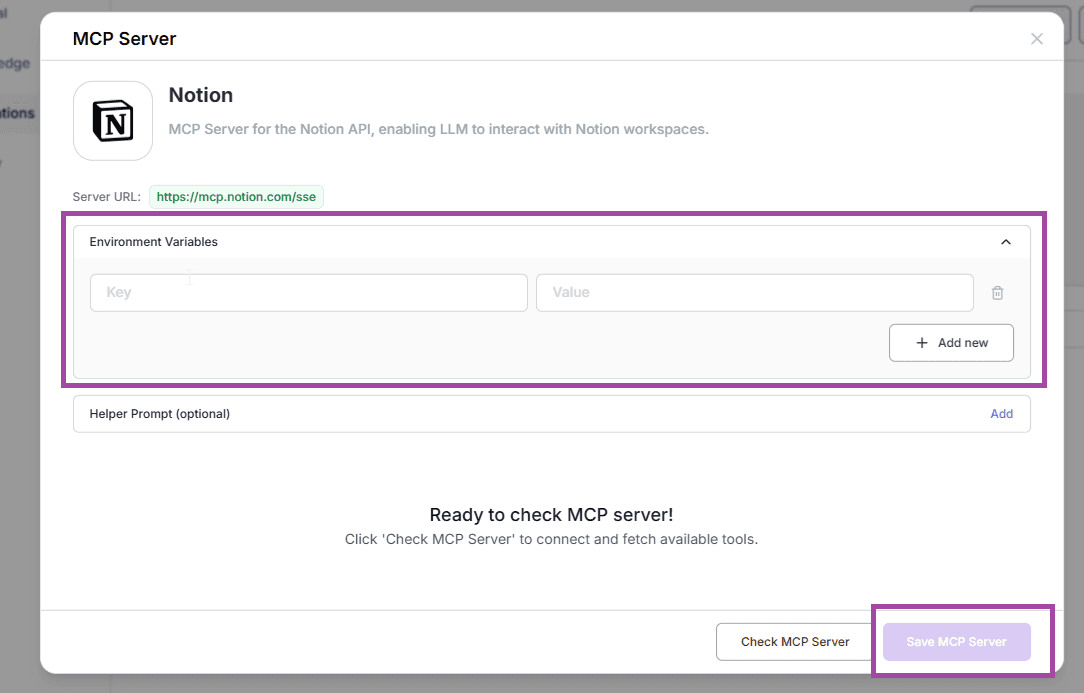
Now you will see a pop-up asking for your Environment Variables. Select "+Add Environment Variable" (See image 2)
Let's move to Notion to find the token.
Step 2: Find Notion API token and set the right permission
Log in to your Notion account and navigate to the integrations page.
You can go to that page by the link: https://www.notion.so/profile/integrations
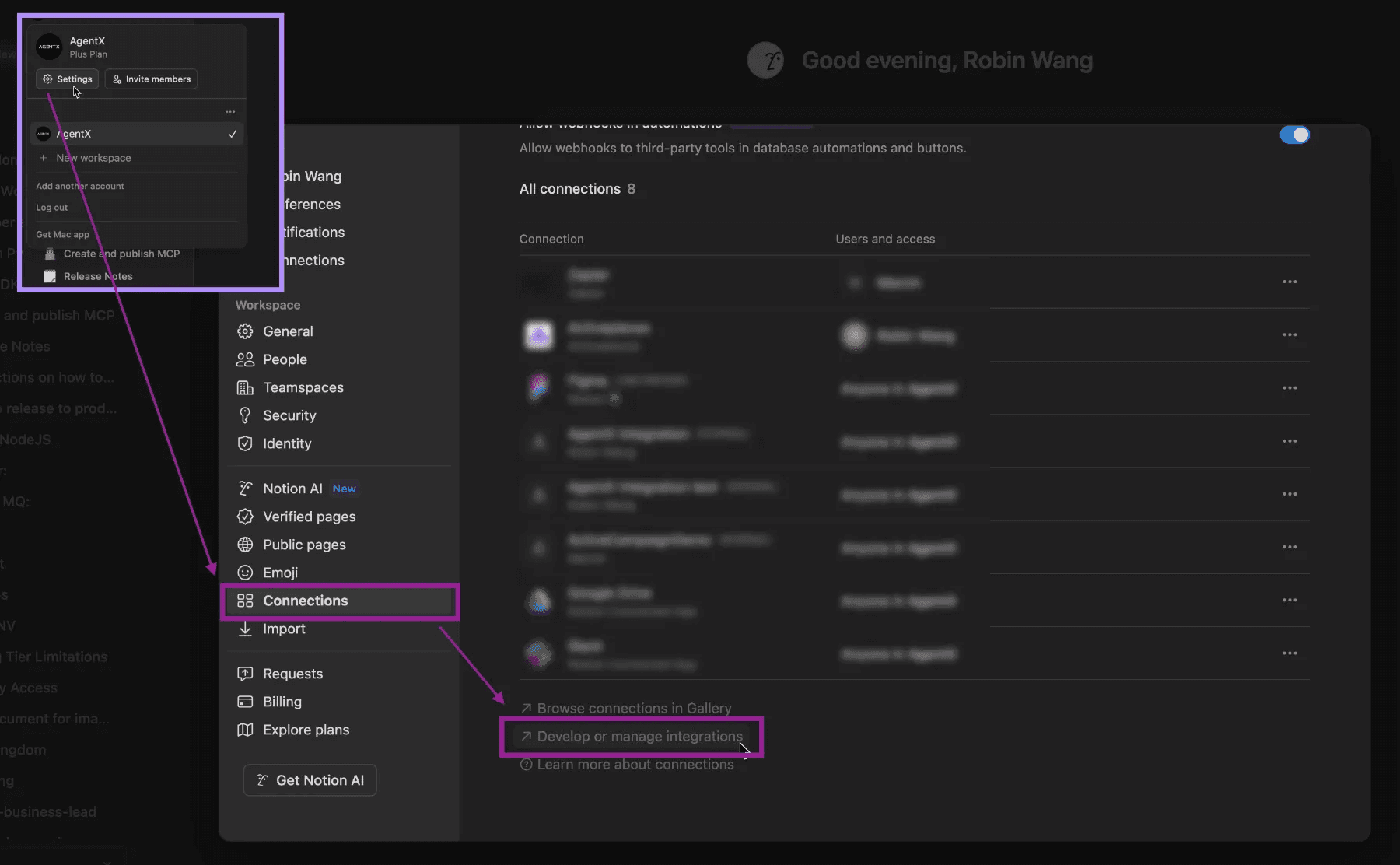
Or you can find it on the settings page:
Click your profile in the top left corner and click Settings.
In the pop-up window, click Connections. (If there are two buttons called Connections, either one works).
And then scroll down, click Develop or manage integrations. (See image 3)
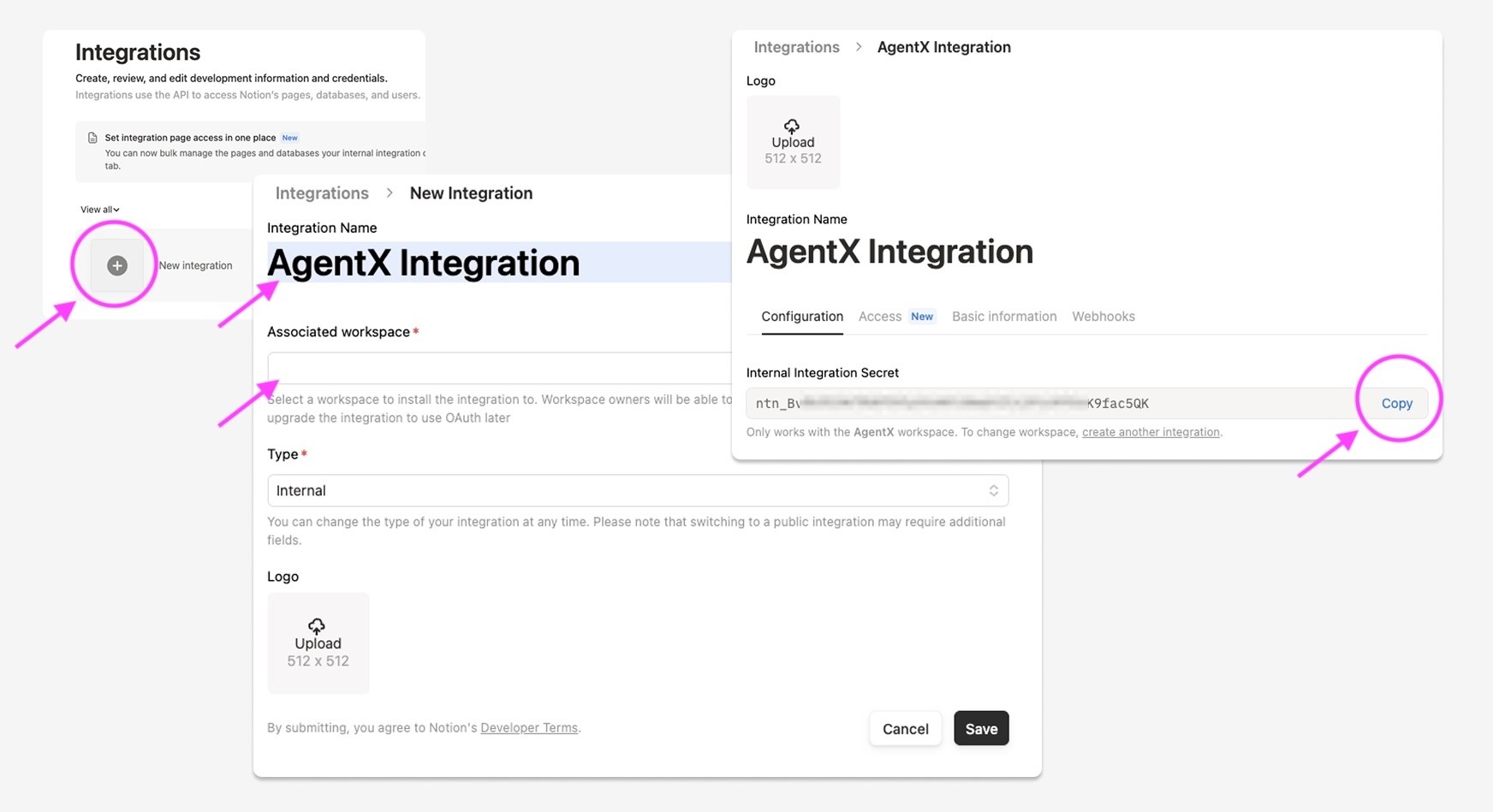
Once you are on the Notion integrations page. Create a new API token. (See image 4)
Click New Integration.
Pick a name for the integration. Like "AgentX Integration".
Choose a workspace to integrate with.
Now you have successfully created your Notion API token.
[Important] Don't leave the page so soon, you will need to set up the correct Access permission too.
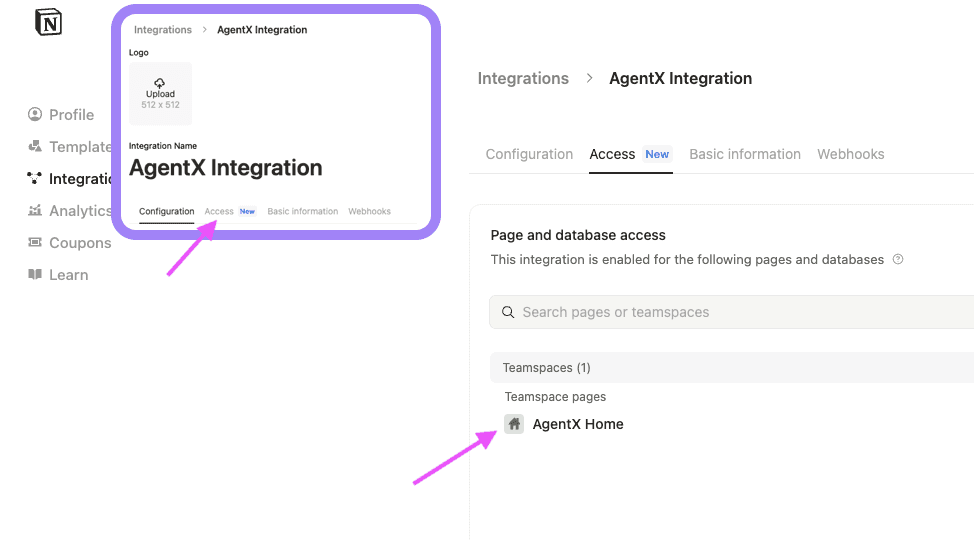
Set up the correct Access for the integration. (See image 5)
Click the Access tab.
Choose the workspace and page that you want the AI agent to have access to.
Note: i) Your agent will not have any access to pages that are not included in the Access setting. ii) Selecting the parent page will give access to all sub pages.
Step 3: Copy and Paste Notion API token to AI agent on AgentX
Go back to AgentX AI agent edit - Notion MCP setup page.
Copy and paste the Notion API Token that you just created into the Environment Variable field. (See image 6)
Click Check MCP Server.
If everything goes well, you should see a list of available Tools.
Then, Click Save MCP Server.
Congrats🎉! Now your AI Agent is successfully integrated with your Notion workspace!
Let's see it in action.
Example: "Write a joke about growth in the Growth page". (See image 7)
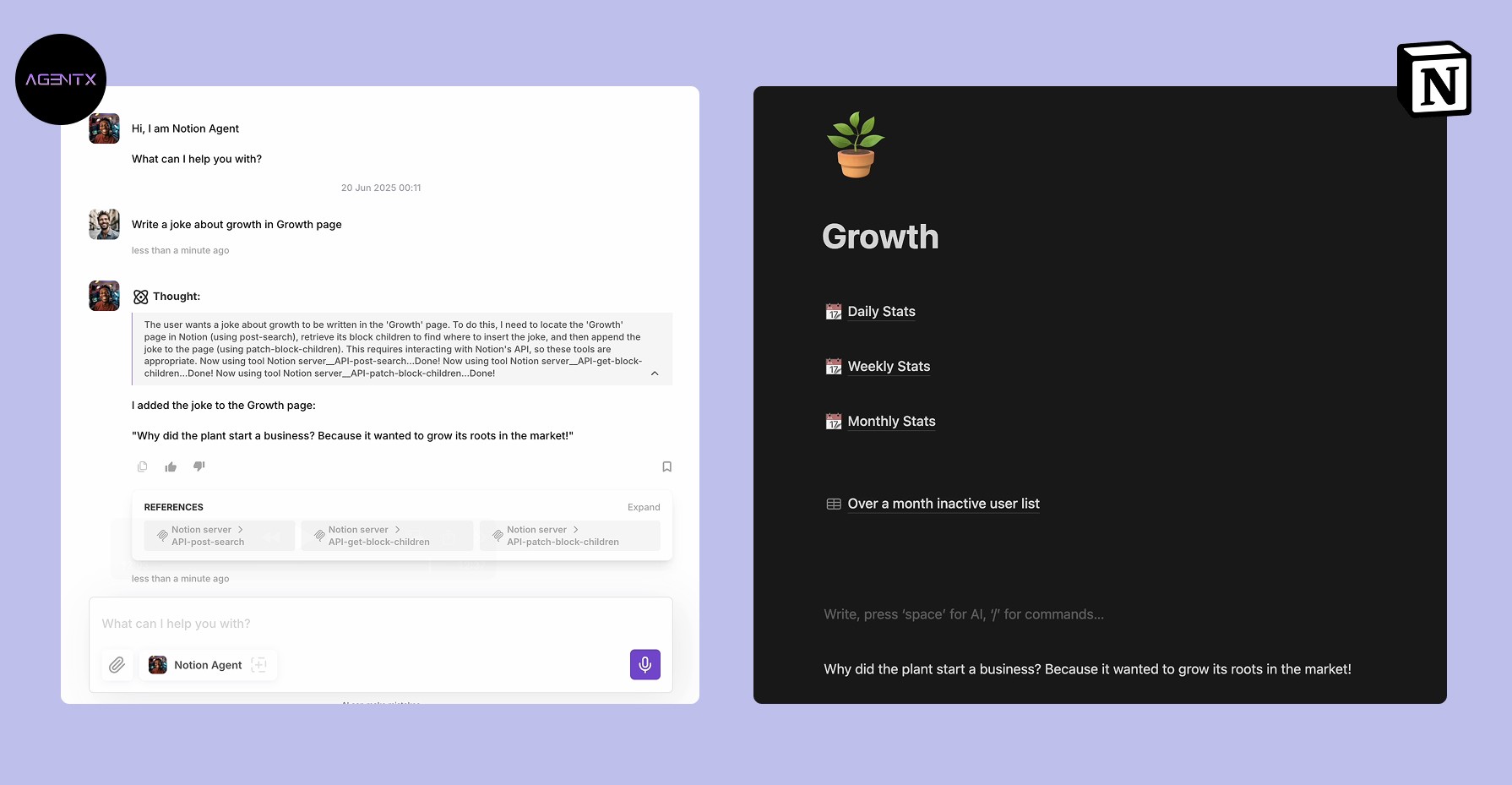
You can see how the AI agent finishes the task by:
Searching for the page with the name "Growth" and finding its page ID.
Locating the sub-blocks on the page.
Write the content in a new block at the bottom of the page.
All those actions and the decision-making process occurred autonomously and were transparently reflected in the chain of thought.
Final thoughts
Connecting Notion to your AI Agent in AgentX opens up a world of productivity possibilities. Now, you can let your AI do the heavy lifting-searching, organizing, and acting on your Notion data so you can focus on what matters most.
There are many more use cases and other MCPs you can explore with AgentX, too.
We will continue to publish more curated MCP servers on our MCP Hub.
And we committed to giving back to the community by providing an open-source, license-free MCP server here. - Find More Open-Source MCP Servers
