
Presentation Tutorial Guide
Learn how to generate a presentation from a chat, file, or transcript, then edit and export the finished deck from AgentX.
Most slide decks die in the outline stage. You open the file, stare at the cursor, juggle three tabs of “inspiration,” and an hour later you have two bullets nobody likes. AgentX flips that loop: you hand the agent a goal, a transcript, or a raw doc — it hands you back a presentation you can reshape in plain English.
This guide covers both halves: generating a deck, and editing & exporting it. Open the interactive guide in each section to see the exact UI.
How to generate a presentation
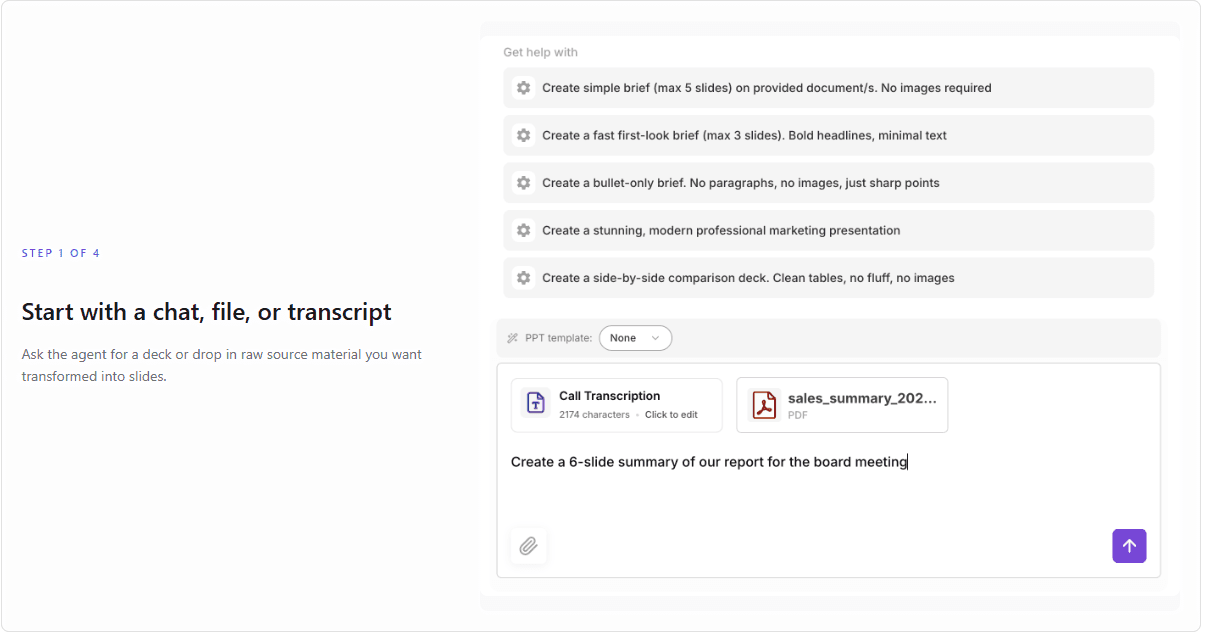
1. Start with a chat, file, or transcript
Ask the agent for a deck or drop in raw source material you want transformed into slides.
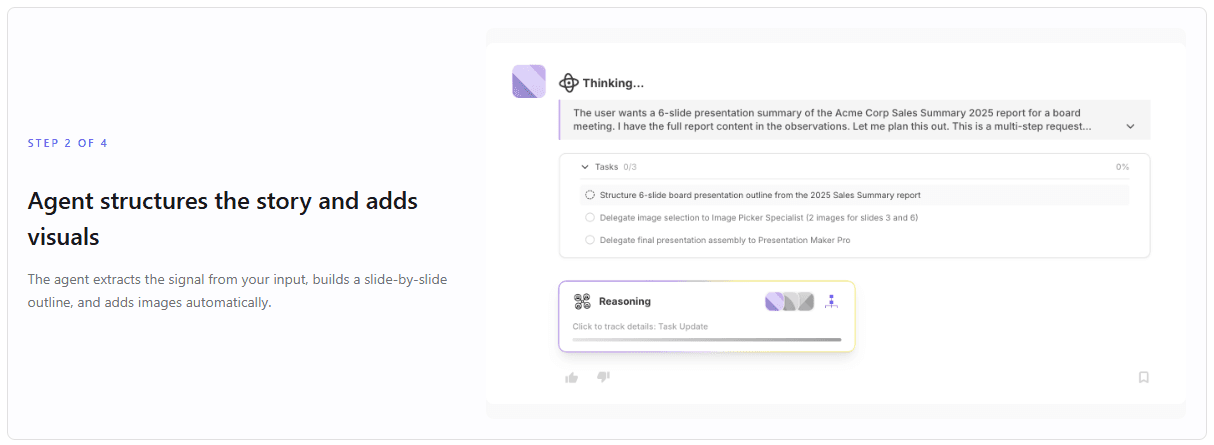
2. Agent structures the story and adds visuals
AgentX extracts the signal from your input, builds a slide-by-slide outline, and adds images automatically.
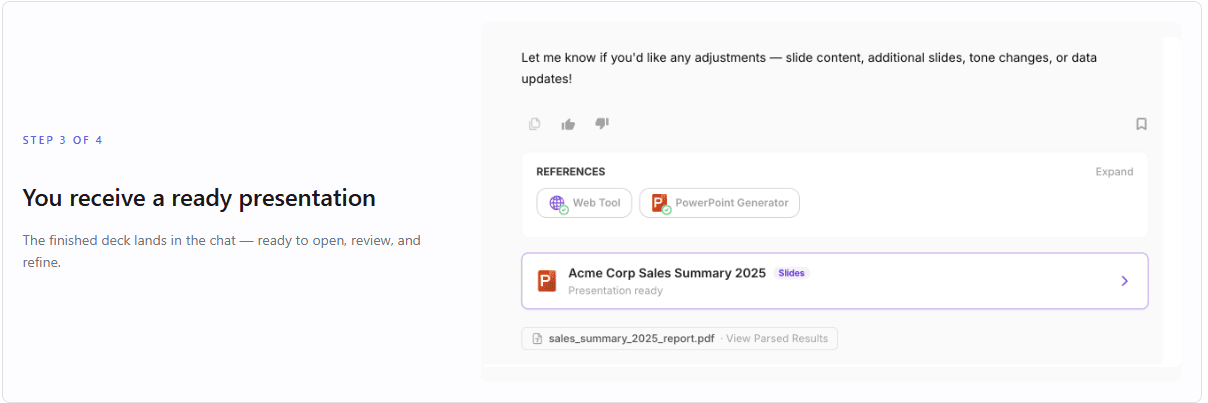
3. You receive a ready presentation
The finished deck lands in the chat, ready to open, review, and refine.
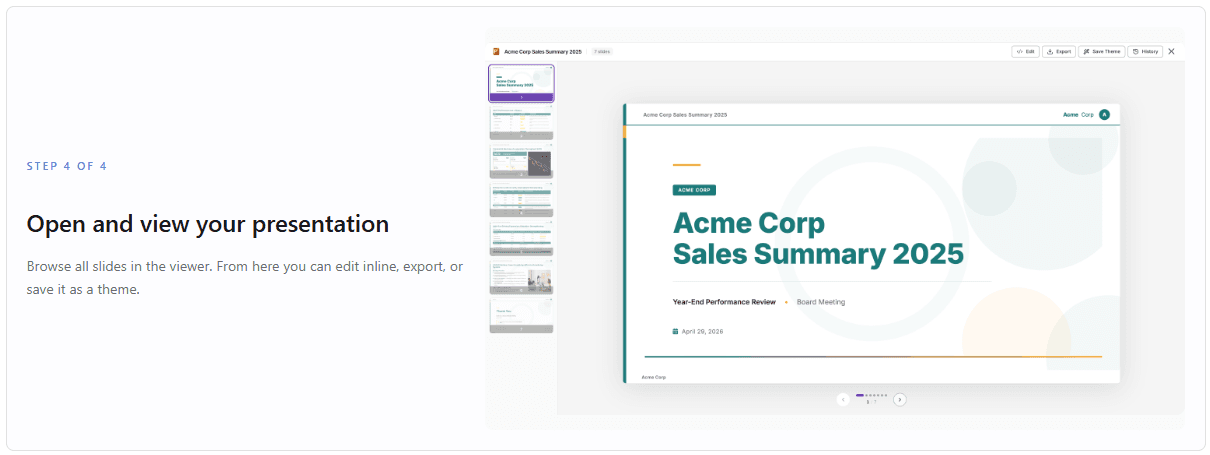
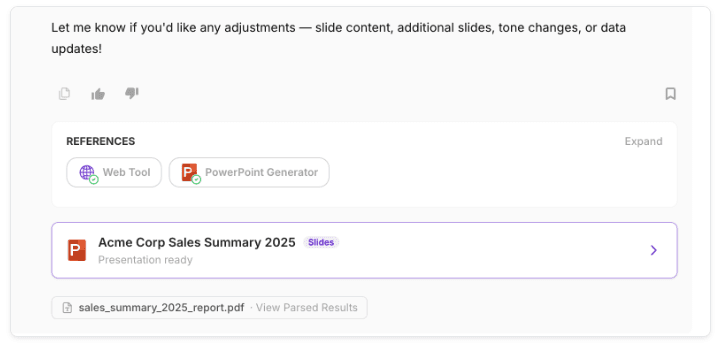
4. Open and view your presentation
Browse all slides in the viewer. From there, you can edit inline, export, or save it as a theme.
How to edit and export
Click the presentation card in chat to open the viewer.
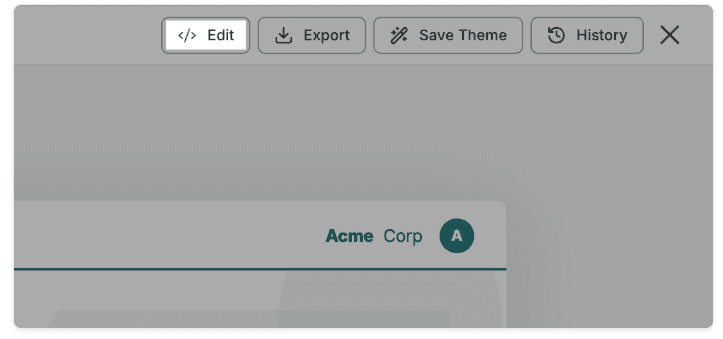
Then click Edit in the top-right corner to enter edit mode.
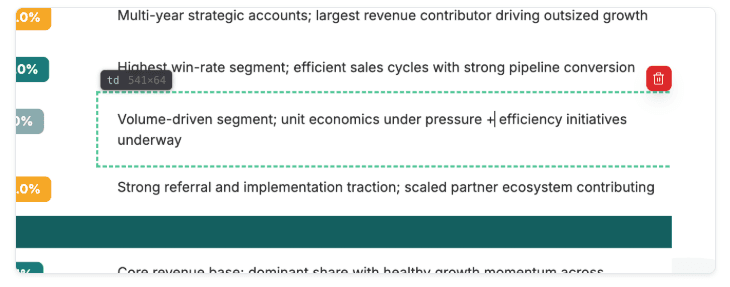
Inline Editing
For quick text fixes, double-click any text element and type directly on the slide.
Edit with the prompt bar
Click any element or the whole slide, then type an instruction in the bottom prompt bar — e.g. “add 11. Summary”, “remove this”, “rewrite this section”. You can also target a specific element (like a label or badge) to make precise changes.

Add a new slied
Click + Add slide at the bottom of the left sidebar.
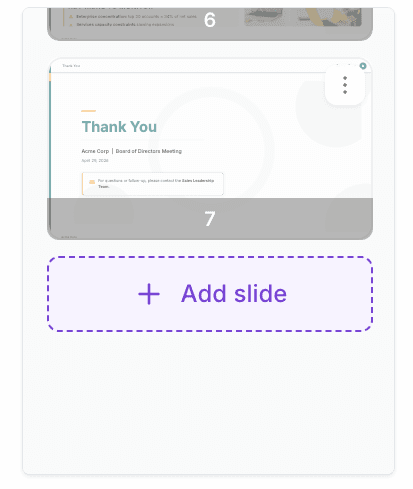
Describe the slide you want — AgentX will match the style of your existing deck.
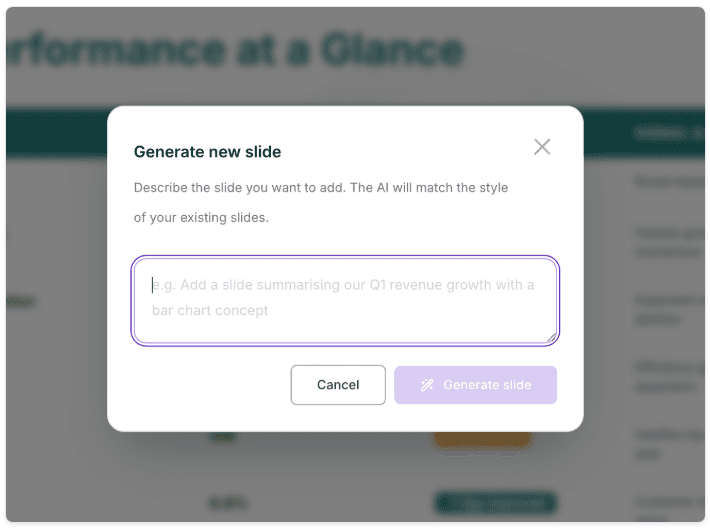
Duplicate or delete a slide
Click the ⋮ menu on any slide thumbnail to duplicate or delete it. Use duplicate to preserve a layout before making changes.
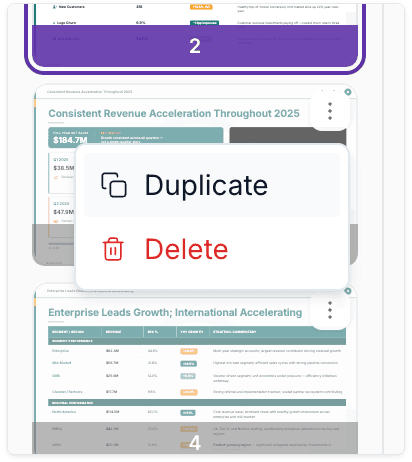
Reorder slides
Drag and drop thumbnails in the left sidebar to change the slide order.
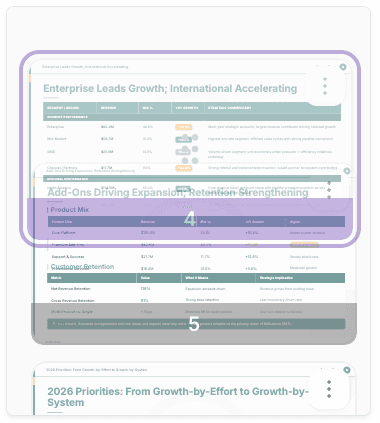
Export
Click Export in the top bar to download your deck. Choose PDF for a pixel-perfect version, or PPTX for an editable PowerPoint file.
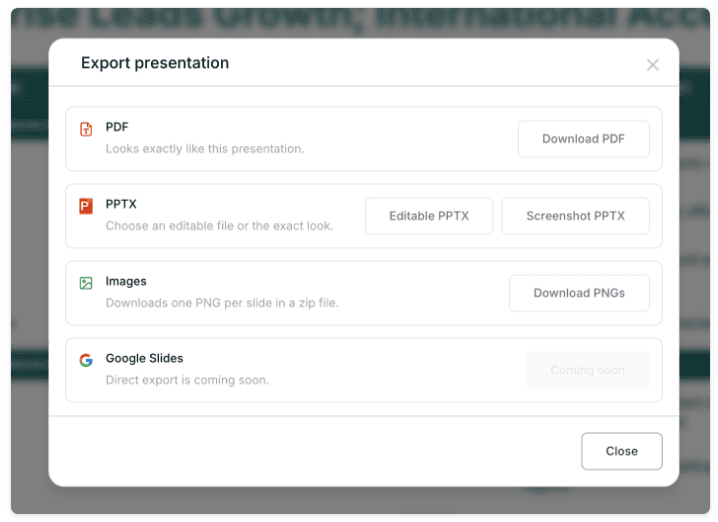
Export formats
• PDF Looks exactly like this presentation.
• Editable PPTX Generates editable PowerPoint content.
• Screenshot PPTX Preserves the exact visual look, not editable.
• Images Downloads one PNG per slide in a zip file.
• Google Slides soon Direct export is coming soon.
