
How to create a knowledge base
How to create a knowledge base for you AI agent, so that the agent is more customized than generic.
In this tutorial, you will learn how to create a high quality knowledge base for AI agents, so that your AI agent can understand your domain knowledge and less generic. Check out what is knowledge base.
AgentX allows everyone to create their custom AI agents, which means the type of AI agent that is not generic. To achieve that, a proper knowledge base plays an important role.
Let's get started!
Create a new agent or select a existing agent (check out: how to create an AI agent if you do not have one yet).
In Edit Agent, choose Knowledge
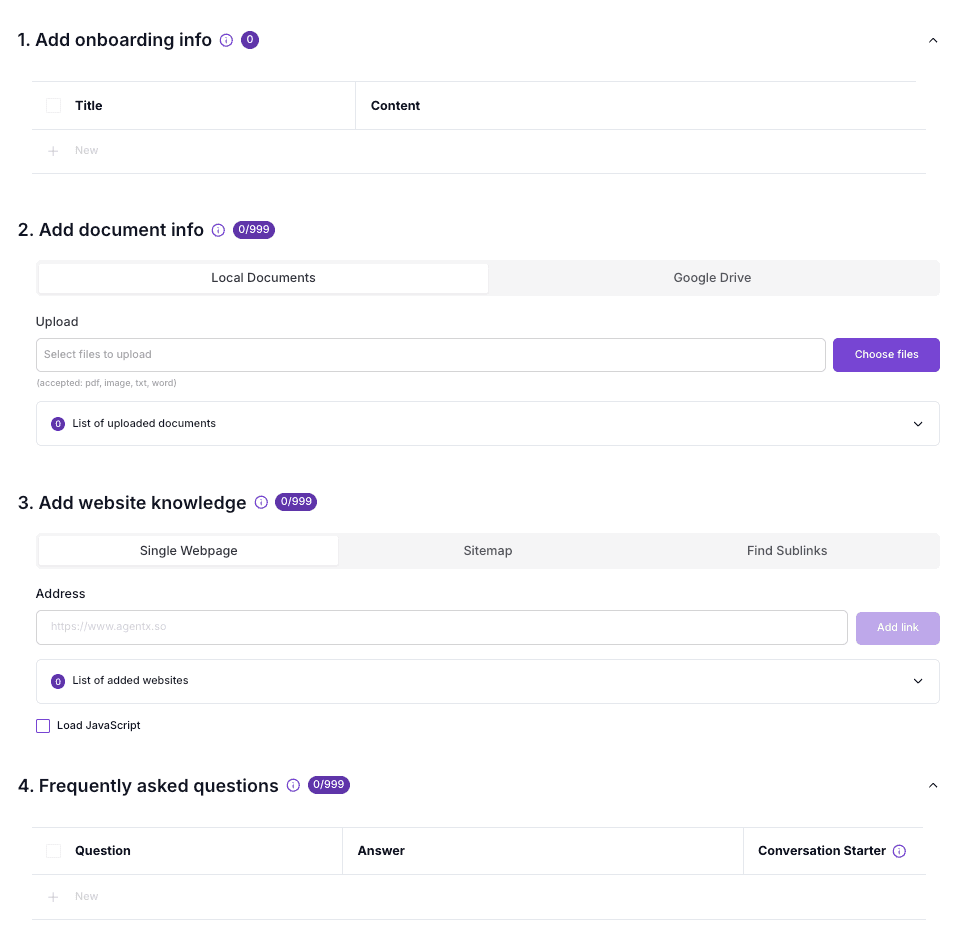
There are four types of knowledge you can start to create.
Onboarding Info
Document Info
Website Knowledge
Frequently Asked Questions
Onboarding Info
You can use this field to quickly add a short information.
For example:
Title: When was the company founded?
Content: June 2024
Title: Store Hours
Content: Sun:10-8, Mon-Sat:10-9
The information in onboarding knowledge will be always in the prompt. Meaning the AI agent will always remember it as a short-term knowledge.
Document Info
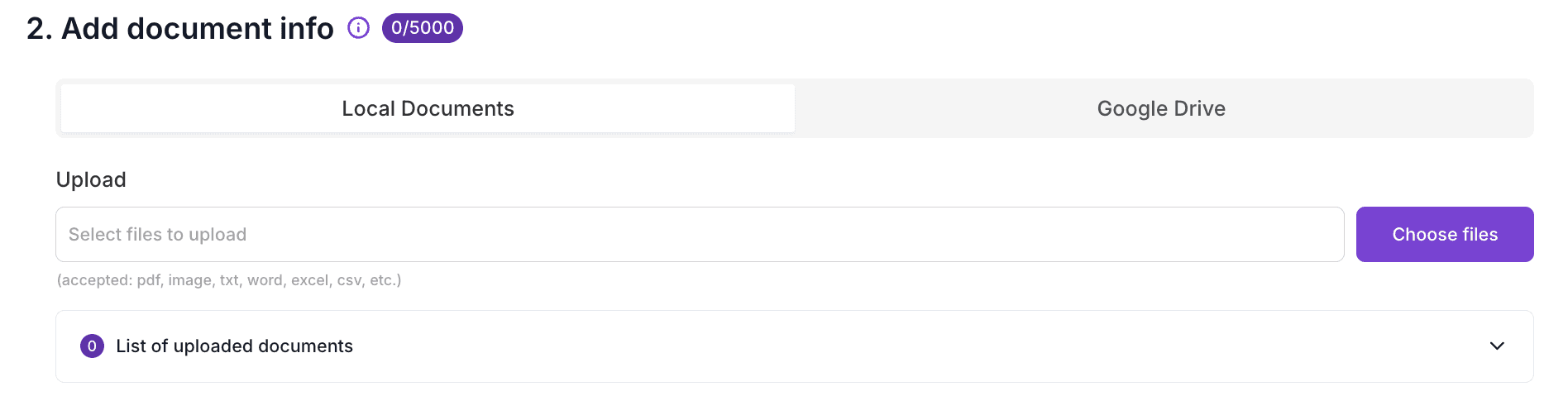
In this section, you can upload documents to be the part of the knowledge base.
You can either choose to upload from your local computer or from your Google Drive.
Support document formats include: images, pdf, txt, word, excel, csv, etc
Supported extension: image/*,.pdf,.doc,.docx,.xls,.xlsx,.ppt,.pptx,.txt,.heic,.csv
Google Drive
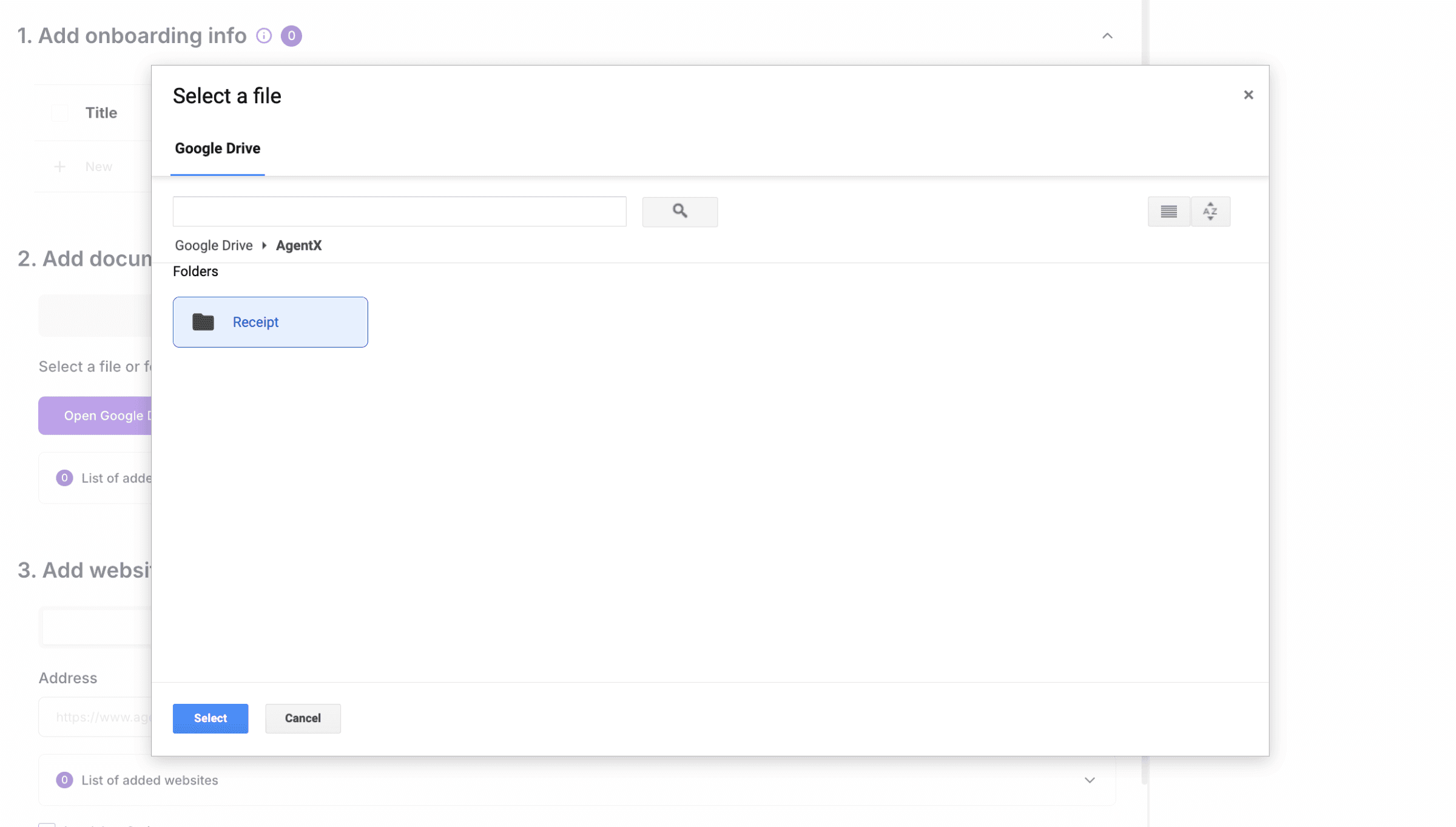
You can connect your Google Drive account by clicking Google Drive tab to the right. Once authorized and connected successfully, you can open Google Drive directly on AgentX and choose your documents or folder to be added into knowledge base.
Website Knowledge
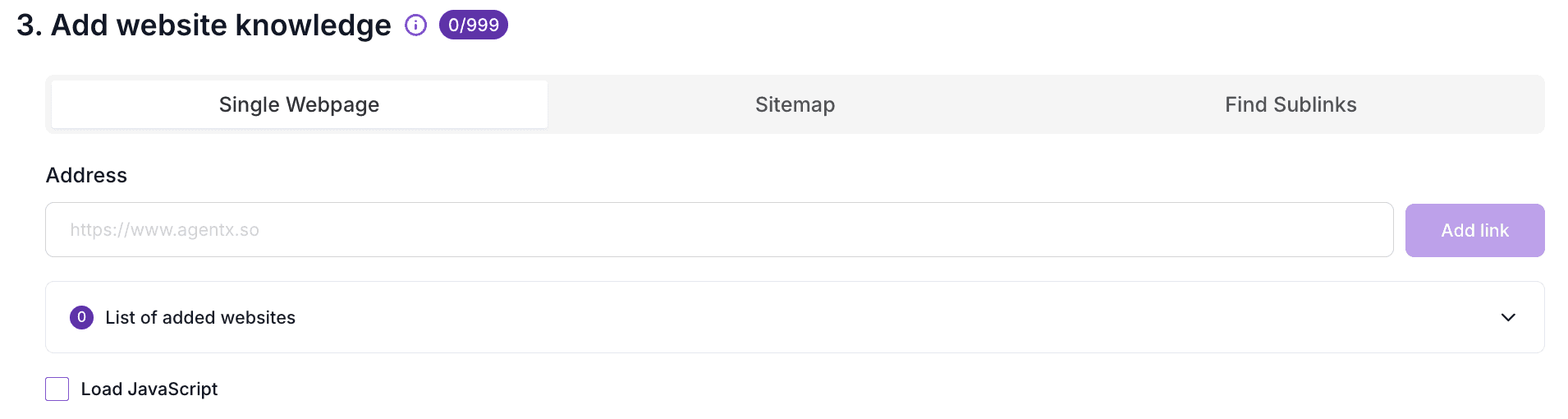
In this section, you can choose website for crawling, and use the crawled content as knowledge base.
There are three options you can choose:
Single Webpage - You can add website url one by one as single page here.
Sitemap - Copy and paste the website's sitemap here to get list of webpages.
Find Sublinks - This option will try to crawl links in the giving website with the depth.
Note, you can check the Load JavaScript option if the website requires JavaScript to load the content.
Frequently Asked Questions
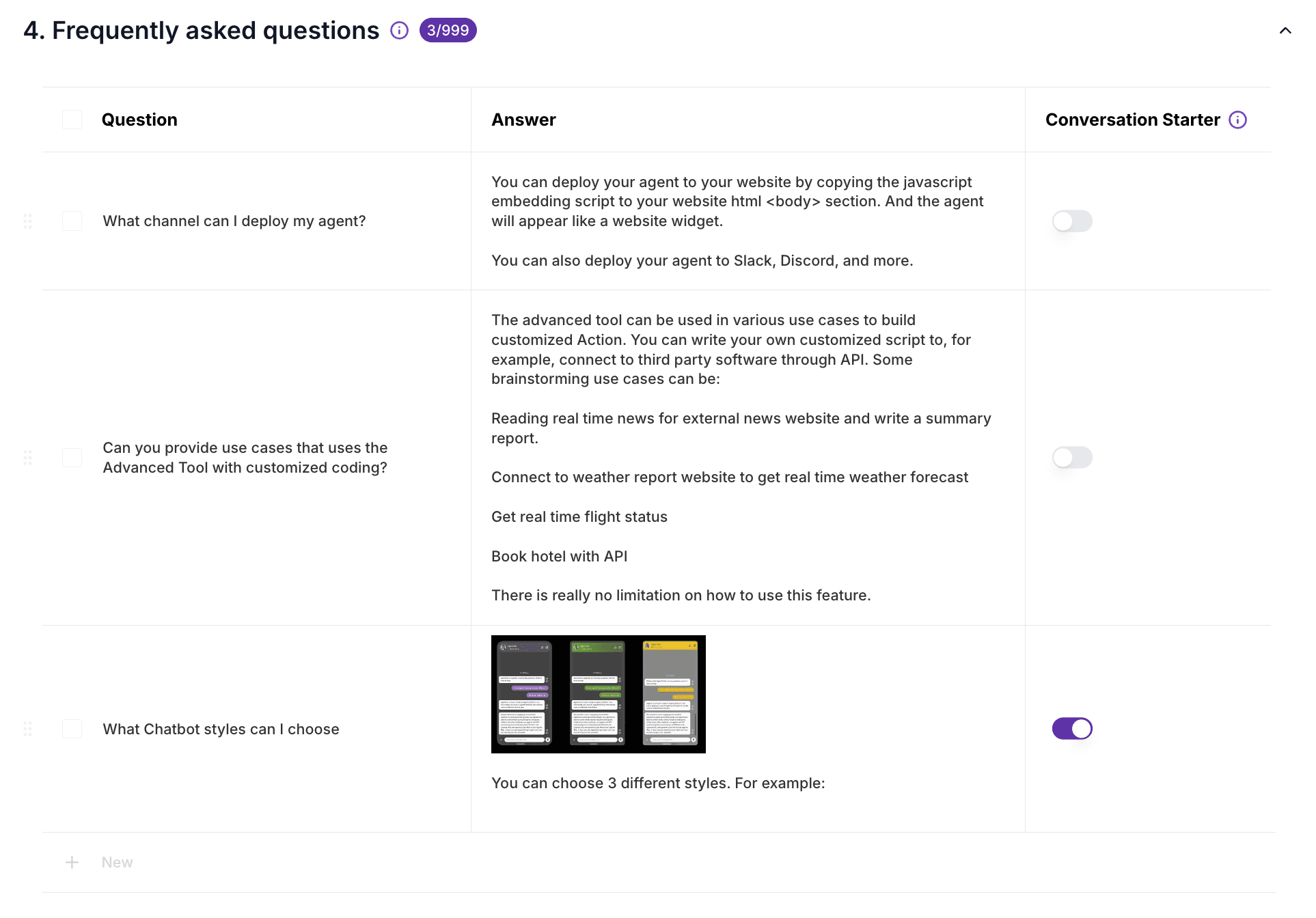
Similar like onboarding info, Frequently Asked Questions section allows you to add even longer and richer content as the part knowledge base. You can copy and paste your existing FAQ list or simply type on your own. You may also upload an image to the Answer, so that the agent can use the image to answer your question.
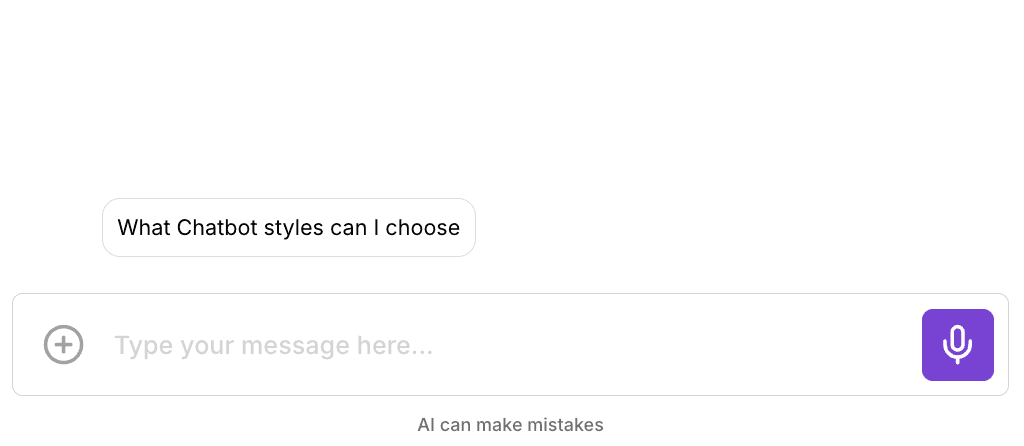
You can also choose to flip on Conversation Starter for any FAQ item. By doing that, the FAQ item will then become one of the conversation starters in the chat.
For example:
END
After you made any change in the knowledge base, make sure to click "Save Changes"
