

AGENTX FEATURES
How to create an AI agent that extracts data from the PDF and turn it into JSON

Working with PDF data is essential in many fields, from finance to research and content management. Having an AI that can extract data from PDF documents and structure it into JSON format can streamline numerous workflows, allowing for automated data processing.
This guide walks you through building a custom AI agent on AgentX to do just that.
Step 1: Set Up an Account with AgentX
If you’re new to AgentX, setting up an account is simple. Visit AgentX’s website and sign up for a free account. Once you’ve completed registration, log in to access the platform.
Step 2: Create a New Agent
After logging in, start creating your new AI agent by clicking the “+ New” button in the top right corner. From the drop-down menu, select “Create Agent.”
AgentX Step - Creating a New Agent
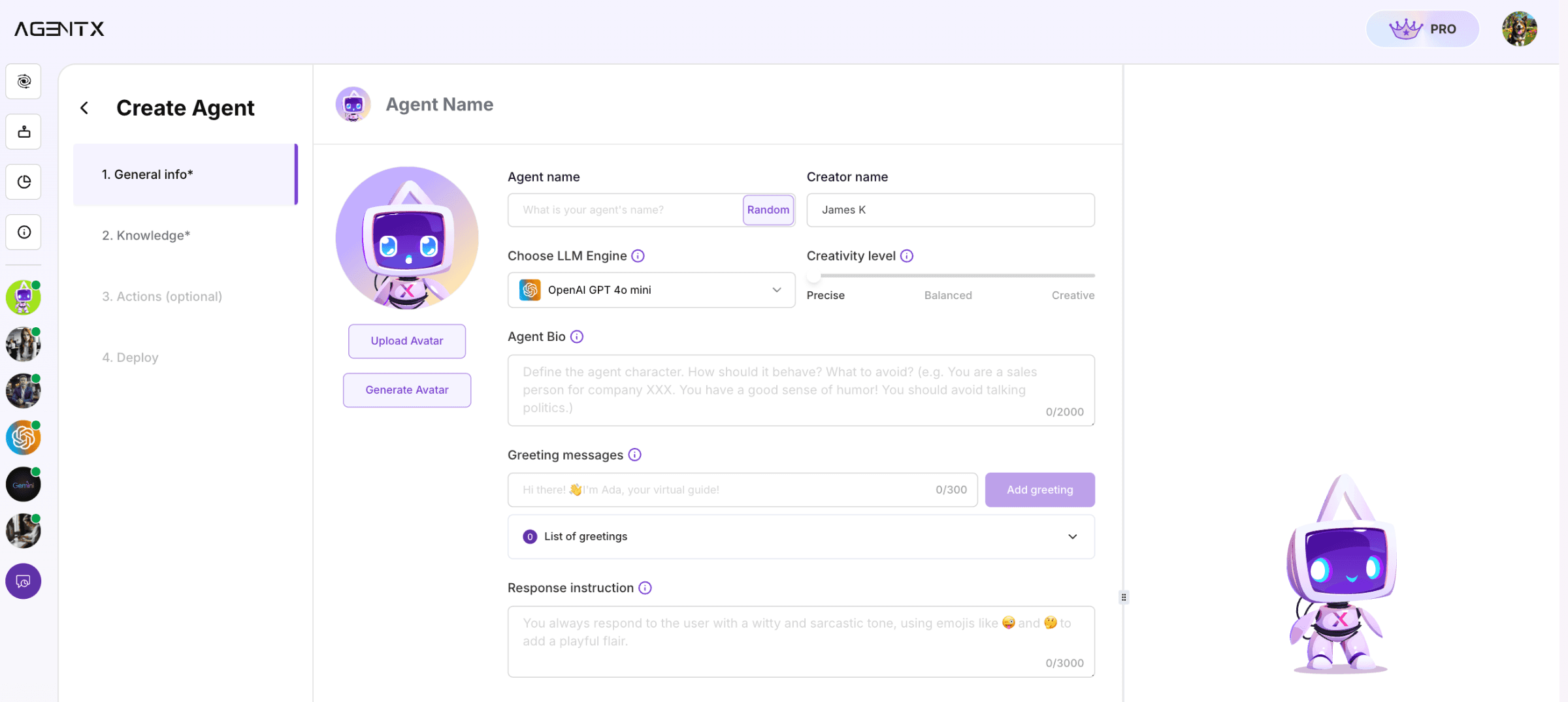
This will lead you to the Create Agent page, where you’ll define the core details and personality traits of your AI. Here are the primary fields to complete:
Name: Choose a name that reflects the AI's task, like "PDF Data Extractor."
Avatar: Select an avatar that represents the AI agent.
Creativity Level: For data extraction, set the creativity level to Low or Standard to ensure the agent focuses on accuracy and detail rather than flexibility.
LLM Engine: AgentX allows you to choose from various engines. OpenAI GPT 4-mini is often set as the default, but options like Llama AI, Claude, or Gemini are also available.
Agent Bio: Write a bio summarizing your agent’s purpose, such as
You are an expert in extracting structured data from PDF files and transforming it into JSON format. When the user sends you a document, you need to extract key data and return JSON only.
After filling out these details, click Next to continue with the agent setup.
Step 3: Few-Shot to Teach the AI Agent What to Return
To teach the AI agent how to accurately extract specific data points, you'll set up a few-shot learning approach. This means you’ll show the agent a few examples of the data structure you want, guiding it to learn how to generalize from these examples.
Few-Shot Learning
In the same Agent Bio, we can leverage Few-Shot Learning technique to make the AI more reliable and make the result more controllable by adding examples.
For example, we can add this prompt into Agent Bio:
With this example prompt, every time the AI agent received an invoice, it will return a json in that format.
Run a Few Tests:
Once examples are set, test the agent with additional sample PDFs to see how closely its JSON output matches the specified format. If necessary, adjust the few-shot examples to tailor to different type of documents, or fine-tune accuracy, adding clarifications to help the agent better understand patterns or nuances in the PDFs.
Try demo
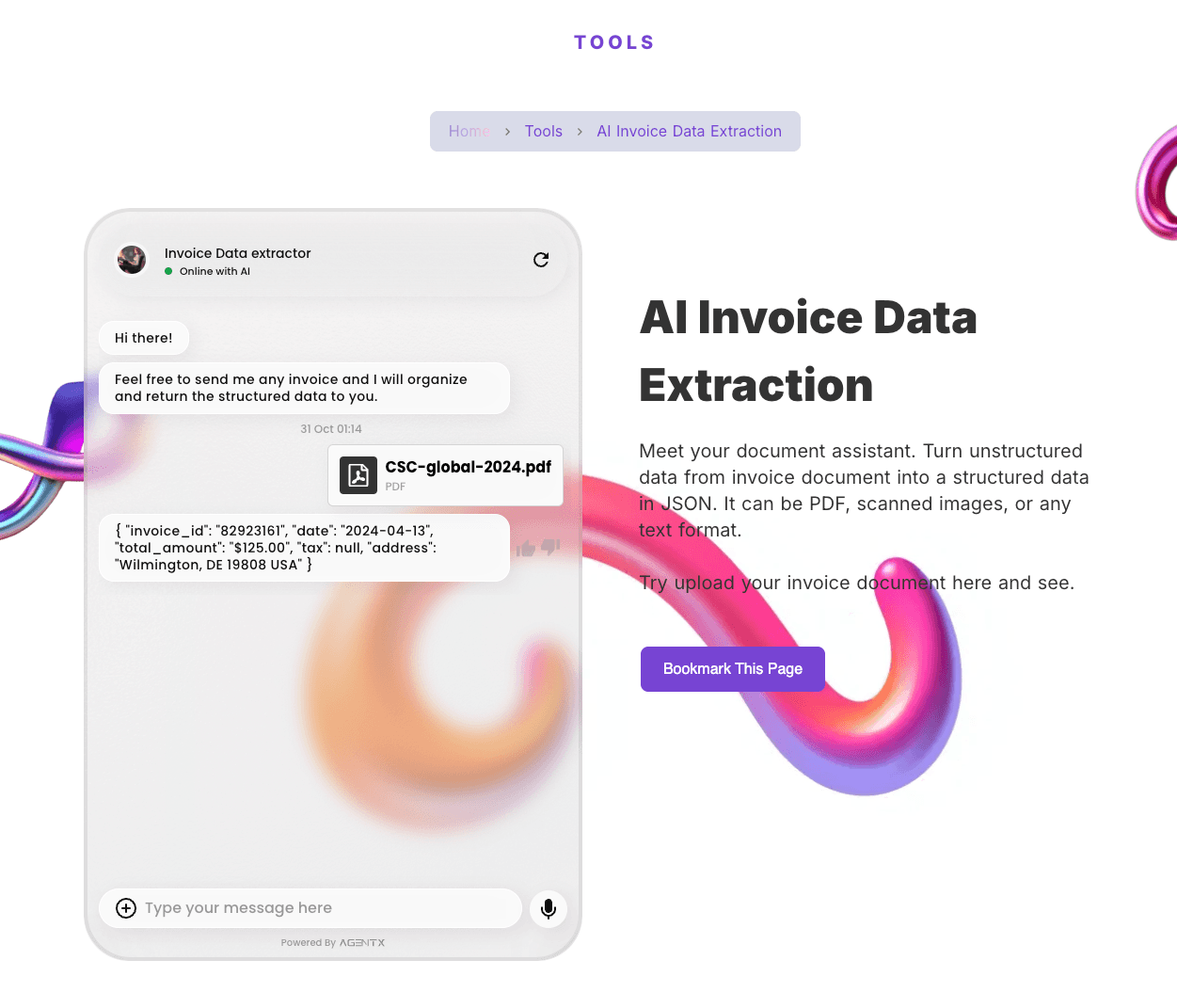
You can try a simple demo here: AI Invoice Data Extraction
Step 4: Deploy and Use Your AI Agent
After testing, you’re ready to deploy the agent for real-world use. Here’s how:
Deploy to your website check out how to deploy AI agent to website.
- Floating Chatbot type.
- Inline embedding widget type.
Deploy to your Slack check out deploy AI agent to Slack workspace.
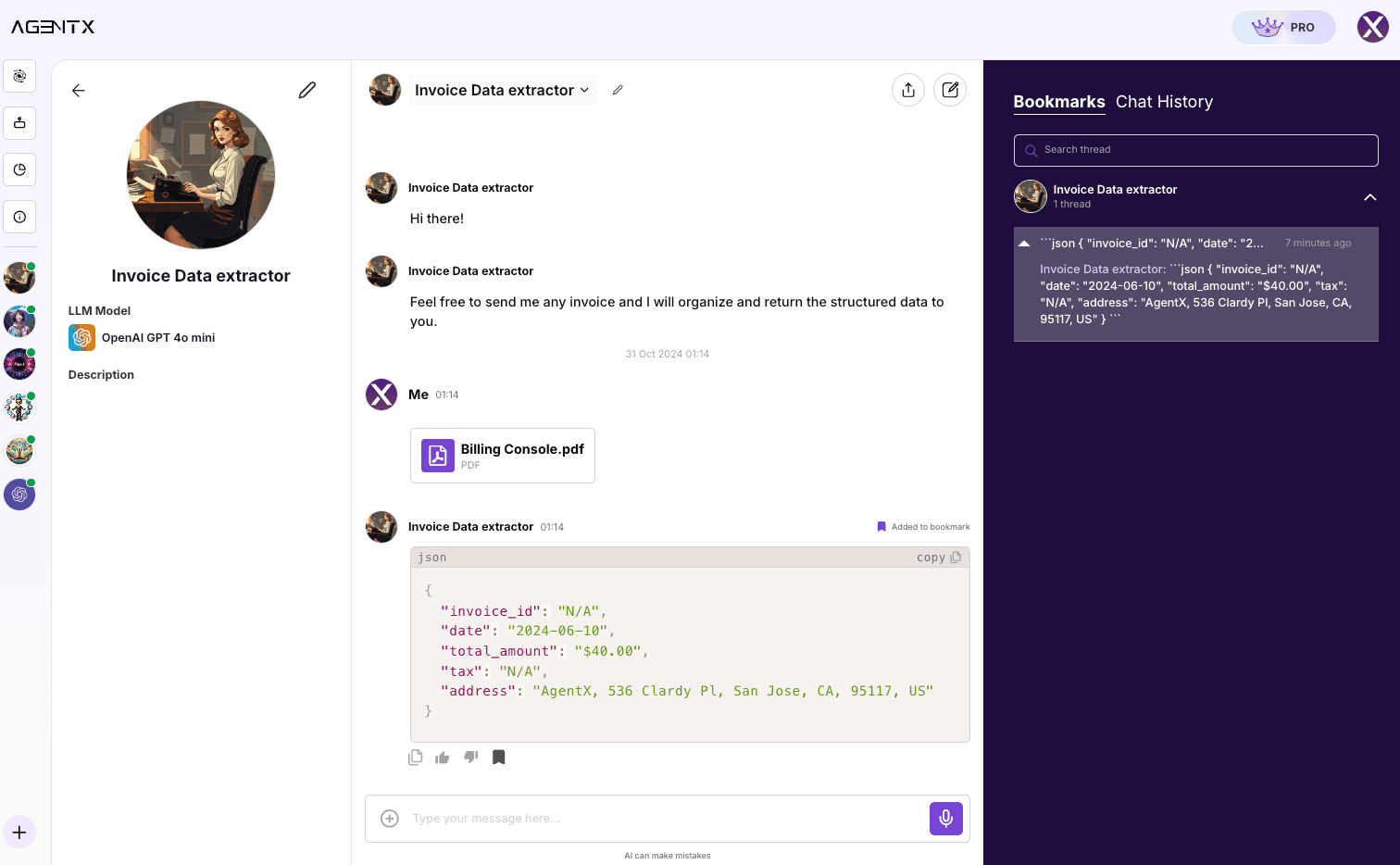
Use AgentX Workspace and invite your teammates.
- Bookmark system
- Chat History and search
- Share in the agent/conversation with team members.
Summary
Creating a custom AI agent for PDF data extraction with AgentX simplifies the transition of data into structured JSON, perfect for automating data-heavy processes.
AgentX stands out as the ideal alternative to PDF.ai for several reasons. With its user-friendly interface, customizable agent setup, and powerful few-shot learning, AgentX provides a robust platform for PDF data extraction tasks. Unlike PDF.ai, which may have limitations on customization and flexibility, AgentX allows users to fine-tune agents to specific requirements, ensuring greater accuracy and control over data extraction.
Share Blog
Related blogs
