
AGENTX FEATURES
Easy Steps To Enable Image Display In Chats For Your AI Agent: A Setup Guide

AgentX New Features
Welcome to the digital era where Artificial Intelligence (AI) isn't just a buzzword, but a pivotal part of enhancing user interactions and functionalities in various applications. Continuous innovations at AgentX take your AI agent to the next level. Here are three newly added features:
🔥 Your AI agent can now display images in chats.
🔥 Your AI agent can now display URLs in chats.
🔥 You can now configure branding for your AI agent.
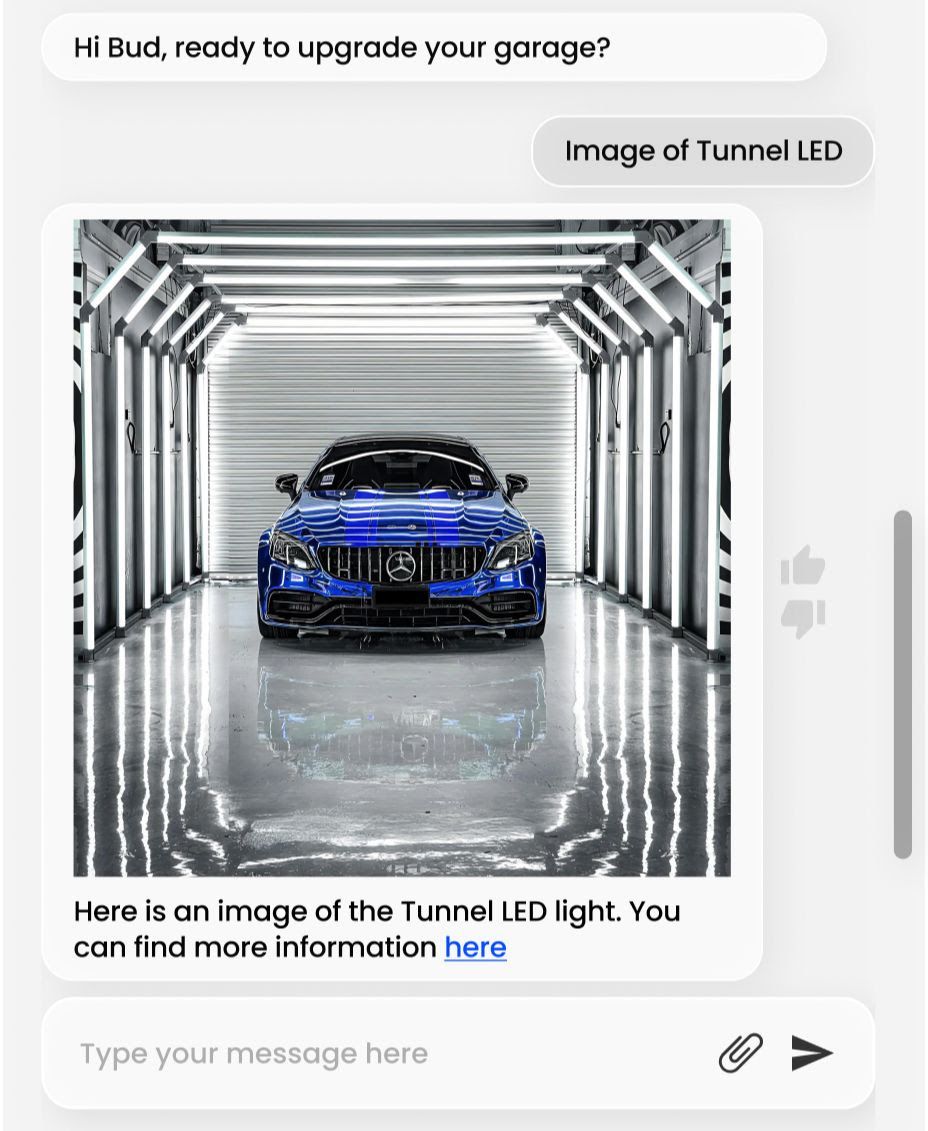
Here's how it will look in a real E-commerce example (with logo and brand name masked). This AI agent is deployed on a Shopify website. With easy configuration from AgentX, it's able to show images and URLs in chat conversations. Furthermore, the “Powered by” tag at the bottom of the chat window can be configured to your own branding.
AgentX has provided three blogs to help you with the setup. Continue reading for how to set up the image display guide.
Setup Guide For Image Display
0️⃣ If you are already familiar with creating new AI agents on AgentX, jump right to the next step.
1️⃣ Navigate to the “Knowledge” tab, find the “Frequently asked questions,” and set up the FAQ as shown below. Here’s a breakdown of each part in the “Answer”:
🚀 ![Alt text] - This is the alternative text that describes the image if it can't be displayed. It's also used for accessibility, allowing screen readers to describe the image to visually impaired users.
🚀 (URL_of_the_image) - This is the direct link to the image file you want to display.
🦄 Be careful that there is no space between ![Alt text] and (URL_of_the_image).
🦄 To find this URL, you may right-click on the image from your website and click “inspect”. Look for <img src = “[URL]”>. Sometimes, if you hover over <img src = “[URL]”>, the image source will be shown and you will just need to copy the URL.
🦄 Your URL must start with “https://” and typically ends with “.jpg” or another image format. It is not necessary to copy over the version and width setting (e.g., “?v=1713498394&width=324”) in the URL.
🦄 In the future, we will enable drag and drop to make it even easier.
🚀 "Optional title" - This is an optional title for the image that will appear as a tooltip if the user hovers over the image with their cursor.
🚀 “Here is an image of the Tunnel LED light. You can find more information here” - This is additional text answer set for this FAQ. See here for more details.
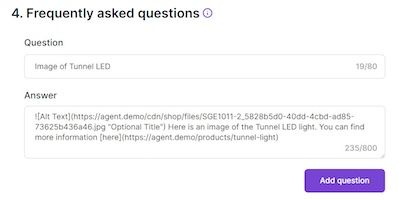
2️⃣ Click “Add question” and save. Feel free to toggle “Display the question” to make it appear as conversation starter.
3️⃣ That’s it. If your AI agent is already live, the update will propagate automatically. Otherwise, visit here to deploy the AI agent chatbot to your website.
Conclusion
Thank you for using AgentX. Make sure to subscribe to our newsletter from homepage to receive product updates. If you have issues/want to talk about your business needs, chat with our AI agent Rosita or book a meeting with us.
Share Blog
Related blogs
