Skip to content

AgentX tutorial

How to generate lead and send to Zapier webhook

How to enable lead generation in AgentX and send leads to Zapier via webhook. After building your agent, activate Lead Generation in "INTEGRATIONS." tab In Zapier, create a new workflow with a Webhook trigger and use the "Catch Hook" event. Copy the Zapier webhook URL to the AgentX lead generation settings, and your agent will send collected leads to your Zapier workflow.

1 min read

This tutorial provides a step-by-step guide on how to enable the lead generation feature and send leads to a Zapier workflow via webhook. This allows you to seamlessly integrate AgentX into your overall workflow.

Sending Leads to Zapier

Once you finished building an agent, (see how to build tutorial). You can turn on Lead Generation feature at INTEGRATIONS-> *Lead Generation,*and your agent will be able to collect leads from the contacts.

Connect to Zapier via Webhook

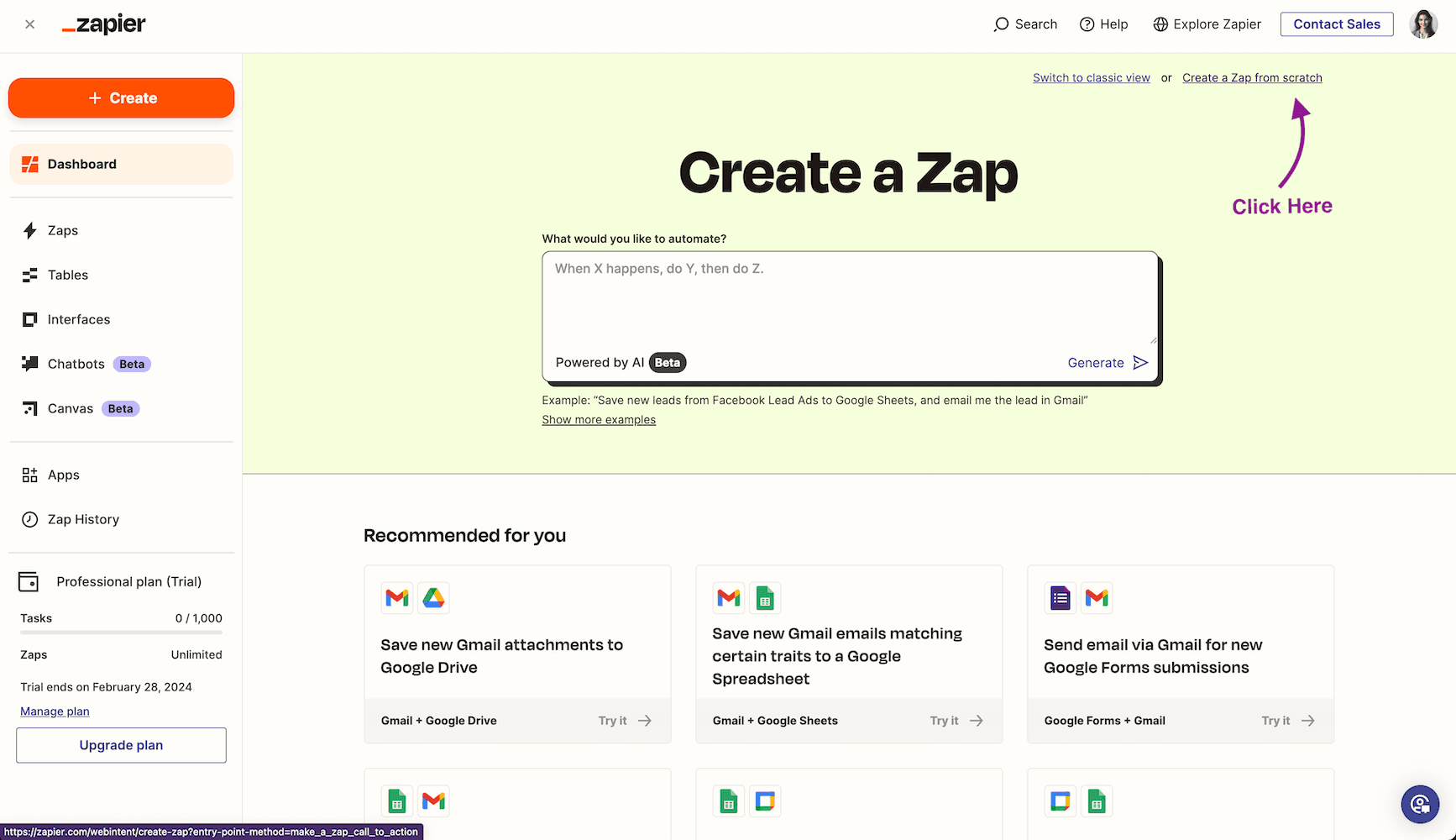
Step 1. In Zapier Dashboard, click Create a Zap from scratch (You can also use an existing workflow if you already have one).
Zapier and Agent X
Zapier and Agent X

Step 2. Click Trigger to edit trigger event. After that, choose Webhook as your trigger type.

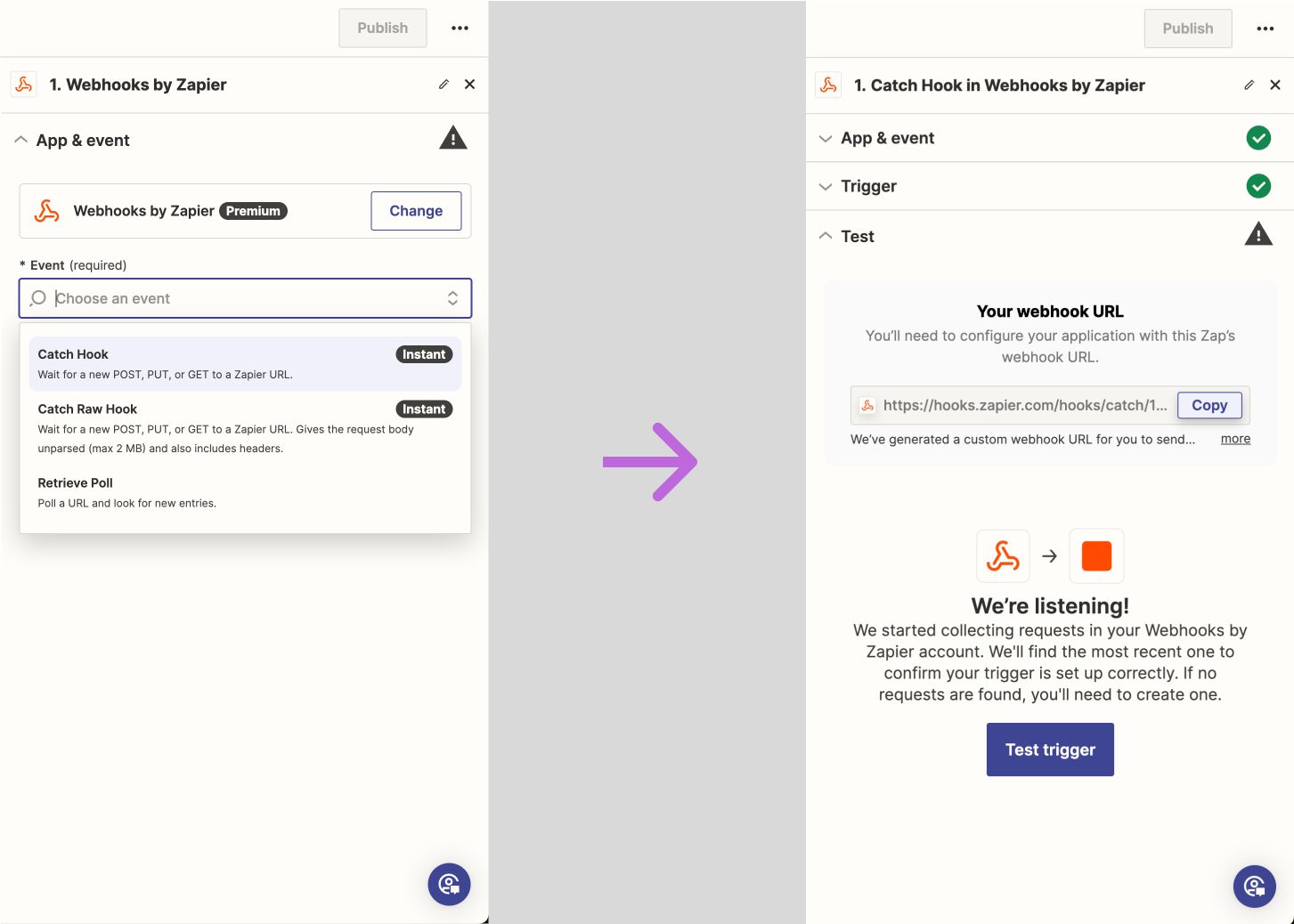
Step 3. You will land to workflow editor page. On the right side of the editor page, choose App & event, and in the Event drop down, choose Catch Hook. After that, you will get Your webhook URL. We will use this URL later.
AgentX AI Agent
AgentX AI Agent

**Step4.**Go back to AgentX -> Edit an agent -> Integrations -> Lead Generation -> Add an endpoint (Send lead info to CRM or external API endpoint) -> POST

Copy and paste Zapier webhook url to the field Send data to
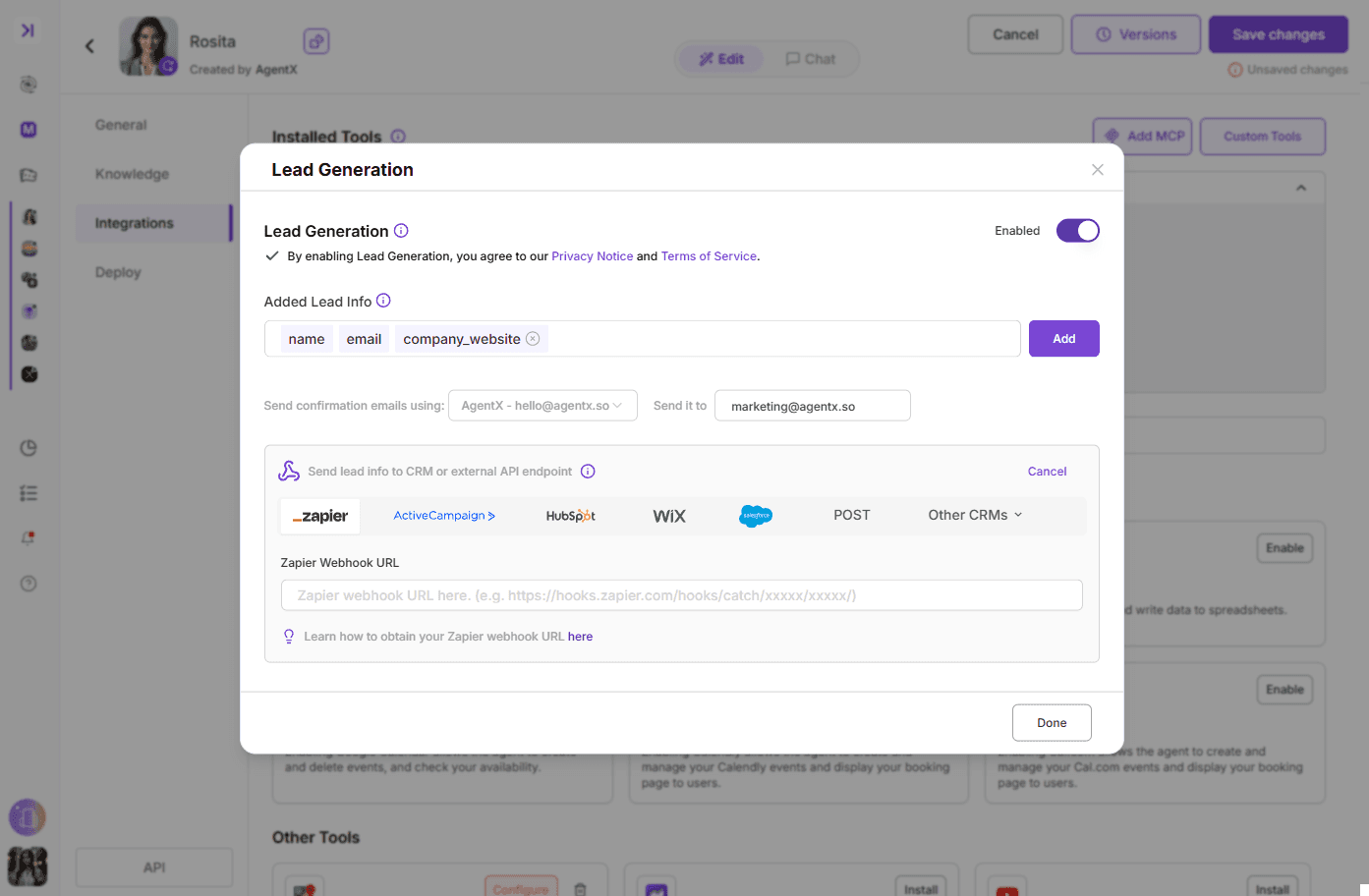
Don't forget to save the changes.

🎉 Congrats, now your agent is able to generate leads and send to your Zapier workflow.

More tutorials

All tutorials

Creating a Custom Tool in AgentX

Learn how to quickly create custom API-powered tools in AgentX using natural language and automatic code generation.

Read

Custom Branding for Agent Emails

You can now choose between AgentX branding, completely custom branding with your own logo and identity, or a clean unstyled option — all available for both Lead Generation emails and regular agent-sent messages. Configuration is now unified and easier to access, making it simple to keep every outgoing email consistent with your brand.

Read

How to add a MCP to your AI Agent

MCP (Model Context Protocol) allows you to connect your AI application to any desired third-party app as long as it supports it. Here is a step-by-step tutorial on how to set it up and connect with your AI agent. We will give an example on YouTube MCP.

Read

How to Automate Agent Tasks with AgentX

Discover how to automate your AgentX agents - from daily AI news briefings to fully autonomous SDR outreach - so your business runs on autopilot.

Read

How to Build AI Agent Workforce in AgentX

With AI Agent Workforces, you’re not limited to a single AI agent - you can build a whole team of specialists

Read

How to build an AI Agent - beginner's guide

Creating your first AI agent in AgentX, tuning prompts, instructions, and building knowledge bases. AgentX offers a no-code platform to create powerful AI agents for various use cases. Customize your agent’s bio, greeting, and response style, add knowledge bases, and enable optional features like lead generation or image generation. Once built, deploy your agent across multiple platforms, including websites, Slack, and Discord.

Read

Start your AI automation journey today

Sign up for AgentX and let AI handle your routine tasks. No credit card needed.