
How to make AI agent that handles your Google Calendar
Integrate your AI agent with Google Calendar to let it handle your calendar events. Such as check availabilities, schedule events, cancel events, etc.
In this tutorial, you will learn how to connect your Google Calendar with your AI agent. After the connection, your agent will be able to handle calendar event for you, such as check availabilities, create, and cancel events.
How to connect Google Calendar?
Prerequisites
Before diving into the integration process, ensure you have the following:
A Google account with access to Google Calendar.
An AI agent created on AgentX. (check out here if you do not have one yet - how to create an AI agent)
Why AgentX and Google Calendar
AgentX, your intelligent AI assistant, becomes exponentially more useful when combined with Google Calendar. Here's why this integration is a game-changer:
Streamlined Scheduling: AgentX can automatically check your availability, suggest the best meeting times, and even schedule events for you.
Proactive Reminders: By syncing with Google Calendar, AgentX can provide real-time notifications for upcoming events, ensuring you never miss a meeting or deadline.
Enhanced Productivity: With access to your calendar, AgentX can optimize your daily schedule, recommend time slots for focused work, and help manage overlapping commitments.
Cross-Platform Access: Google Calendar’s ubiquity means AgentX can interact seamlessly with other apps and services you use, like email and video conferencing tools.
By leveraging the capabilities of both Google Calendar and AgentX, you can stay organized and focus on what matters most. Whether you're managing a busy workday or planning personal events, this integration makes life easier.
Connect AI agent to your Google Calendar
Step 1
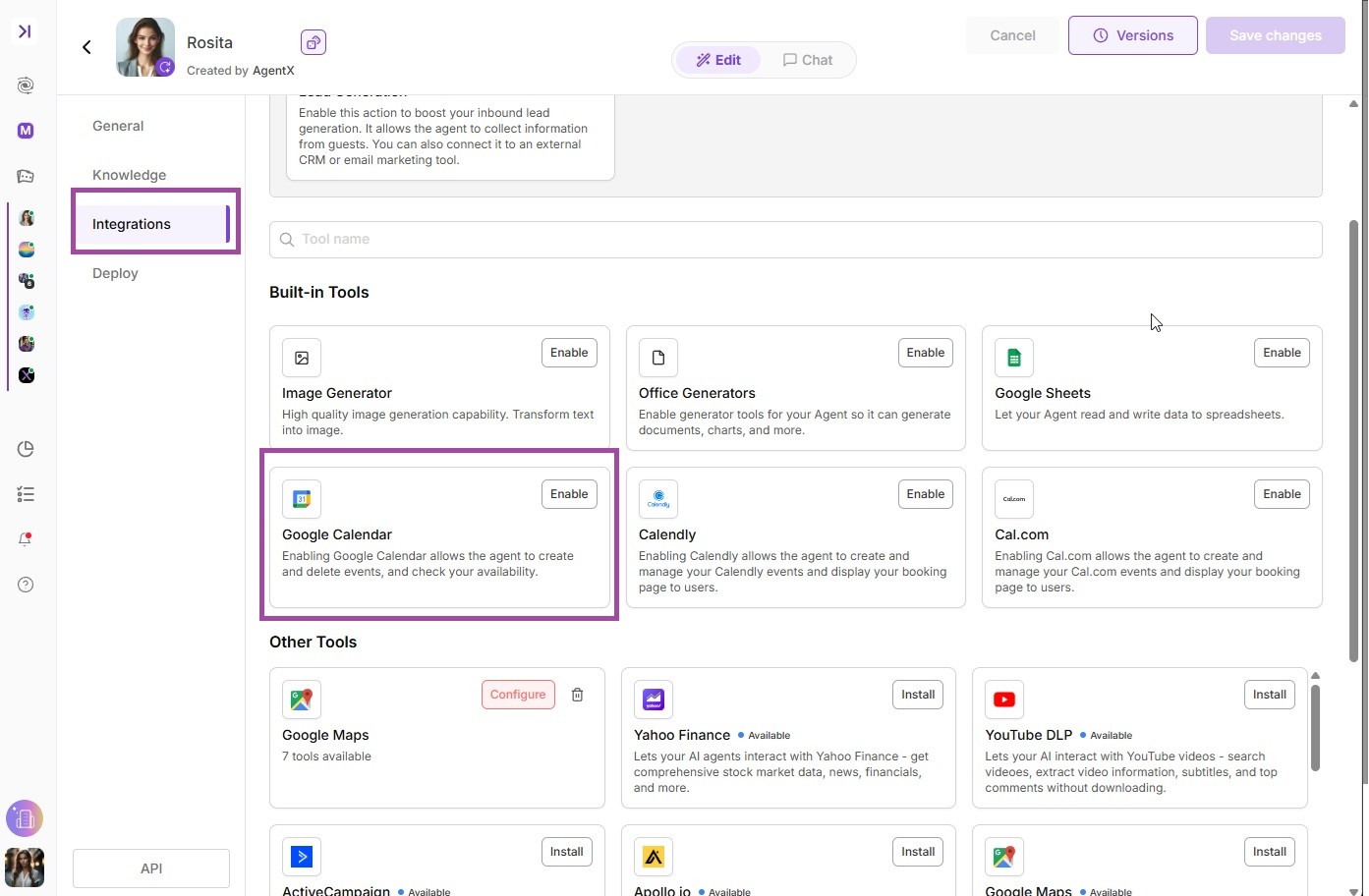
Navigate to Agent edit -> INTEGRATIONS -> Google Calendar, and click Connect to setup and authorize your Google account connection.
Step 2
Once authorized, click Enable to allow your AI agent to access and operate your calendar. You may also select an existing calendar on your account or create a new one.
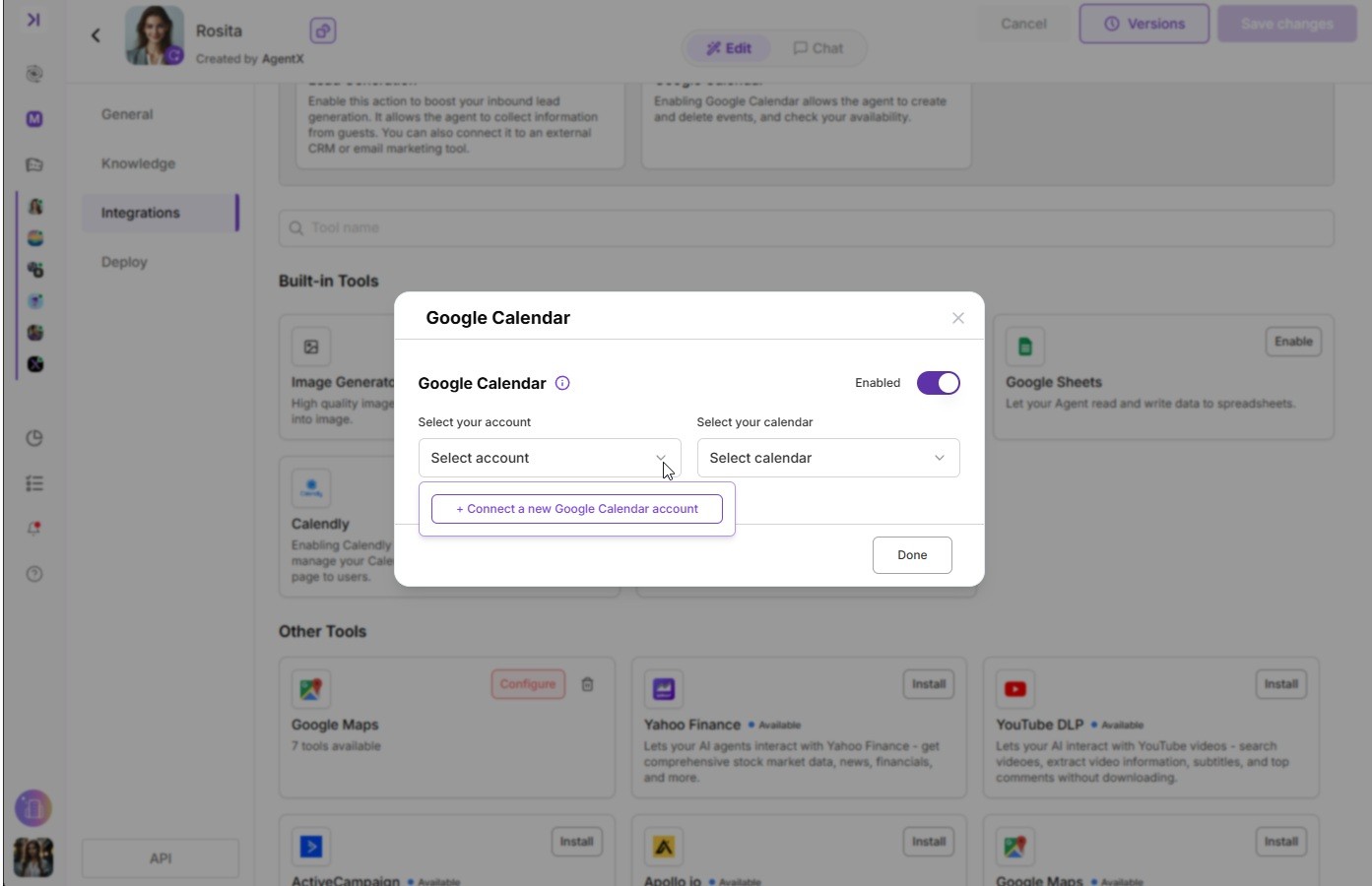
Step 3
Once Google Calendar is connected, your Agent automatically handles scheduling during conversations. It is time to give it some tests.
Example 1:
Test it by sending a message from your personal WhatsApp account to your WhatsApp Business Account that is connected to the AI agent.
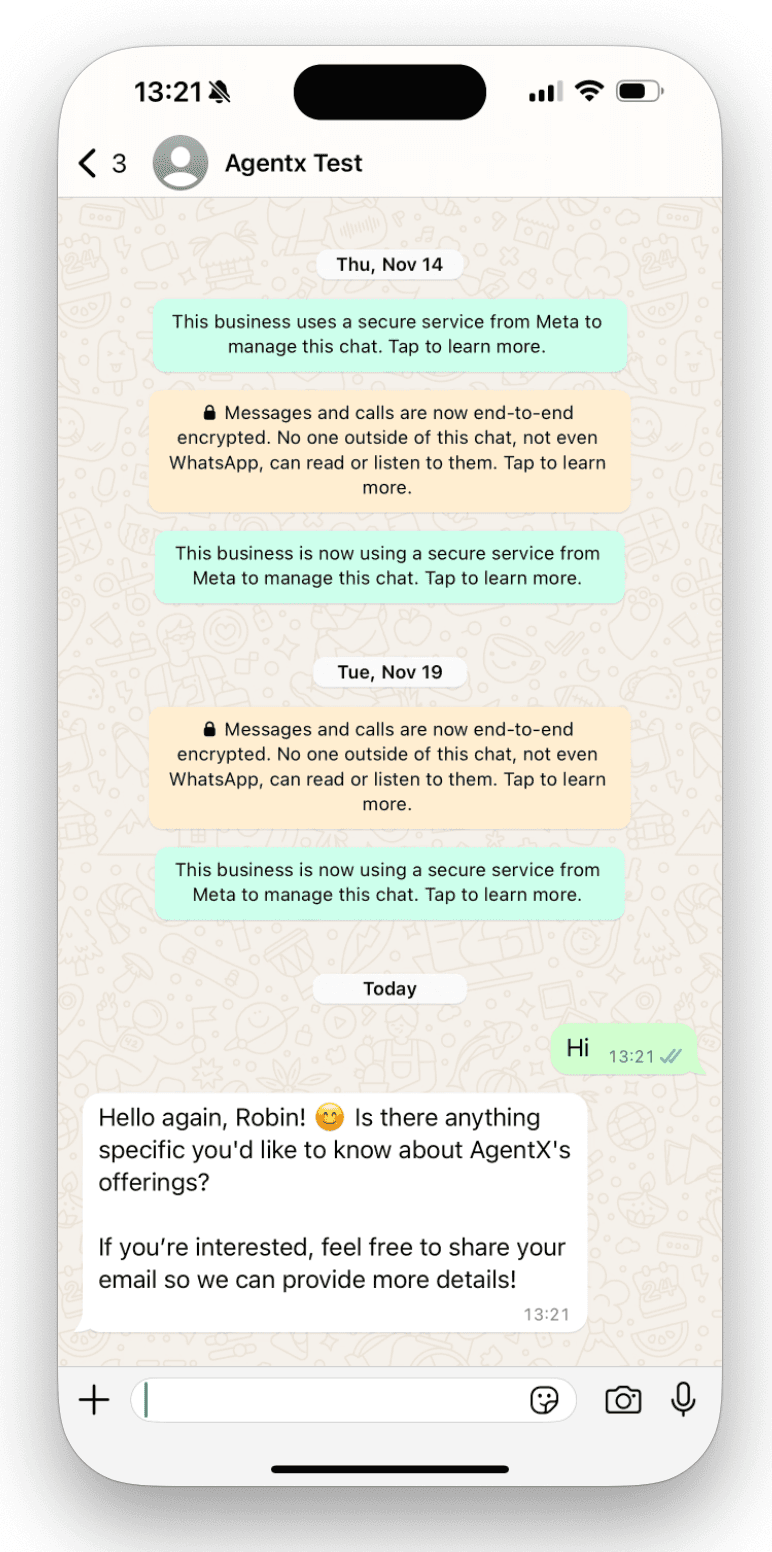
Your agent will be able to communicate with guests from WhatsApp and it will be able to handle your schedule such as check availabilities, book a meet, and cancel a meeting for you.
Example 2:
Customer wants to book a meeting
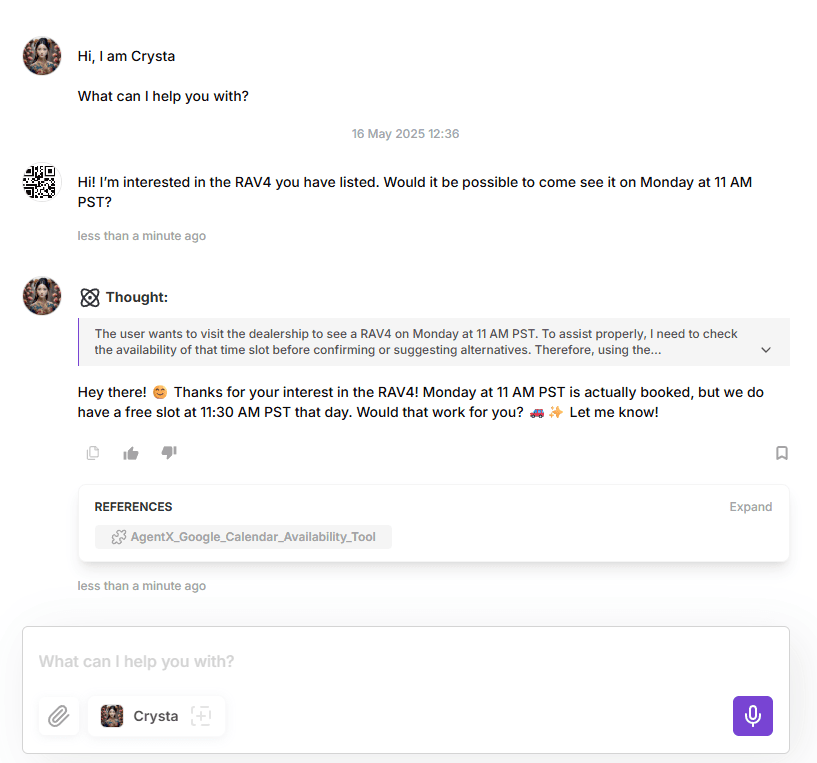
Customer: Hi! I’m interested in the RAV4 you have listed. Would it be possible to come see it on Monday at 11 AM PST?
If the slot is unavailable
AgentX: Hey there! 😊 Thanks for your interest in the RAV4! Monday at 11 AM PST is actually booked, but we do have a free slot at 11:30 AM PST that day. Would that work for you? 🚗✨ Let me know!
If the customer accepts
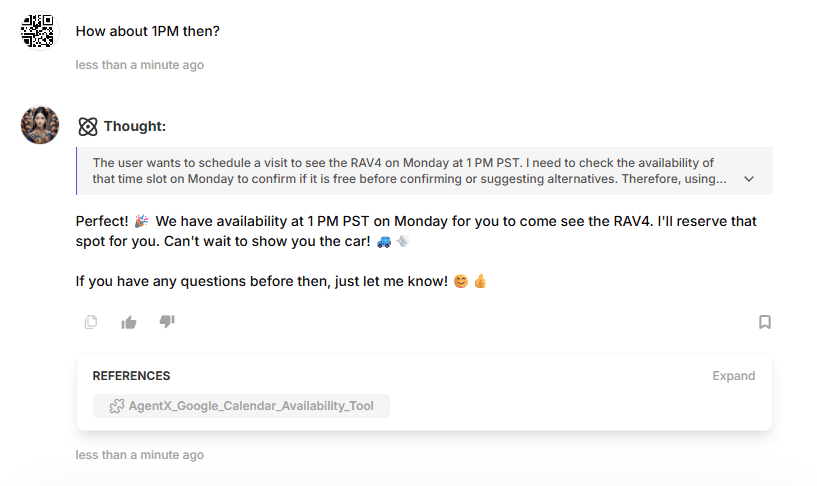
Customer: How about 1PM then?
AgentX: Perfect! 🎉 We have availability at 1 PM PST on Monday for you to come see the RAV4. I'll reserve that spot for you. Can't wait to show you the car! 🚙💨
📅 The Meeting Lands in Your Calendar - Automatically
As soon as your customer confirms the time, AgentX creates a Google Calendar event in your selected calendar. No manual steps, no double-checking - everything is handled instantly.
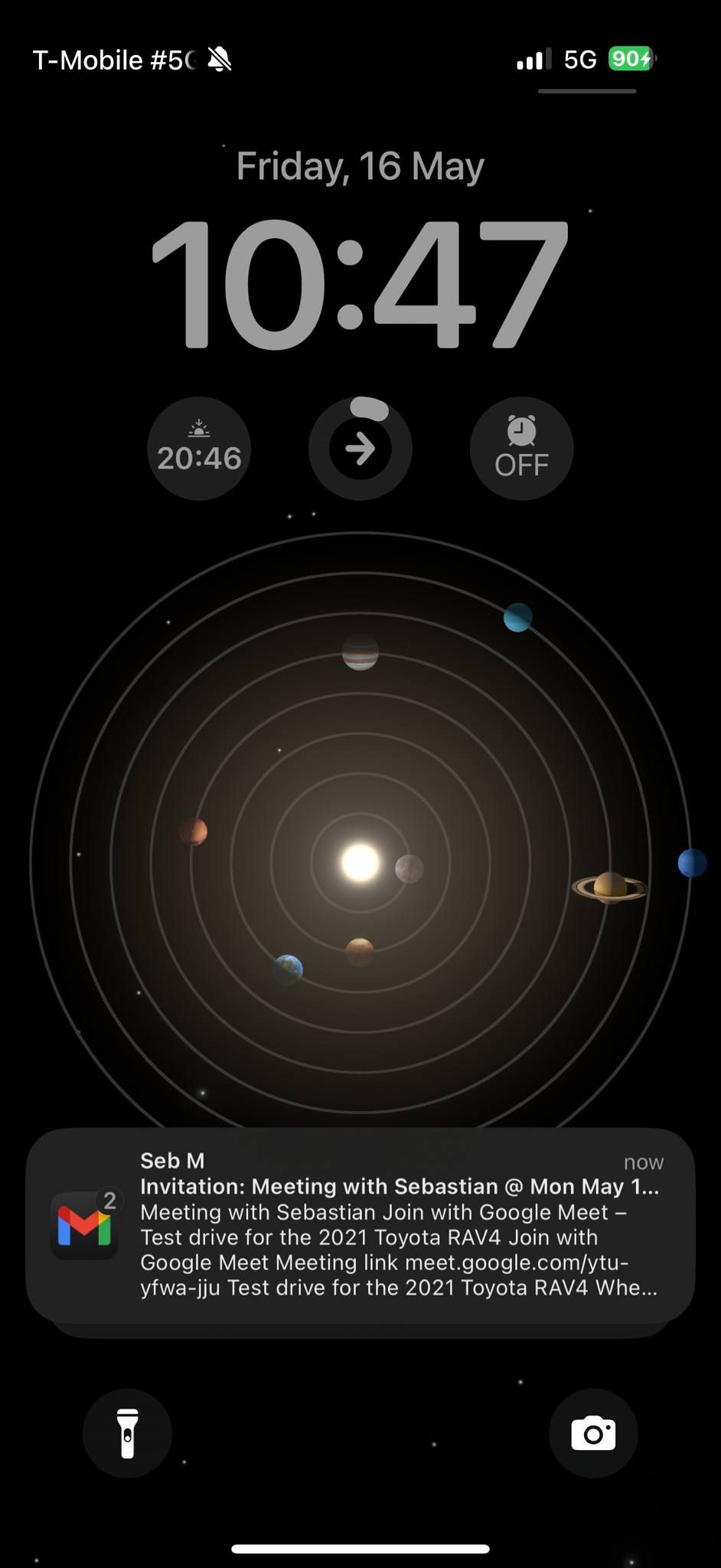
The event includes:
✅ Title and participant details
🕒 Exact date and time
📍 Location or video call link (e.g. Google Meet)
📝 Any notes captured during the conversation
If you are using Cal.com or Calendly, check out this best practice to connect other calendar tools with AI Agent.
