
How to Build AI Agent Workforce in AgentX
With AI Agent Workforces, you’re not limited to a single AI agent - you can build a whole team of specialists
How to Build AI Agent Workforce in AgentX
What Is an AI Agent Workforce?
With AI Agent Workforces, you’re not limited to a single AI agent - you can build a whole team of specialists.
Each agent in your workforce is equipped with the tools and data sources needed to become an expert in a specific area. For example, when you assign the Google Map MCP server to your route planner agent, they instantly have access to all places, distances, traffic conditions, and even live crowd info - just like a real local guide.
Every agent should be the best at their dedicated job, because you give them exactly the tools they need.
A manager Agent (your “Team Lead”) coordinates the team’s work and brings all the results together.
Step-by-Step: How to Build Your First Workforce
1. Decide What You Want to Achieve and Which Specialists You Need
Start with your goal.
Example: Planning a trip agency that you can find at our homepage.
So, you’ll need:
Someone to plan and manage the trip,
Someone to find flights,
Someone to check the weather,
Someone to recommend attractions and routes.
2. Create Each Agent (Individually)
In your AgentX workspace:
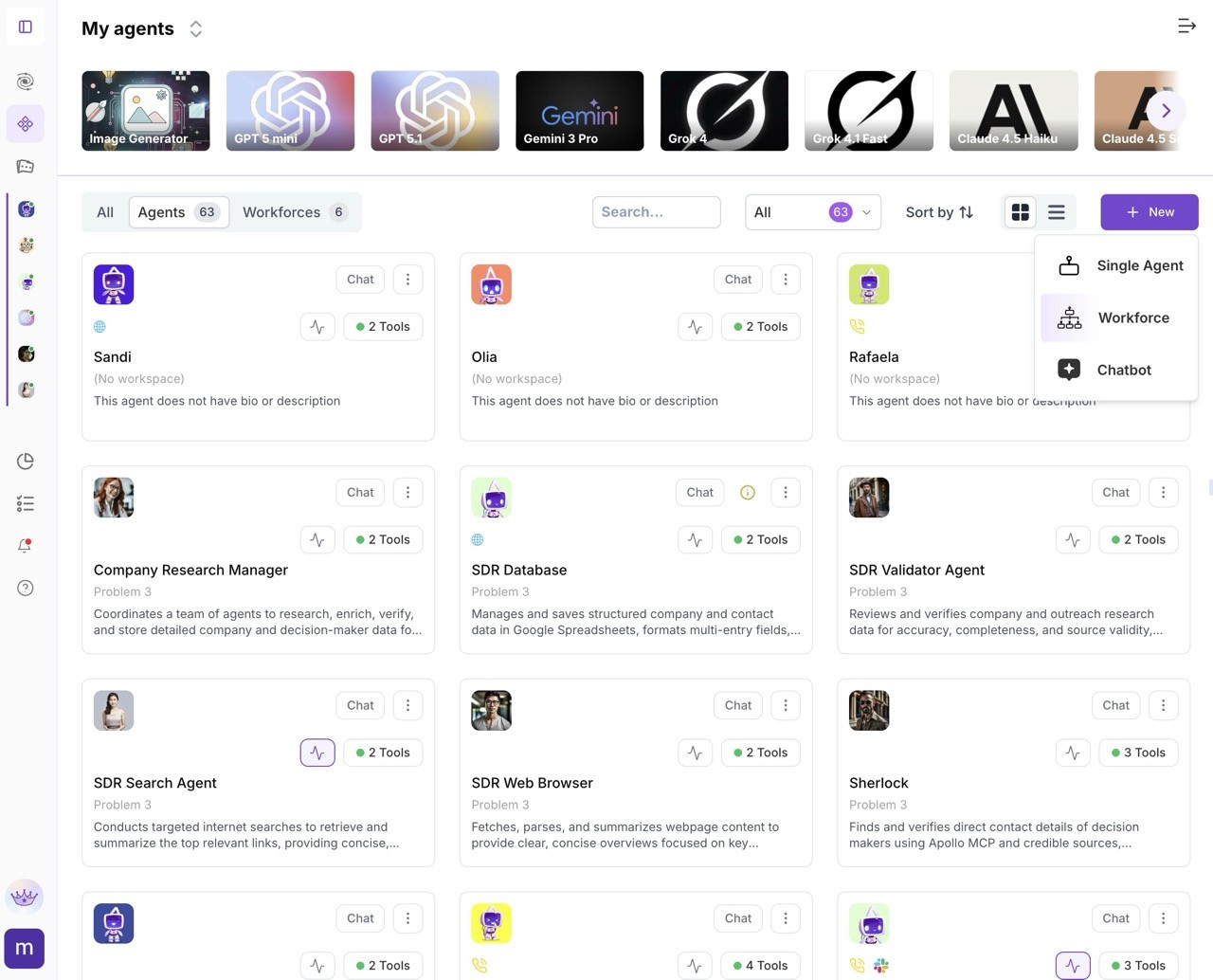
1.Go to Workspaces and select your workspace.
2.Click + New → Single Agent.
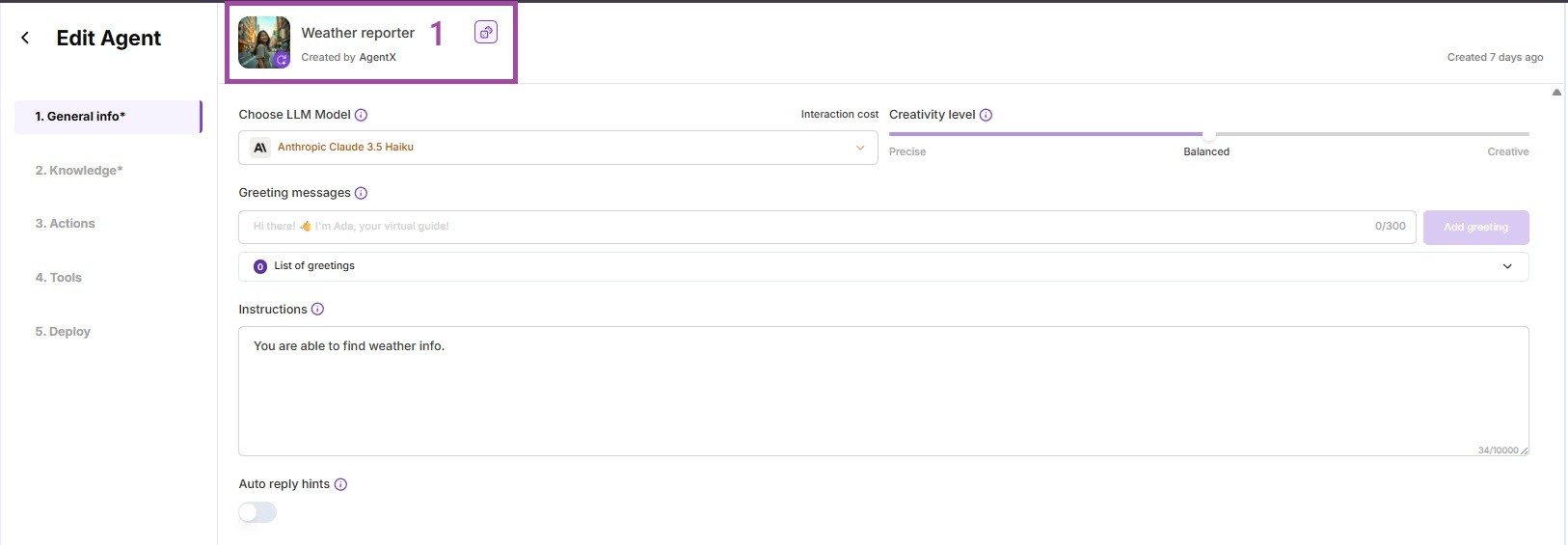
3.For each agent, set:
Name (e.g., “Weather Reporter”)
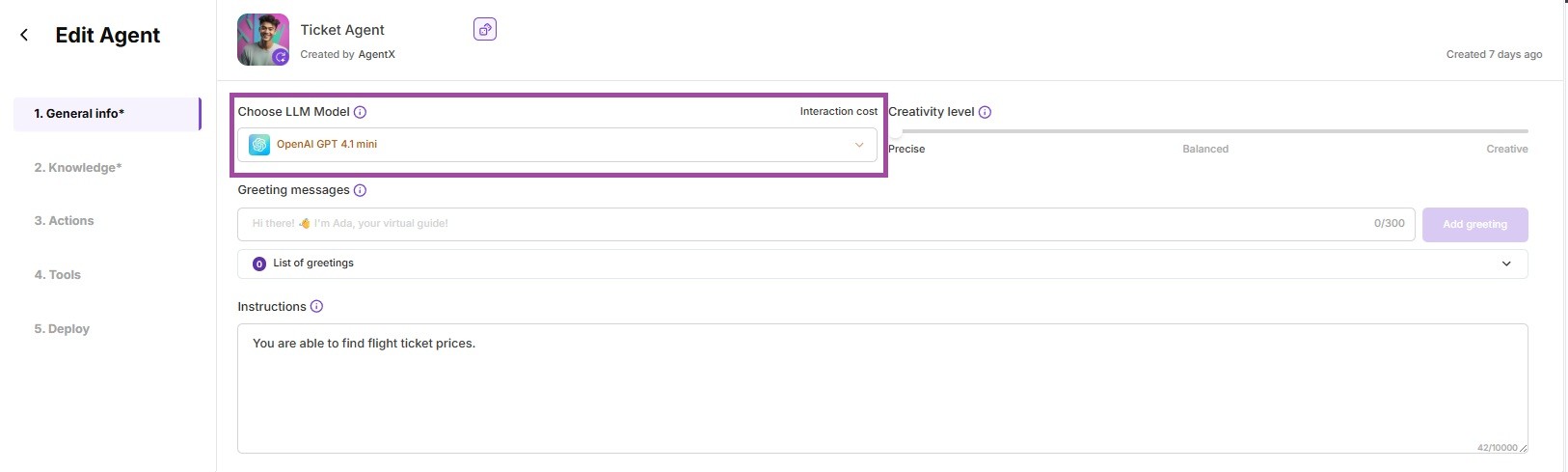
Large Language Model
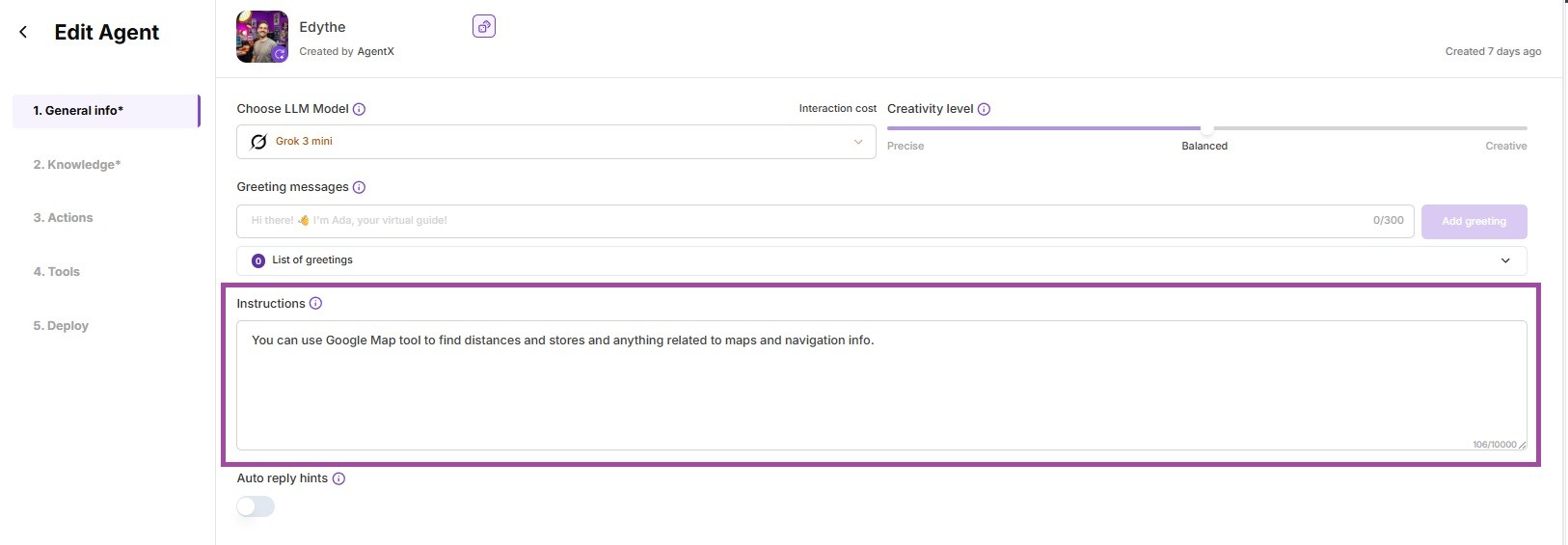
Instructions (what’s their main job)
Assign proper tools and knowledge (e.g. Search Engine, Google Map MCP, etc. available i tabs 2. - 4.)
How to:
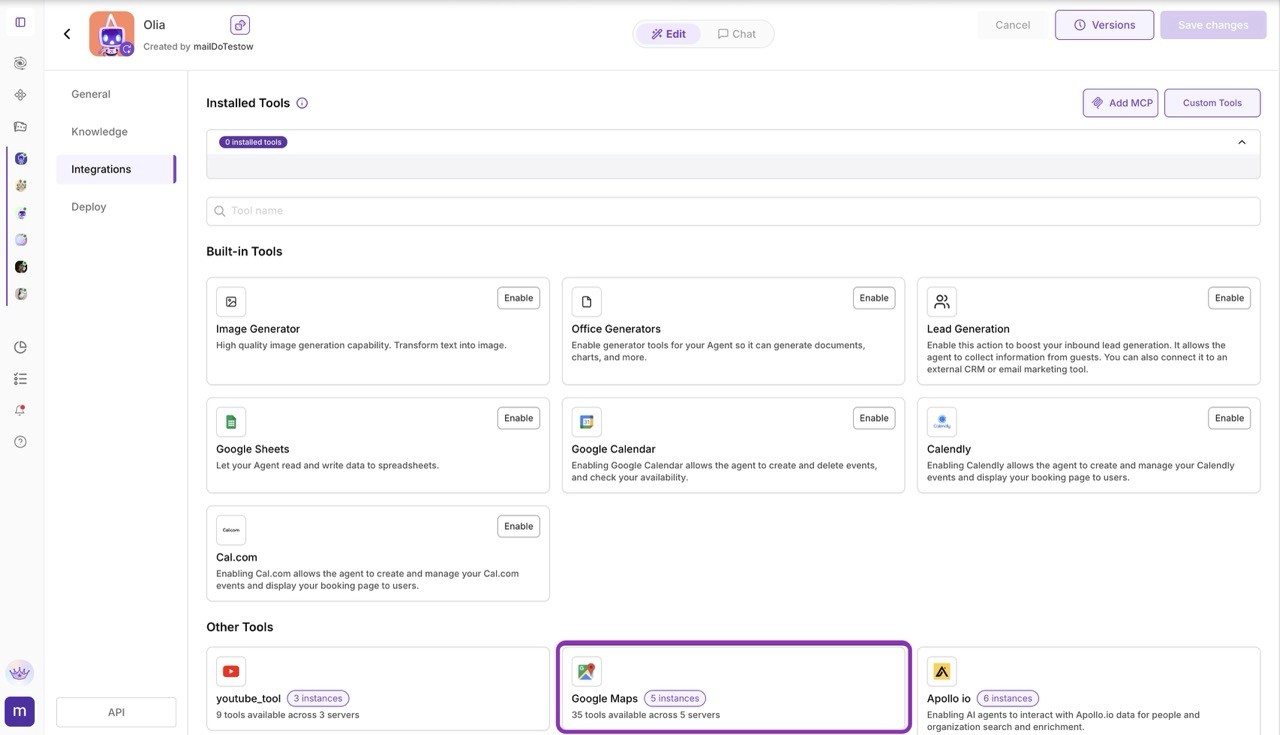
Repeat until every specialist is ready.
3. Create Your Team (Agent Workforce)
Now, time to build your team:
1.Under Agent Workforce, click + New → Workforce.
2.Name your team (e.g. “Travel Agency”). (1)
3.Add a short description (e.g. “Plan your trip, Find attractions, and check Ticket Prices with a team of Agents.”). (2)
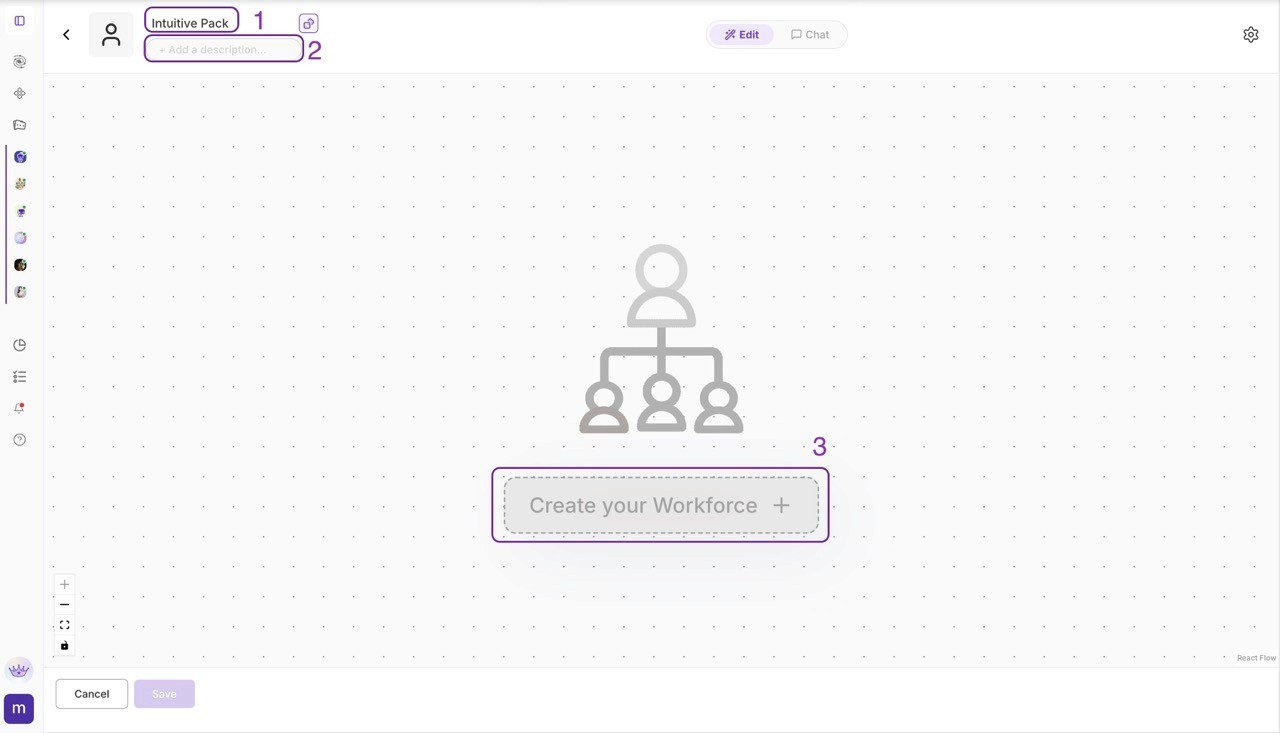
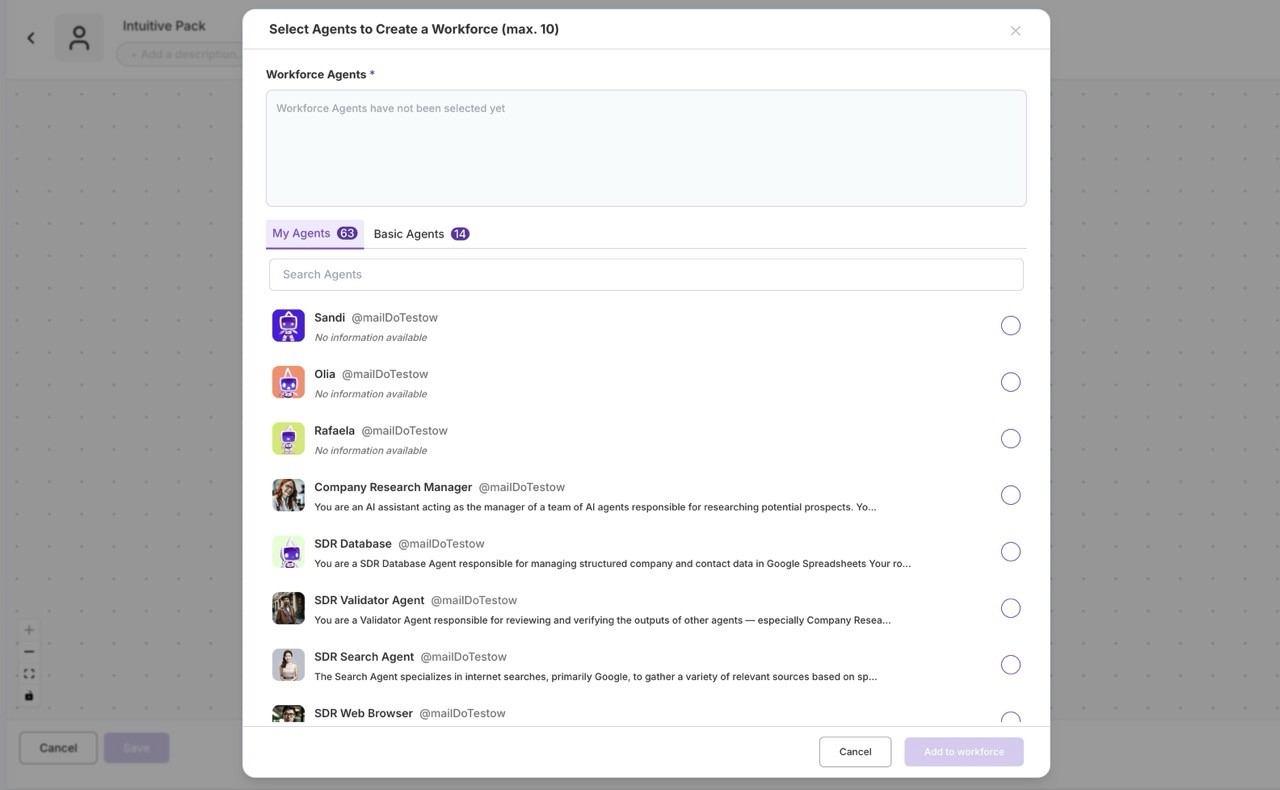
4.Add agents (select from those you created earlier). (3)
5.Choose a manager (the “Trip Master” who will coordinate tasks and gather results).
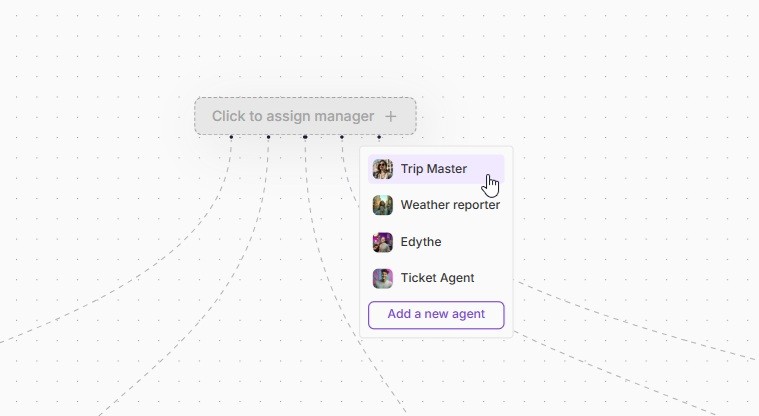
Example Agent Setup:
When selecting agents, make sure you connect each to the right tools, so your team works as a real set of experts:
Agent | Main Tool / MCP Server | Purpose |
|---|---|---|
Weather Reporter | Gets weather data | |
Edythe | Finds attractions, plans routes | |
Ticket Agent | Finds and compares flight tickets | |
Trip Master (Manager) | Excel Generator, share_doc_to_emails tool | Coordinates team, exports & shares info |
4. Adjust Instructions for Manager & Specialists if needed
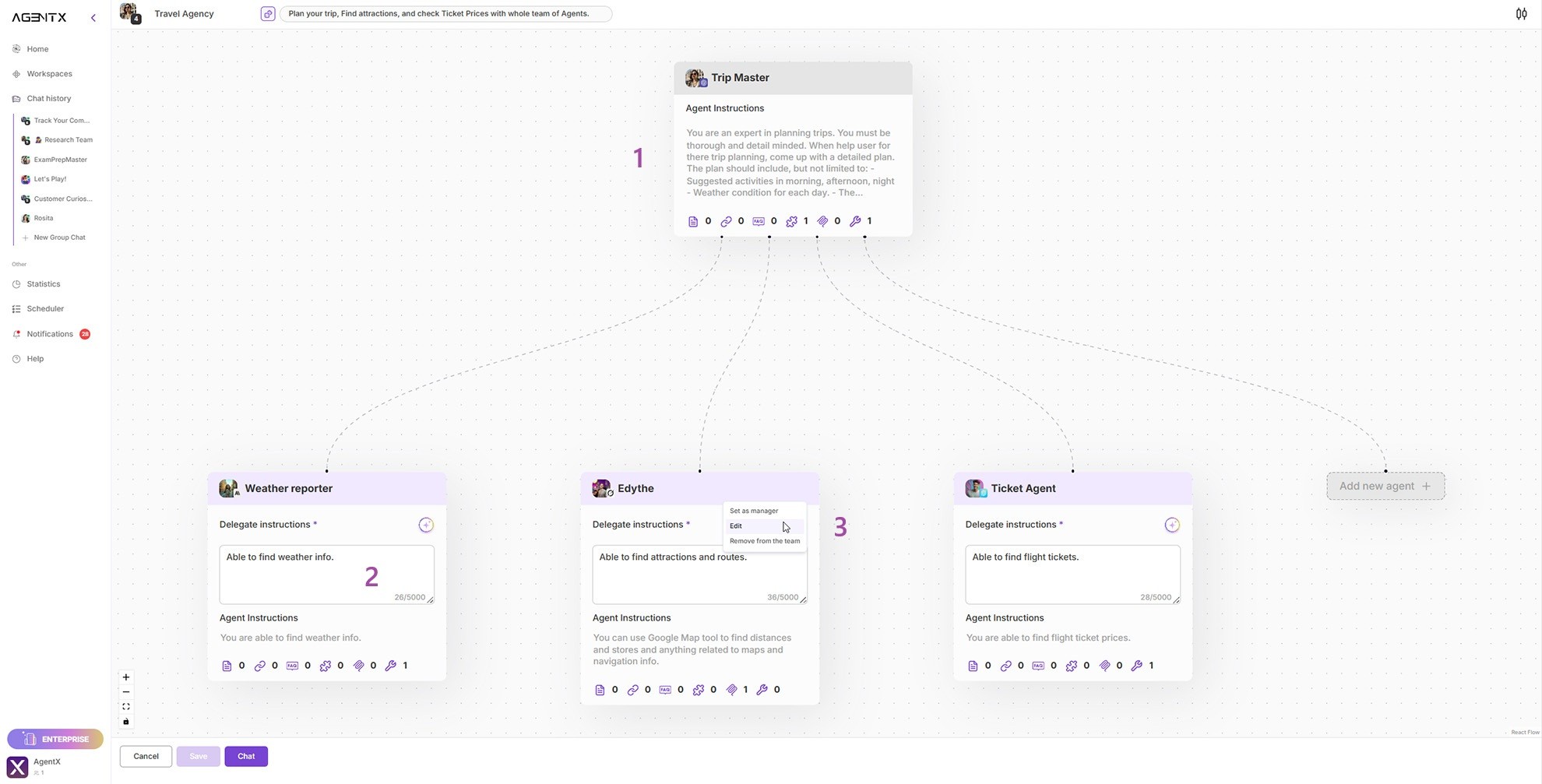
Manager: You are able to update main “Agent Instructions” - add a detailed process for planning, gathering, and sharing all info (1)
Specialists: “Delegate instructions” are short tips for your manager agent. They describe when and how to assign a specific task to this specialist (2).
Each agent can also be completely edited - you can do it without fear of losing your changes by selecting "Edit agent" (3).
You can always edit these instructions or tool access later.
5. Use Your Workforce!
Chat directly with your new team - the manager will assign jobs and combine answers for you.
Try to ask for the trip plan to Excel,
Expand your team anytime - add new specialists, tools, or data sources as your needs grow. How about connect you team with Airbnb MCP to help you with finding accommodation?
Related tutorials
