
Set Up a Lead Generator to Collect Leads to Email (and More)
Learn how to quickly set up an AI-powered lead generator on AgentX that sends new leads straight to your email - and beyond.
How to Set Up Lead Generation on AgentX 🚀
Collecting leads is crucial for growing your business - it’s how you turn interested visitors into real customers. Using AI makes the process smarter and more efficient, capturing every opportunity 24/7 and delivering a seamless experience for your prospects.
Want to capture more leads for your business? It’s super easy with AgentX! Here’s a step-by-step guide to get your own lead generation system up and running.
Step 1: Create Your AI Agent on AgentX 🤖
Log in to your AgentX account.
Select the Create new button and pick one of the options:
1. Create from scratch - and set up your AI agent freely - fill in the instructions, add Knowledge, connect tools and configure INTEGRATIONS based on your needs - here you can find Lead Generation Tool!
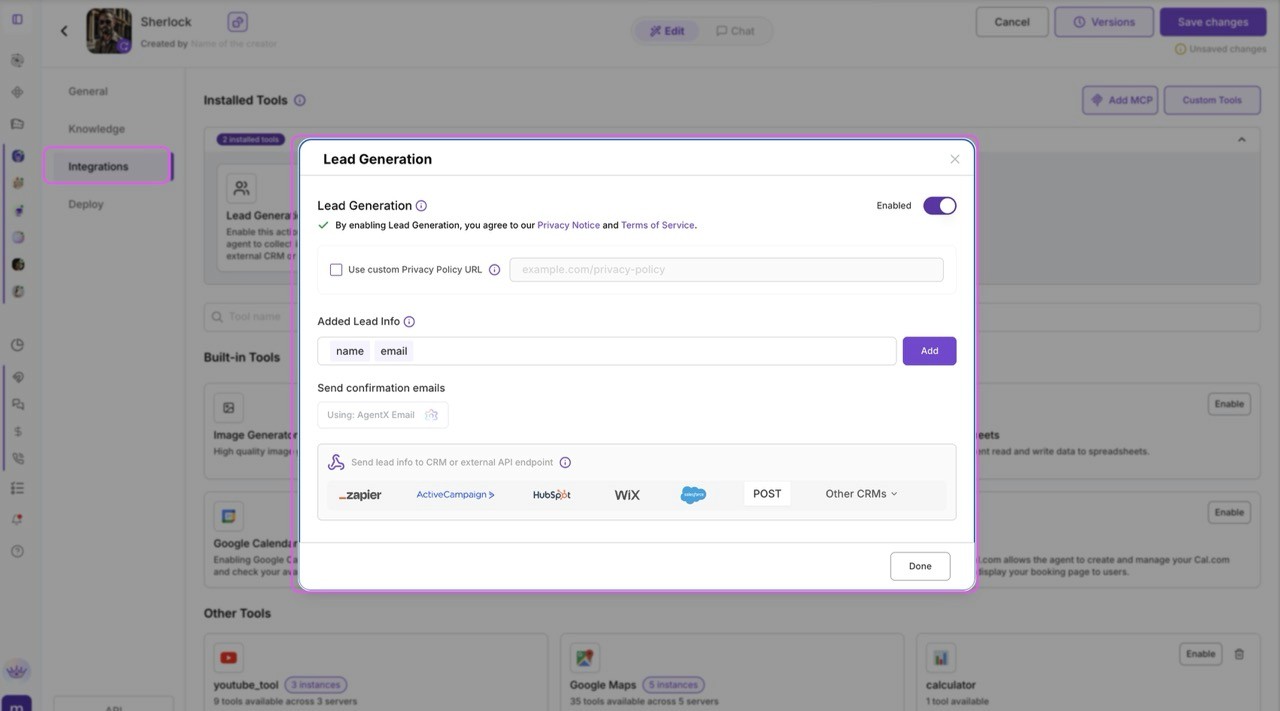
2. Build Website Agent - Use our super simple step-by-step wizard to create your Lead Generator in minutes. Remember, you can always update your settings later in Edit Agent mode and find Lead Generation tool- see the image below for guidance:
Step 2: Set Up Lead Collection
Enable Lead Generation
Go to INTEGRATIONS Tab, then turn on the “Lead Generation” feature and save your changes. By default, your agent will ask for the lead’s name and email.Customize Lead Fields (Optional)
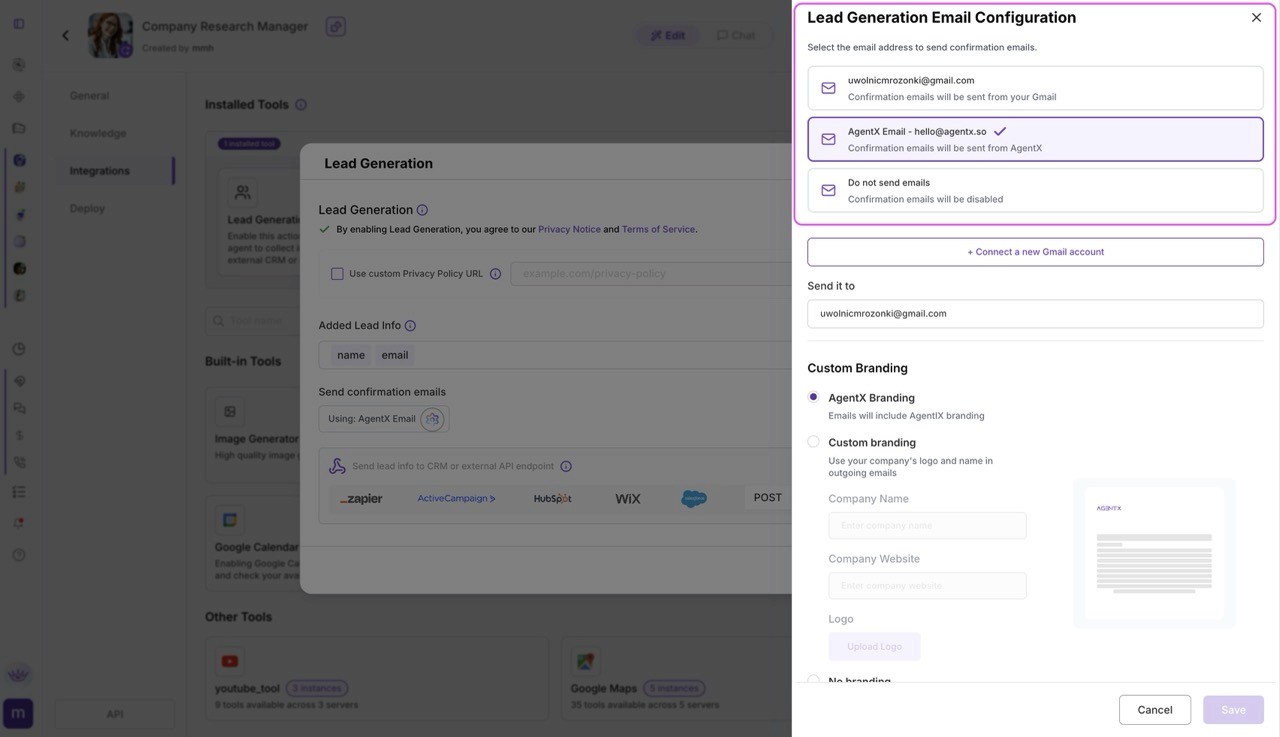
Easily add or remove any lead details you want to collect. Choose the email address you’ll use for sending messages, and decide where the generated leads should be delivered.Connect Your CRM or Webhook (Optional)
With just one click, connect your agent to top CRMs like Salesforce, HubSpot, or Wix. You can also use Zapier for advanced workflows, or send leads anywhere via webhook/POST.
No matter which option you choose, leads are always sent to your email by default. You can pick which email to use for sending and receiving new leads.
Step 3: You’re Done - Just Save!
Click Create an Agent (or Save Changes) and your lead generator is live!
To view your leads, check your email inbox or visit the Statistics (Leads) page to see a table with all lead details and conversations.
Curious how to send your lead straight to your CRM?
Check other tutorials:
How to send Lead to HubSpot CRM?
