Skip to content

AgentX tutorial

How to Fully Rebrand Your AI Agent with AgentX

How to remove branding from your AI agent and rebrand with your owns onto AI agent in just a few simple steps. My your chatbot fully personal!

1 min read

Creating a personalized and professional experience for your users is essential in today’s competitive landscape. AgentX makes this incredibly easy by allowing you to fully rebrand your AI agent in just a few simple steps. Whether you're aiming to align the chatbot with your company’s visual identity or ensure consistent communication across channels, the rebranding feature in AgentX give you complete control.

Step-by-Step Guide to Rebranding Your AI Agent

1. Navigate to Your Agent Settings

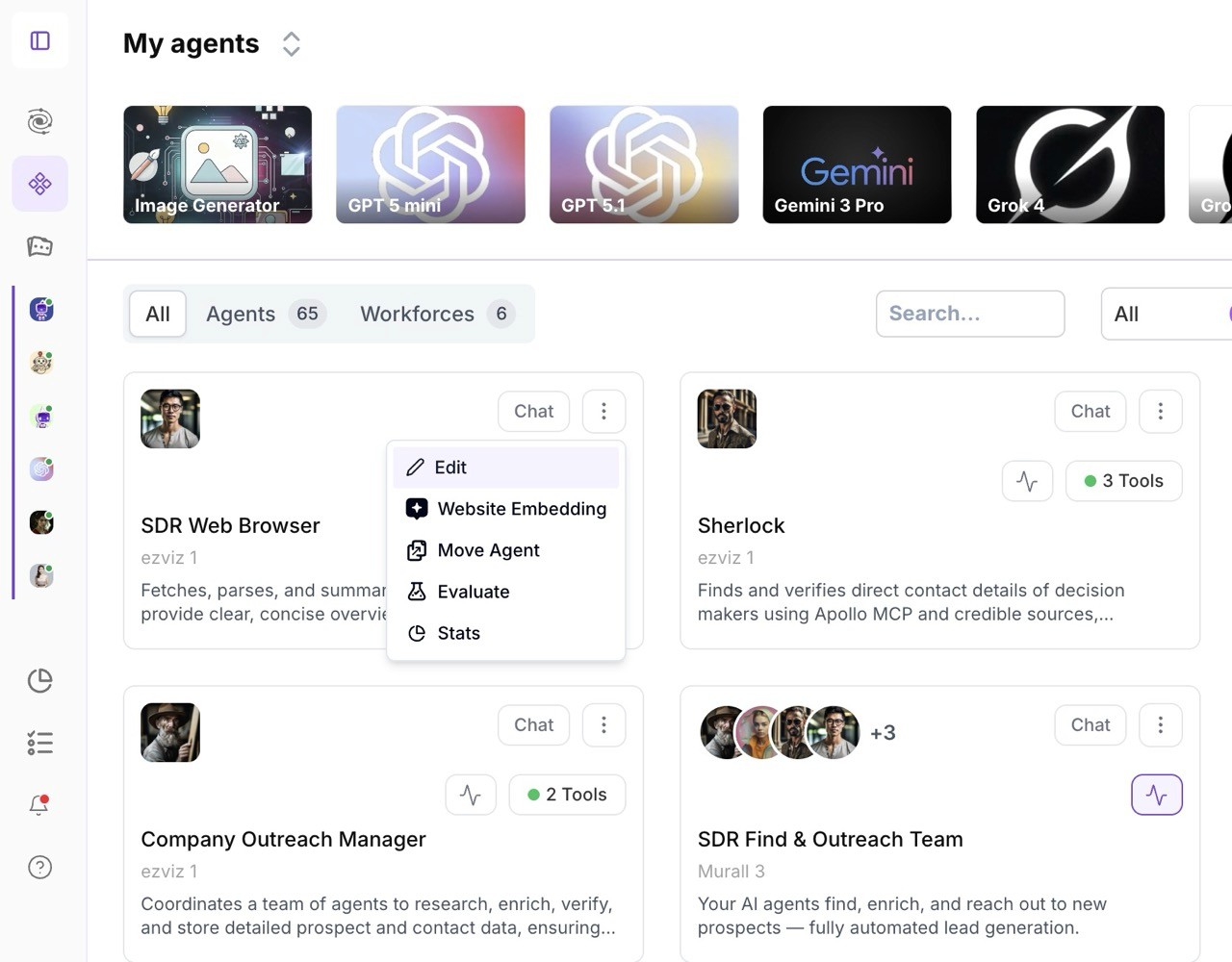
Start by selecting the “Edit Agent” option from your AgentX dashboard. This opens up the configuration interface for your deployed AI assistant.
2. Access the Deployment Settings

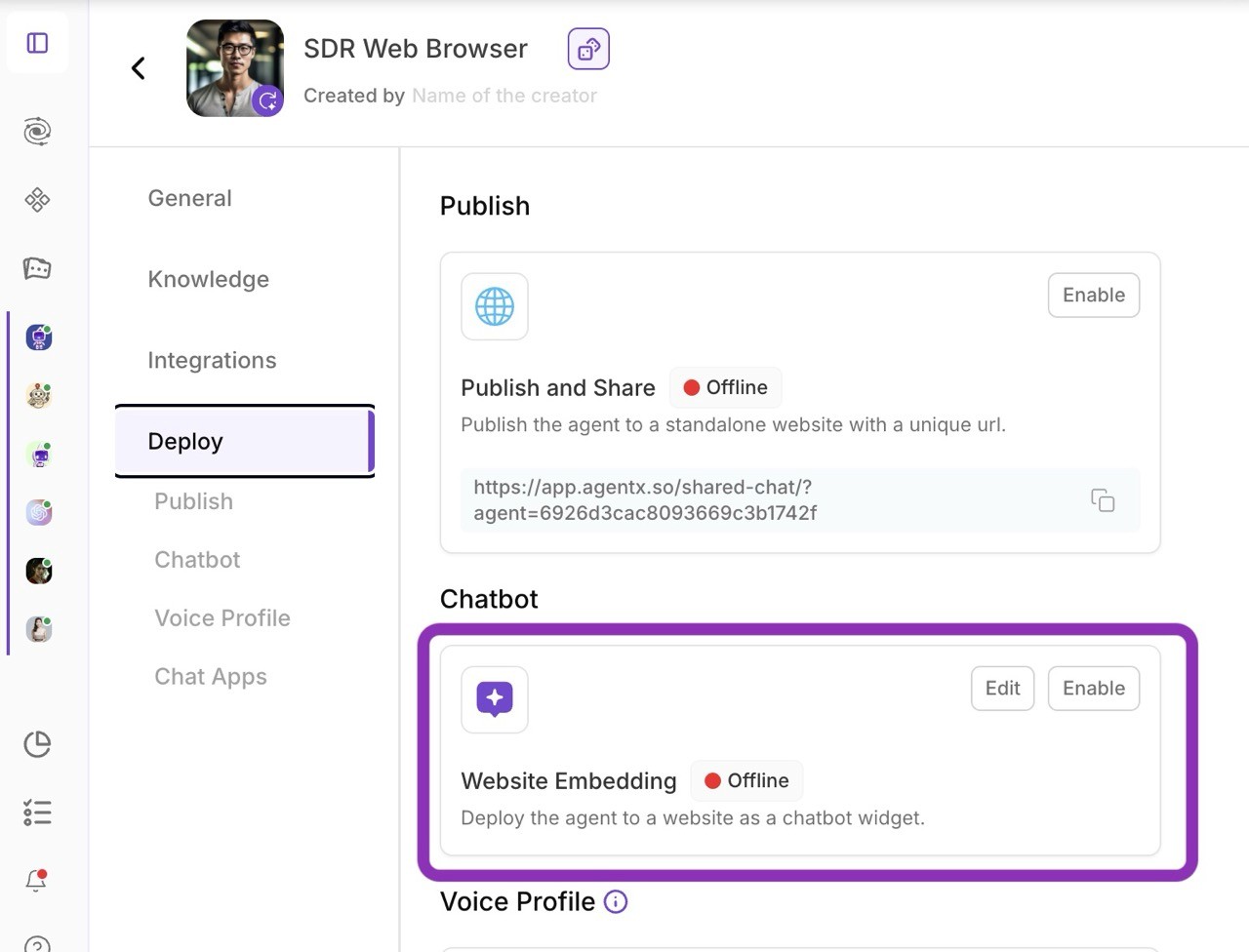
Click on the “Deploy” tab, then go to “Web Embedding” and select “Manage.”
3. Enable Custom Branding

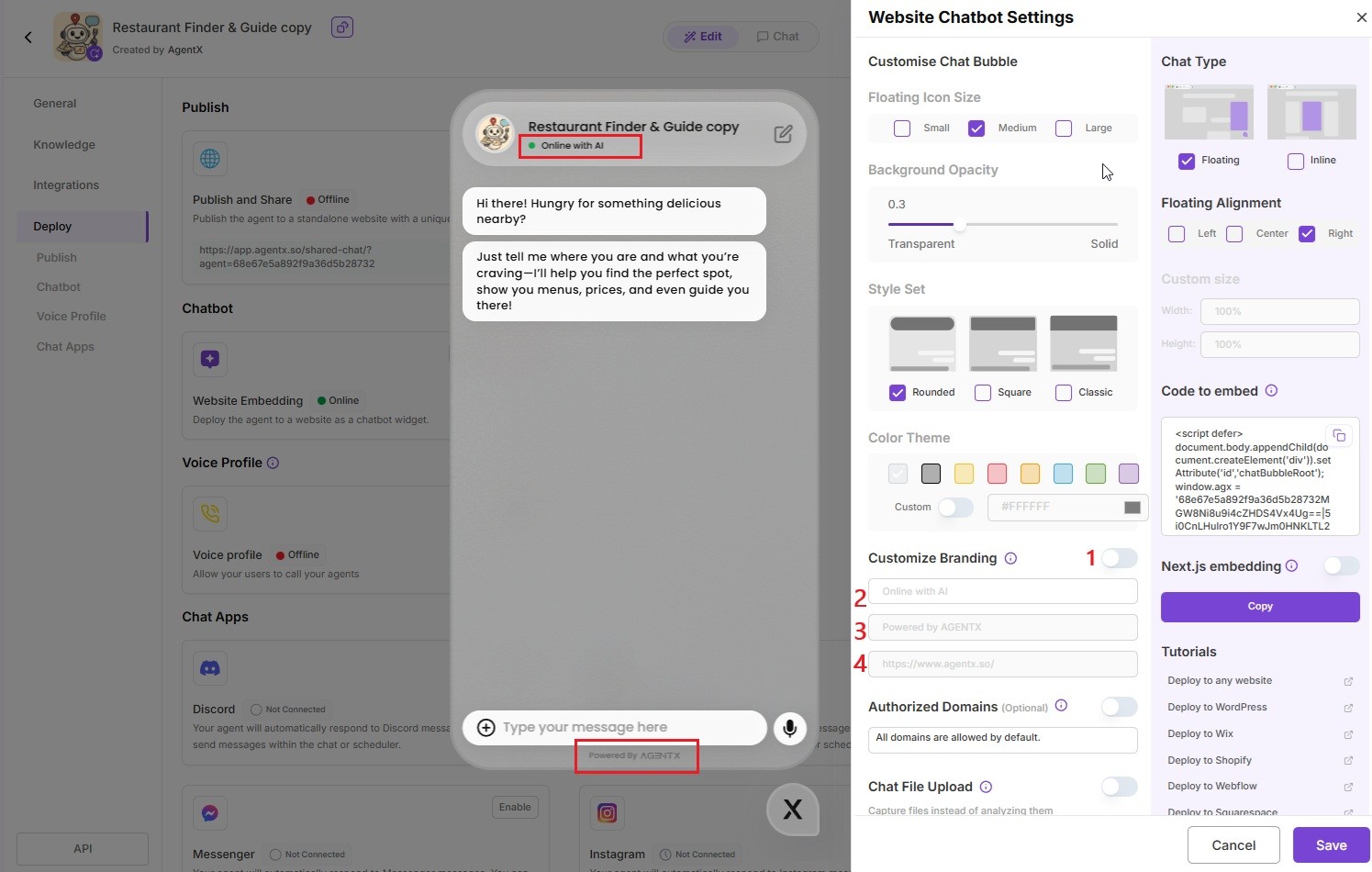
Scroll down the settings panel until you find the option to enable custom branding

  1. Activate it.
  2. You can change default "Online with AI" settings,
  3. Type your own brand in Message field (e.g. MyCompany is awesome).
  4. Type the url in the Link field (e.g. https://www.mycompany.com).
4. Save and Apply

Click “Save” to lock in your changes. Your AI agent will now reflect your brand across all touch points.

What’s Rebranded?

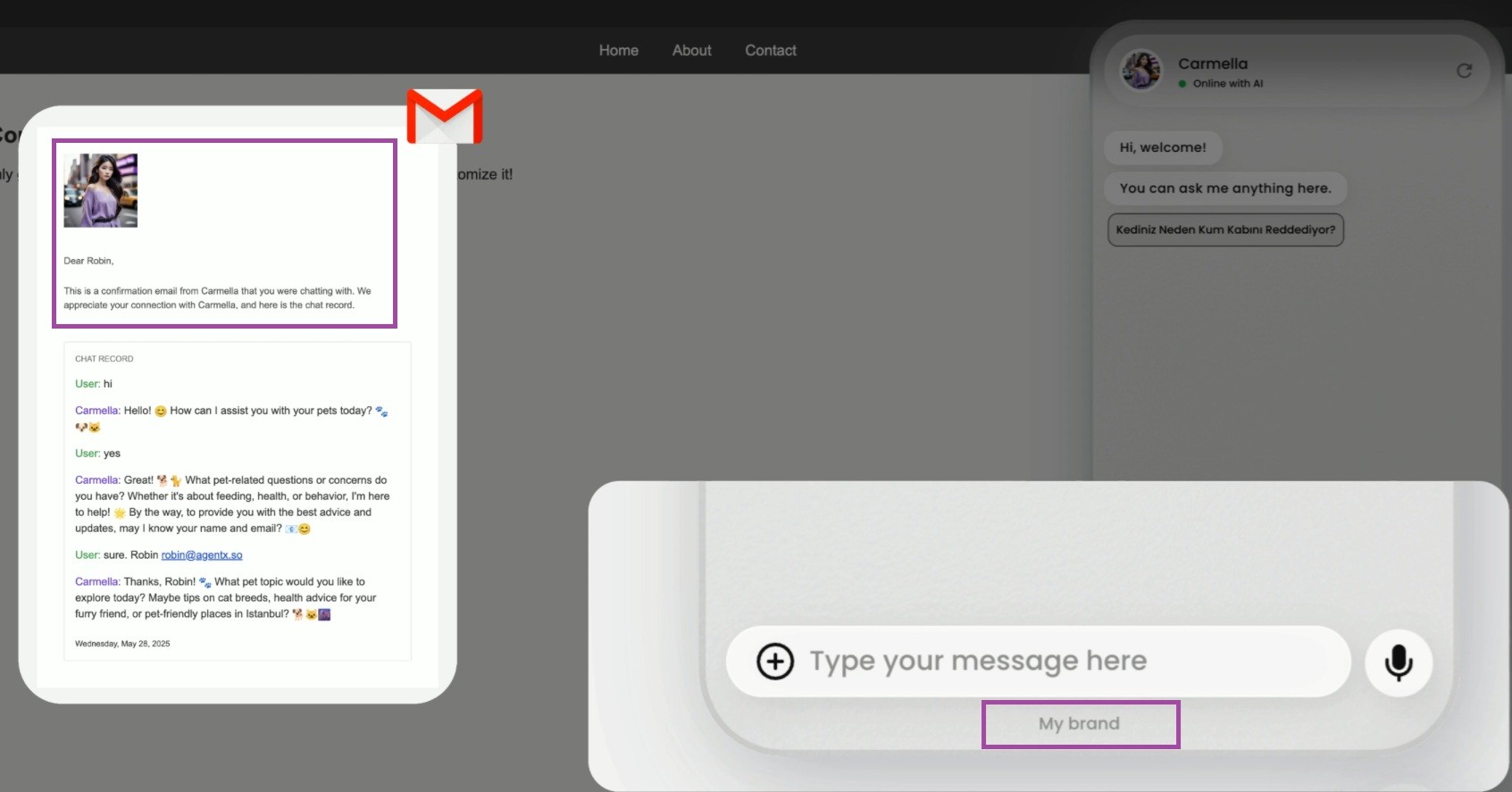
  • Web Chat Interface: Your chatbot adopts your chosen name and link, replacing all AgentX identifiers.
  • Email Flows: Any automated email notifications triggered by user activity (e.g., lead forms) will now be sent under your brand’s name and domain, not AgentX.

This makes the entire experience feel cohesive and professional for your users- from the initial interaction to follow-up communication.
Final Thoughts

Branding isn’t just about logos - it’s about creating trust and recognition. With AgentX, you’re just seconds away from a fully branded AI experience that feels like a natural extension of your company.

Thank you for choosing AgentX. We hope this guide has been helpful. See you next time!

More tutorials

All tutorials

Creating a Custom Tool in AgentX

Learn how to quickly create custom API-powered tools in AgentX using natural language and automatic code generation.

Read

Custom Branding for Agent Emails

You can now choose between AgentX branding, completely custom branding with your own logo and identity, or a clean unstyled option — all available for both Lead Generation emails and regular agent-sent messages. Configuration is now unified and easier to access, making it simple to keep every outgoing email consistent with your brand.

Read

How to add a MCP to your AI Agent

MCP (Model Context Protocol) allows you to connect your AI application to any desired third-party app as long as it supports it. Here is a step-by-step tutorial on how to set it up and connect with your AI agent. We will give an example on YouTube MCP.

Read

How to Automate Agent Tasks with AgentX

Discover how to automate your AgentX agents - from daily AI news briefings to fully autonomous SDR outreach - so your business runs on autopilot.

Read

How to Build AI Agent Workforce in AgentX

With AI Agent Workforces, you’re not limited to a single AI agent - you can build a whole team of specialists

Read

How to build an AI Agent - beginner's guide

Creating your first AI agent in AgentX, tuning prompts, instructions, and building knowledge bases. AgentX offers a no-code platform to create powerful AI agents for various use cases. Customize your agent’s bio, greeting, and response style, add knowledge bases, and enable optional features like lead generation or image generation. Once built, deploy your agent across multiple platforms, including websites, Slack, and Discord.

Read

Start your AI automation journey today

Sign up for AgentX and let AI handle your routine tasks. No credit card needed.