
How to build an AI Agent - beginner's guide
Creating your first AI agent in AgentX, tuning prompts, instructions, and building knowledge bases. AgentX offers a no-code platform to create powerful AI agents for various use cases. Customize your agent’s bio, greeting, and response style, add knowledge bases, and enable optional features like lead generation or image generation. Once built, deploy your agent across multiple platforms, including websites, Slack, and Discord.
By the end of this tutorial, you will learn how to create your first AI agent in AgentX and leave with a solid understanding of how to build powerful AI agents in AgentX by tuning the prompts, instructions and build knowledge bases.
AgentX delivers a seamless no-code AI agent building experience. We're dedicated to making our platform both powerful and easy to use, so we regularly update our user interfaces to offer a more intuitive and efficient experience for all users.
What is AgentX
AgentX is a tool to build AI agent for various use cases, such as chatbot, customer support, e-commerce sales agent, image generation, data extraction, workflow automation, digital human creation, etc.
Two Ways to Build an AI Agent in AgentX
AgentX gives you full flexibility in how you build your AI agents.
Depending on your experience level and preferred workflow, you can choose one of two powerful approaches:
Chat-to-Cooperate (C2C) - build agents by simply talking
Manual Agent Builder - full control through the dashboard
Both methods lead to the same result: a fully functional, deployable AI agent. The difference is how you get there.
Option 1: Chat-to-Cooperate (C2C) - Build Agents by Conversation
Best for:
Beginners
Non-technical users
Teams that want speed and automation
Anyone who prefers “just tell it what to do”
Chat-to-Cooperate (C2C) is AgentX’s conversational way of building AI agents -without clicking through complex dashboards.
Instead of manually configuring settings, you simply describe what you want in natural language, and the C2C agent handles everything for you.
What you can do with C2C
Through conversation, your C2C agent can:
🤖 Create and configure AI agents
🌐 Deploy agents across platforms (Website, Slack, Discord, WhatsApp, Instagram, Messenger)
📚 Build and refresh knowledge bases (documents, websites, FAQs)
🕒 Set up workflow automation and scheduled tasks
🗓️ Connect Google Calendar for scheduling
📊 Integrate Google Sheets for data tracking
🔗 Connect tools via MCP (Google Maps, YouTube, Notion, Mailchimp, Yahoo Finance, and more)
🎤 Configure voice capabilities
🧩 Create multi-agent teams and workspaces
🧲 Set up lead generation systems
📄 Enable document, image, and email automation
How to start with C2C
Open your AgentX workspace
Select the Chat-to-Cooperate Agent
Start describing what you want, for example:
“Create a customer support agent using my FAQ and return policy PDF”
“Deploy it on WhatsApp and website widget”
“Connect Google Sheets to log conversations”
The agent translates your requests into a fully configured solution.
👉 Learn more about C2C here
Option 2: Manual Agent Builder - Full Control via Dashboard
Best for:
Advanced users
Product builders
Teams who want fine-grained control
Users already familiar with AI agents and prompting
If you prefer hands-on configuration, AgentX also offers a traditional dashboard-based agent builder.
This is the approach covered in the rest of this tutorial.
To start, log in to AgentX dashboard and click "New", and then click "Create Agent".
Pro Tip: If you just want to create website chatbot - use this tutorial
Pick a name and avatar for your new agent
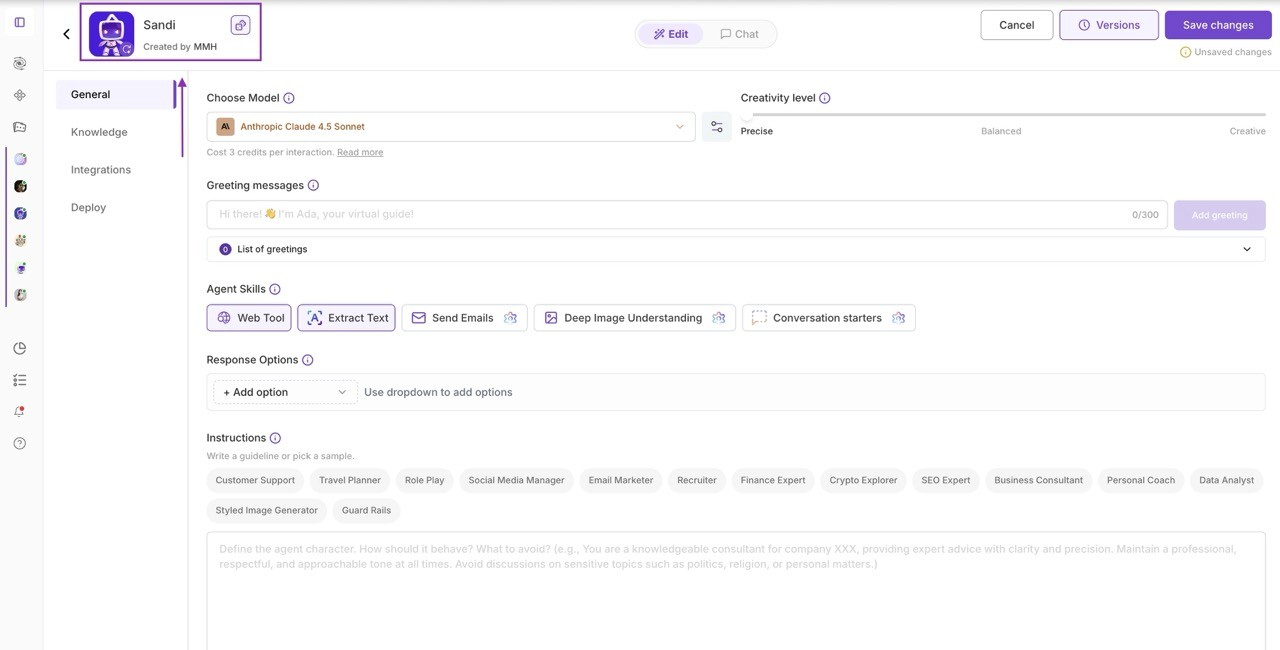
By default, your agent will already have a name. If you’d like to change it, just click on the name field and type a new one.
You can also personalize the avatar: either let the AI generate one for you with a single click, or upload your own image.
Choose a LLM and Creativity Level
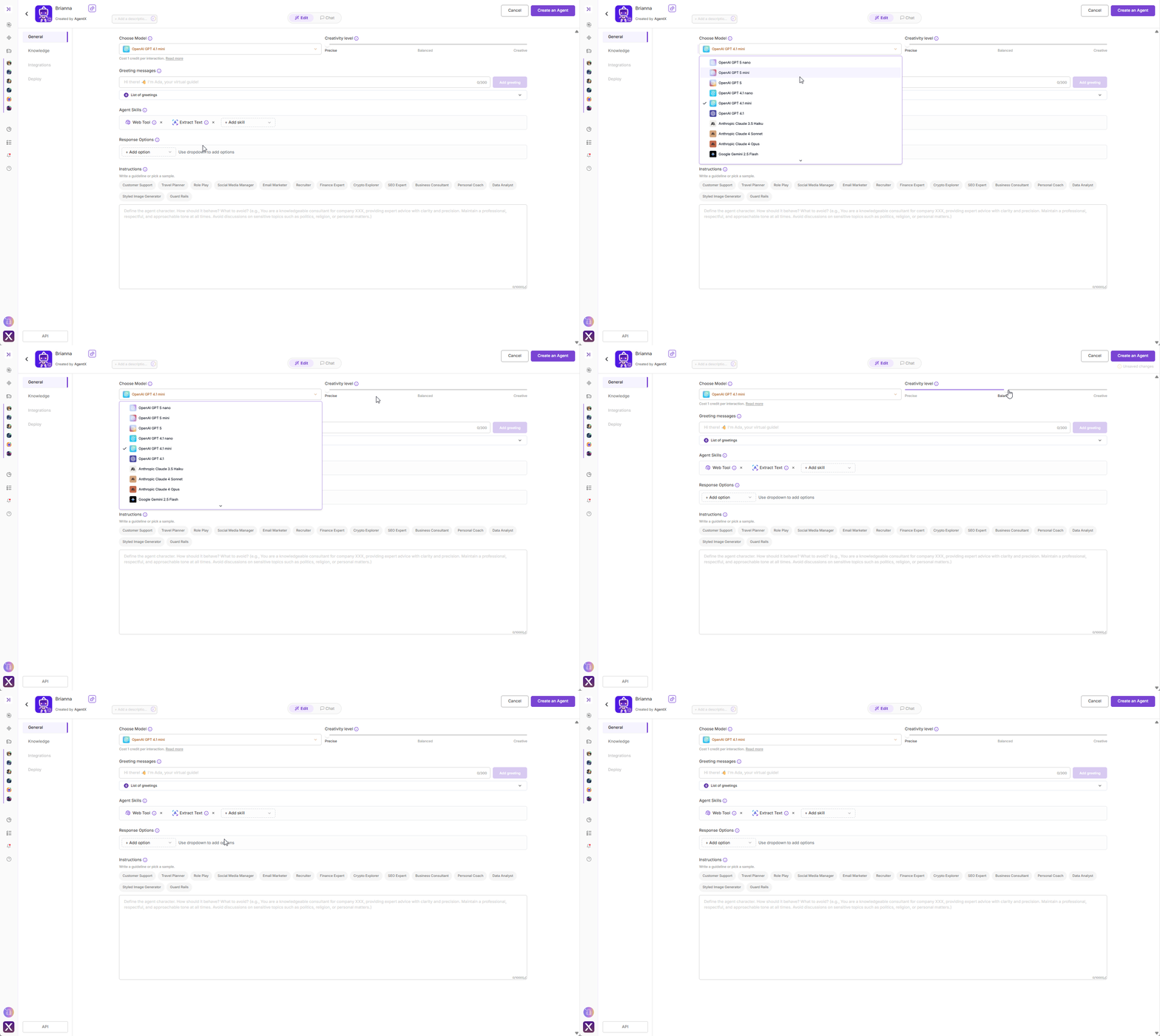
Choose the LLM (Large Language Model)
The LLM is the engine that powers your AI agent. With AgentX, you can choose from multiple providers, including OpenAI, Google, Meta, Grok, and Anthropic. Each vendor delivers cutting-edge models with unique strengths and trade-offs, and AgentX ensures you always have access to the latest updates from each.
Not sure which model fits your project? Discover them here
Set the Creativity Level
This setting defines how imaginative your agent should be.
For entertainment, art, or creative writing, select Creative.
For business-focused tasks like customer support or knowledge management, choose between Precise and Balanced.
Set up your Agent Skills and instructions
Name your agent and the creator. Then fill the following fields:
Greeting messages
In this field, you can add greeting messages that the agent will use to greet the user at the beginning of each conversation. It can be simply like
Hello, welcome to AgentX store.Agent Skills
Choose the core skills your agent should have:
🌐Web Tool - Lets the agent search and browse websites to find real-time information.
📄 Extract Text - Enables the agent to extract and process text from different document formats.
✉️ Send Emails - Allows the agent to send you an email when requested.
🖼️ Deep Image Understanding - Allows the agent to analyze and understand images beyond text, including objects, diagrams, charts, handwriting, and visual layouts.
🗨️ Conversation Starters - Adds predefined or AI-generated prompts at the start of a conversation to guide users toward the most relevant questions and interactions.
Response options:
Enhance your agent’s interaction capabilities with additional response settings. These features improve the user experience by making conversations smoother and more helpful.
💡 Auto Reply Hints – Suggests reply options based on the agent’s responses, making it easier for users to choose follow-up replies.
👐 Hands-Off Mode (Coming Soon) – Allows the agent to operate autonomously while still being able to request human assistance when necessary, or whenever a user asks for it.
Instructions – Guideline Prompt
Set the guiding rules for your agent. These can define its background, tone, behavior, tasks, or anything else you want it to follow.You can:
Pick one of the prepared examples.
Create your own custom prompt. f.e
You are a sales agent work for Nike, your goal is to help customers find what they want and guide them to finish the purchase. You should be polite but do not be verbose. Your response should be short and straight forward. You should use a lot of emojis. You should use British English spelling.Ask the Agent Creation Assistant for help if you’re not sure where to start.
Add knowledge base
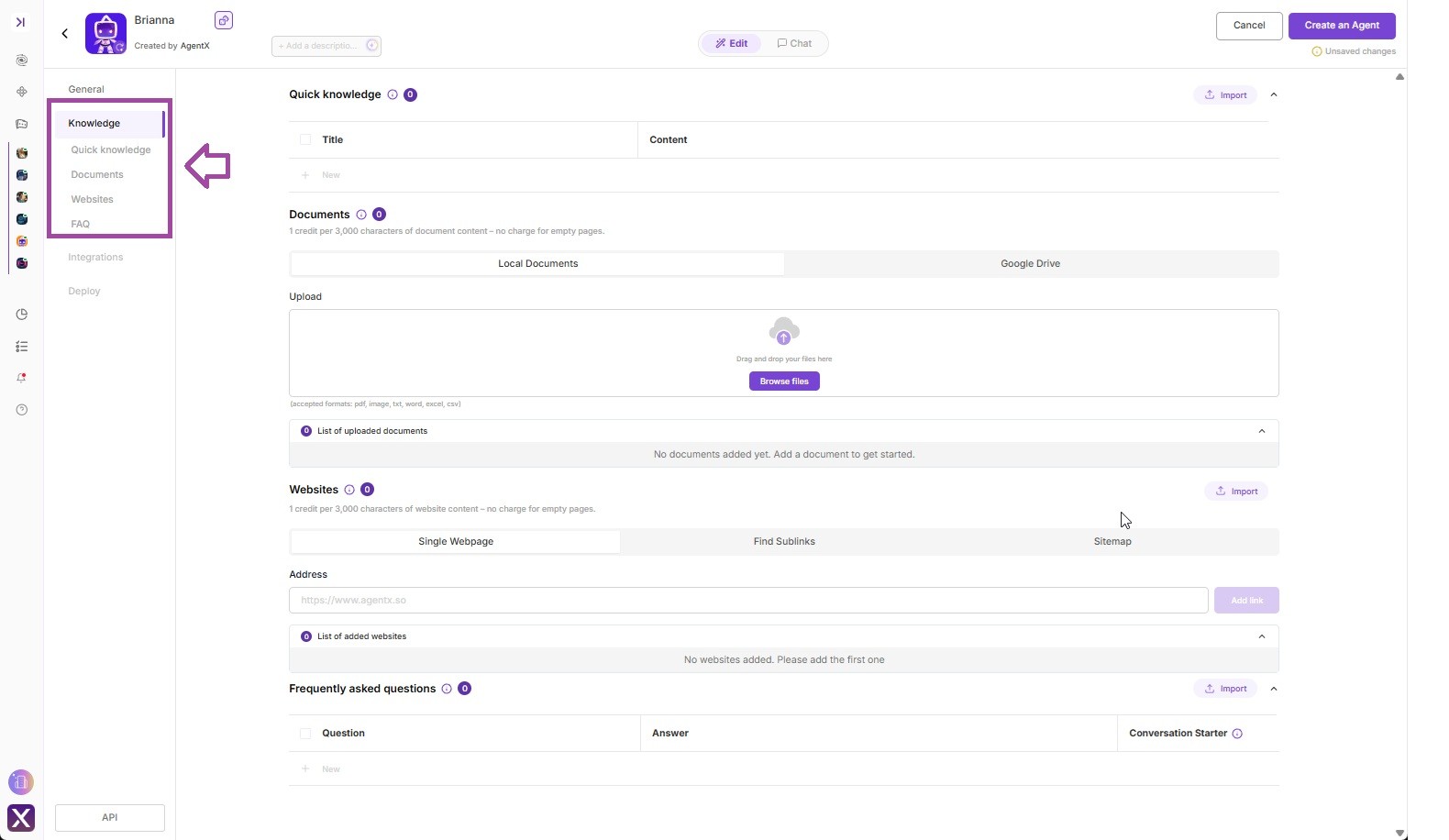
After that, click "Continue" to go to Knowledge tab. There are primary four different types of knowledge that you can provide to the agent to learn
Quick Knowledge
This field is for quick and short knowledge, and the agent will always memorized it. You can provide something unique and short, for example,
Title: When was nike founded? Content: Nike was founded on January 25, 1964, as "Blue Ribbon Sports", by Bill Bowerman and Phil Knight, and officially became Nike, Inc. on May 30, 1971.Documents
Document info allows you to choose any document in any size, and the agent will "learn" the knowledge from the provided documents. You can upload documents directly from you computer, or you can connect to Google Drive and select a folder there. The benefit of using Google Drive is that it is able to auto update the knowledge whenever there is some update on Google documents like Google Sheets, Google Docs, etc.
Website info
Similar to Document Info, adding website links to the list will let the agent learn from the provided website. The agent will try to scrape the website content and learn the important knowledge from it. You can add links one by one, or you can also use Sitemap or Find Sub links to get list of page links from a certain website.
The FAQ (Frequently asked questions)
In FAQ section, you can add any questions and answers that you or your company already had. It can be anything such as questions asked by customers, product description, return policy, etc. Furthermore, you can flag any FAQ as a Conversation Starter, and by doing that, the certain FAQ will show up as a quick button for user to engage the conversation.
At this point, you can click "Create Agent" to create. After a short moment, your agent will be born, and you can chat with it directly on the right side panel while continue to the next step.
Use Tools and Integrations
AgentX provides so many tools tak you can use while building your agents. They are optional but can be very useful in certain scenarios.
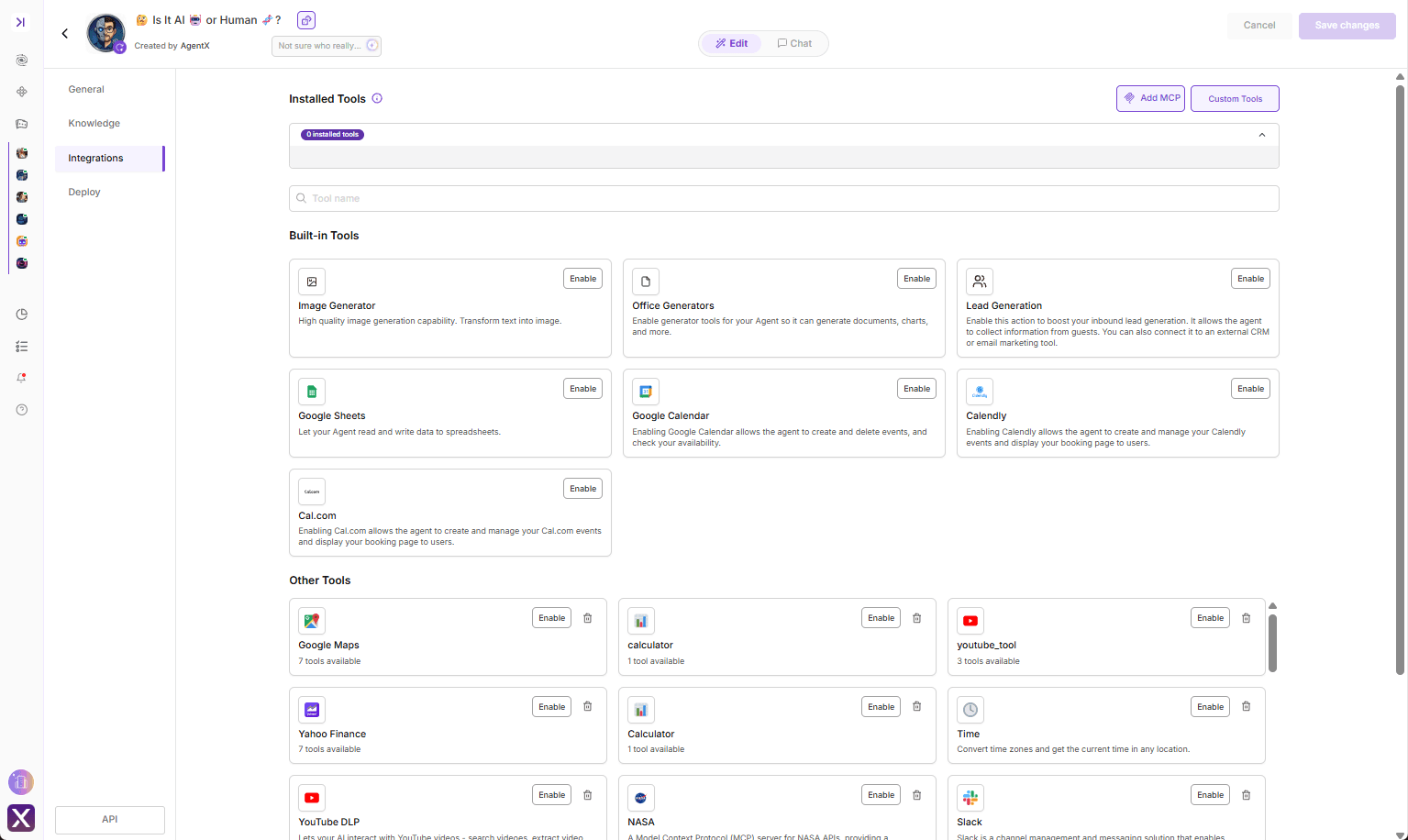
Image Generation
Enable high quality image generation capability for your agent. Transform text into image seamlessly. Check this if you are building an image generating agent.
Office generators
Enable your agent to generate different types of office documents directly from user requests. You can allow one or more of the following options:
📄 Word Document
📊 Excel Sheet
📑 PowerPoint Presentation
📈 Chart
📝 PDF
Lead Generation
Enable this feature to capture valuable inbound leads directly through your agent. It allows the agent to collect information such as name, email, or phone number from users. You can:✉️ Send confirmation emails to yourself or your team.
📤 Forward leads to a CRM or marketing tool like Zapier, ActiveCampaign, HubSpot, Wix, or Salesforce.
🛠️ Use custom endpoints (POST or API) to integrate with other platforms.
This makes it easy to keep all your leads organized and instantly connected to your existing workflow.
Calendars
Connect a calendar service to let your agent schedule and manage events.
📅 Google Calendar – Allows the agent to create and delete events, and check your availability.
🗓️ Calendly – Enables the agent to create and manage your Calendly events, as well as display your booking page to users.
📆 Cal.com – Enables the agent to create and manage your Cal.com events, and display your booking page to users.
Other Tools & Integrations
Your agent can be enhanced with a wide range of additional tools and integrations. From Google Maps, YouTube, and Yahoo Finance to specialized options like AirTable, NASA data, and calculators — you can enable the ones that fit your use case.
👉 See the full list of available tools and integrations here: agentx.so/mcp
Deploy Your Agent
Last but not the least, you can deploy your agent to various channels and platforms, such as:
Website widget (plain html, Wordpress, Wix, Shopify, SquareSpace, Weebly, Webflow, and more)
Instagram
Messenger
