
How to generate lead and send to HubSpot CRM
How to enable AgentX's lead generation and connect it to your HubSpot CRM. After activating Lead Generation in AgentX, obtain your HubSpot token by creating a private app with CRM permissions. Add this token in the AgentX settings, and your AI agent will automatically send collected leads to your HubSpot contact list.
This tutorial shows step by step how to enable the lead generation feature and connect it to your HubSpot, so that the leads go straight to your HubSpot CRM contact list.
AgentX | Hubspot CRM
In the agent build process (see how to build tutorial), there is an TOOLS page that allows you to assign tools and integrations to your agent. One of the supported tools is Lead Generation.
Why AgentX Lead Generation
We provide a more engaging conversation experience while generating leads. Unlike most other chatbots, our agents will NOT send boring forms for visitors to fill out. Instead, our AI agents ask questions and collect leads naturally through conversation, just like human agents do.
Enable Lead Generation
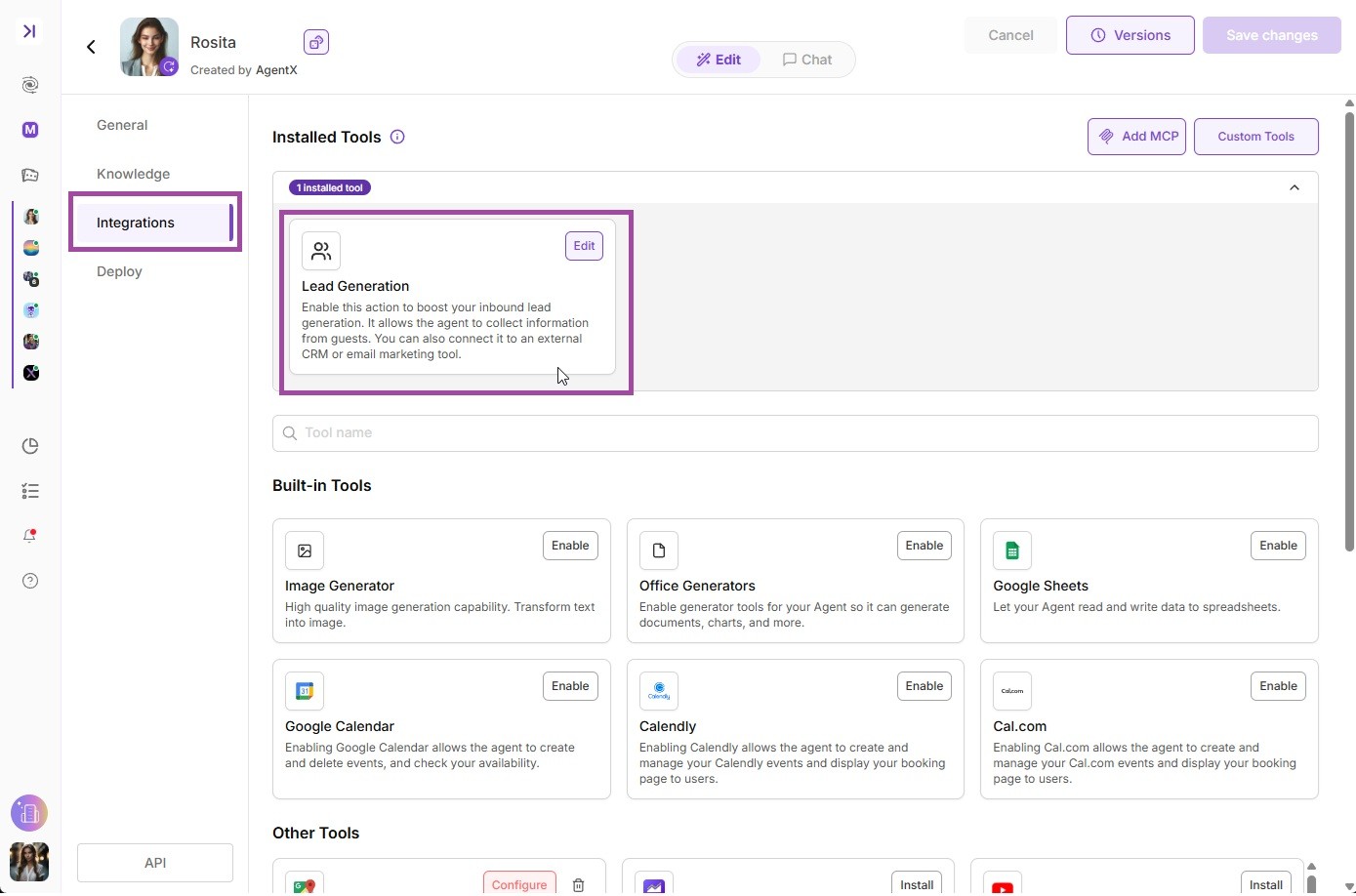
Go to INTEGRATIONS tab and enable "Lead Generation" tool.
Added Lead Info - Name and Email are the default required information that the agent will be actively collecting. You can add more info to collect such as phone number, company name, etc.
By enable Lead Generation, the AI agent will ask for the lead info every time it engages with a visitor. Once a lead got collected, the agent will send the notification to you (creator), and an confirmation to the visitor by email.
Connect to HubSpot CRM contact list
You can also connect AgentX Lead Generation to your HubSpot CRM account, so that the lead your AI agent collects can go straight into your CRM contact list.
1. get your token from HubSpot
Log in to your HubSpot account - https://app.hubspot.com/
Then click the gear icon on top right, after that click Integrations -> Private Apps

In the next page, you will see some setting for the private app, we can leave everything as default and click the Scope tab.
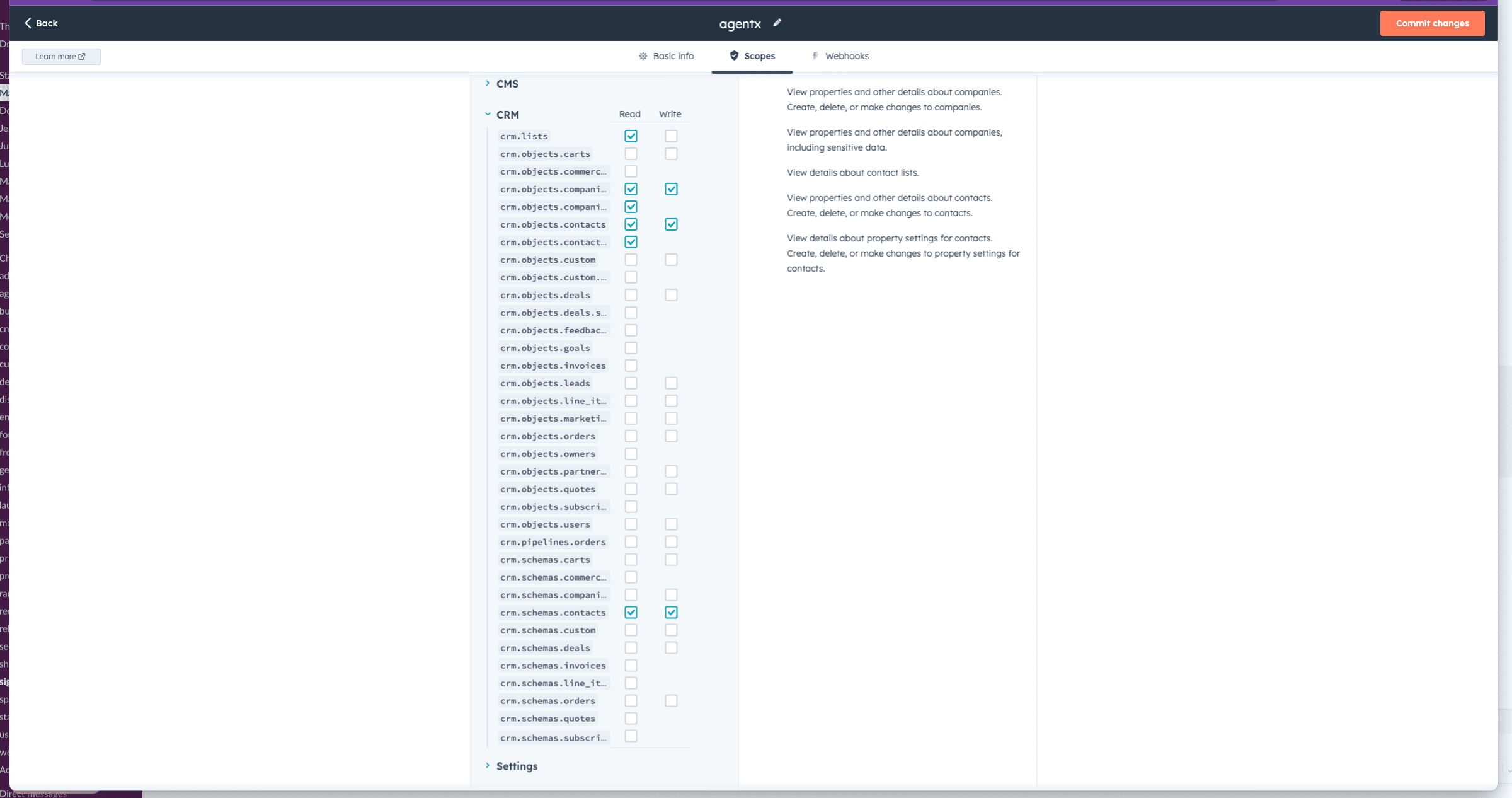
(Important) In the Scope page, select CRM drop, and enable the following Scopes both read and write:
After that, go ahead click "Create app" button on top right. And you will see the following screen with your token

Copy your token somewhere and we will need to use it later.
2. Add HubSpot token to AgentX
Next, go back to AgentX INTEGRATIONS tab. Click Add an endpoint. Fill the following fields like:
Choose HubSpot tab
API Key: copy and paste the token you got from the previous step here
Don't forget to save the changes.
🎉 Congrats, now your agent is able to generate leads and send to your HubSpot CRM directly.
Now let's checkout how it looks on your HubSpot CRM. Once you have successfully captured a lead, AgentX will automatically create the lead in your CRM and also create corresponding fields.
Check out how to enable/show summarized lead info in HubSpot CRM:
